Showing posts with label burn itunes movies to dvd. Show all posts

Nov 12, 2019

Solved: How to Convert M4V to DVD on Win/Mac

How can I convert iTunes M4V movies to DVD disc for playback in the future? If you also encountered the same problem, you can read the post then. This post is going to show you the best easy way to convert M4V to DVD on Mac or Windows computer.

Part 1. Remove the Restriction from M4V Videos

As we mentioned above, all iTunes M4V movies and TV shows are encrypted with special technology. If you want to burn iTunes videos to DVD, the first thing you need to do is to remove the DRM protection from them. After that, you can then burn the common iTunes videos to DVD easily. Next, let's show you how to remove the protection from iTunes M4V videos.

Here I'd like to introduce a professional yet easy-to-use iTunes DRM removal tool named TunesKit M4V Converter to you. This is the fastest iTunes M4V converter to convert all iTunes movies and TV shows to MP4, MOV, AVI, WMV, MKV, etc. without causing any original quality loss. Besides, TunesKit M4V Converter is simple to operate and the conversion process can be finished within a couple of easy clicks.

The following is the simple steps to guide you how to get rid of DRM protection with the help of TunesKit M4V Converter. And then you can burn M4V to DVD Mac or PC computer.

Step 1 Launch TunesKit and import iTunes M4V movies
add itunes m4v videos

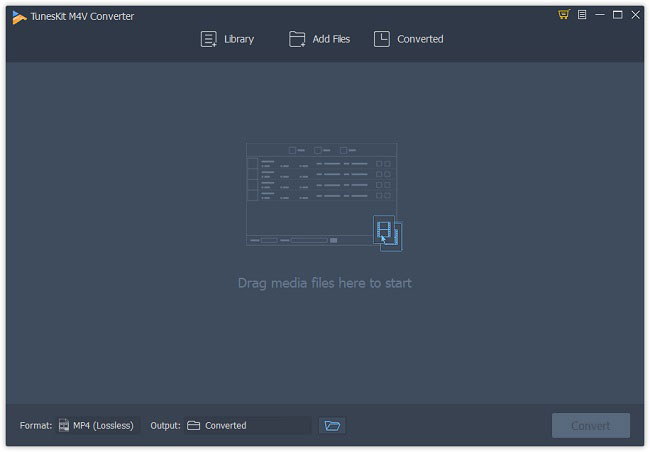
At first, you need to add your target iTunes M4V videos to the program after completed the installation. You can simple click the "Library" button on the top menu bar and select the ones you'd like to burn to DVD. Or you can simply drag and drop your iTunes moves to the app.

Step 2 Choose audio tracks and subtitles (optional)
select output audio tracks
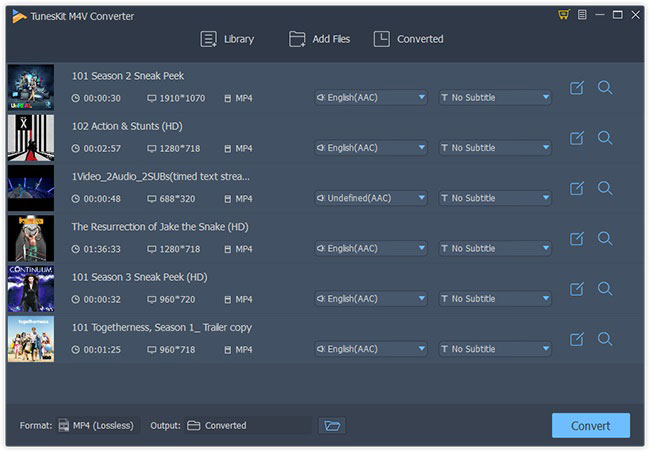
Next you're freely to choose special output audio tracks and subtitles next to the column of each track. If you don't want to change anything, you can keep all the audio tracks and subtitles by default after conversion.

Step 3 Select output format

choose mp4 output format
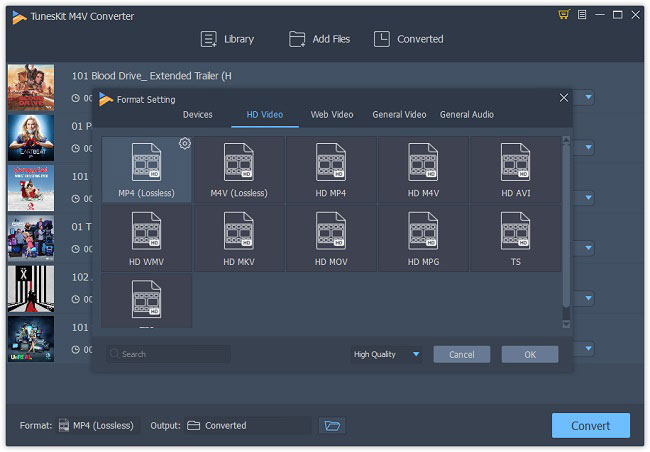
Next click the "Format" panel and choose the MP4 (Lossless) as output format which is supported by DVD player. You can also change the codec, bit rate, and other parameters by clicking the 'Gear' icon on the top right corner of the format profile.

Step 4 Remove DRM and convert iTunes M4V videos
convert itunes m4v to mp4
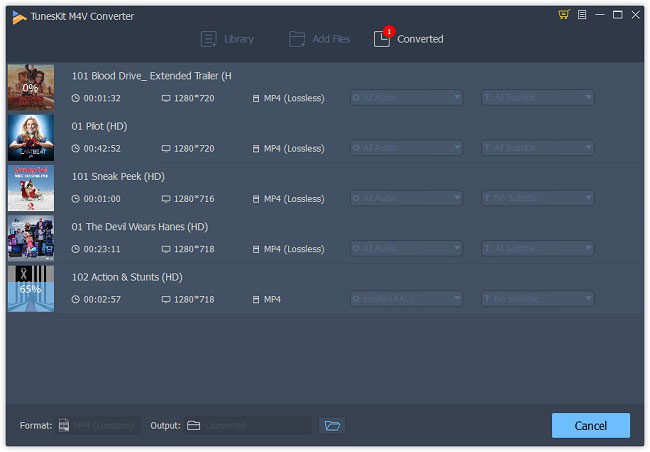
After that, just click the "Convert" button to and it will start to convert iTunes M4V to MP4 at 30X faster speed. You will find all the converted DRM-free videos at the "Converted" folder soon.

Part 2. Burn Unprotected M4V Videos to DVD

Now you've got a lot of unprotected iTunes movies and the next step is to burn M4V to DVD. There are multiple free DVD burners on the internet that can help you burn DRM-free M4V to DVD such as Ashampoo Burning Studio Free, BurnAware Free, WinX DVD Author, etc. Here we just take WinX DVD Author as an example.
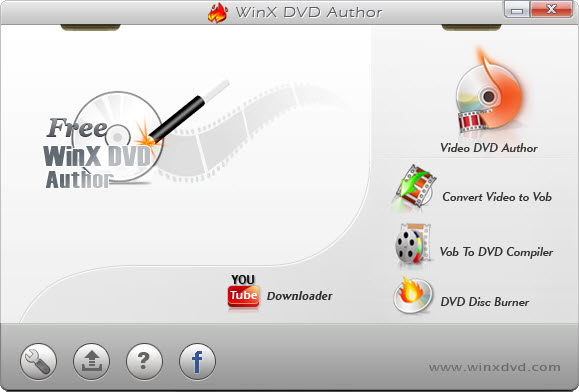
convert m4v to dvd with winx dvd author
Step 1. Insert a blank DVD disk first and then open WinX DVD Author once you finished the installation. Choose the "Video DVD Author" option to begin.

Step 2. Click on the "+" icon to add the converted MP4 files you want to burn and then press the ">>" icon to continue.

Step 3. Preset the preferences for your DVD file. You're allowed to choose or add a background picture, text, music or add title menu or chapter menu, etc.

Step 4. Select output folder and output formats and then click the "Start" button to start the conversion. Wait a while until the process ends.

Next time when you want to burn iTunes M4V movies to DVD disc, you can follow this guide to have a try. 

Source: https://www.tuneskit.com/drm-m4v-to-popular-formats/convert-m4v-to-dvd.html

Dec 8, 2014

Tutorial to Burn iTunes Movies to DVD with iTunes to DVD Converter


With the development of electronics, more and more people tend to like watching movies on portable devices other than on traditional DVD players. However, no matter how the times change, we can’t deny the importance of those traditional digital devices in our lives and the fact that there will always come a time when we need to play movies on home theater systems via DVD player.

Suppose that you have saved a large number of movies and TV shows in iTunes library. In order to free up the space, you may need to burn those iTunes movies to DVD for backup. But you will find it’s impossible to burn iTunes movies to a normal DVD directly if you tried to do so. That’s because movies and TV episodes purchased from iTunes Store are protected by DRM technology, with which we can’t directly burn the locked movies from iTunes to DVD discs unless we remove the DRM protection from the locked movies.

In this article, we will guide you to get rid of the DRM and burn iTunes movie purchases to DVD on Mac with ease.

Firstly, to remove DRM from purchased iTunes movies, we will need a professional iTunes DRM removal tool. And before burning the DRM-free iTunes movie purchases to DVD, we have to convert the iTunes videos to DVD burner compatible format, such as MP4. In this case, TunesKitiTunes to DVD Converter for Mac can be of great help. It is an iTunes FairPlay DRM remover as well as iTunes video converter. It can not only bypass DRM from iTunes movie purchases but also convert the DRM-protected iTunes videos to MP4 format supported by most DVD burner software on Mac. With this iTunes to DVD Converter in hand, you can be relieved every time when you need to burn iTunes movies to DVD for playback on home HDTV.

Now you may download the trial version of TunesKit iTunes DRM Video Converter for free and follow the instructions below to see how to burn purchased movies from iTunes to DVD discs on Mac.

Steps to Convert iTunes DRM Movies to DVD on Mac with TunesKit

Step 1. Launch TunesKit iTunes to DVD Video Converter. Click “Add Files” button on the program interface to select iTunes movies and TV shows you want to burn to DVD from the drop-down list. Click “OK” to load all the selected iTunes movie files to the converter.
Note: If you can’t find the movies from the drop-down list, you can also add the iTunes movies by directly dragging and dropping the files to the program.

Step 2. Customize output folder by clicking the “Output” option in the program. Otherwise all the converted iTunes movies will be saved in the “Converted” folder as default. Then you can click “Settings” icon listed behind the movie names to select output audio tracks and subtitles.

Step 3. Click “Convert” button to begin to remove DRM and convert iTunes movies to MP4 for DVD burner. Wait for a while and you can find the DRM-free iTunes movies in the output folder.

Step 4. Open the DVD burner program on Mac and you can begin burning iTunes movies to DVD easily and freely.


Once the burning finished, you can freely play any iTunes movies and TV shows on DVD player or TV.