Showing posts with label iphone data recovery program. Show all posts

Sep 8, 2020

5 Best Ways to Recover Lost WeChat Messages on iPhone

 We often use WeChat on the iPhone to send messages to our friends and family, so the application saves a lot of our important messages. But if one day these data are deleted by mistake or lost for no reason, how do we get them back completely? Well, this page gonna introduce 5 best methods to recover lost or deleted WeChat messages on iPhone.

Part 1. "Recover" deleted Wechat messages from another iPhone

Among all the Wechat restoring situations, one general case could be that you changed the iPhone and need to recover the Wechat history from the old device to the new one. Then how to achieve that? First, you have to switch on Wechat Migration. You can try the following steps.

Step 1: Open Wechat app on iPhone and click Settings.

Step 2: Tap General and find the Chat Log Migration.

Step 3: Click Select Chat Transcript.

After turning on Wechat migration, you should scan the QR code that appeared on the interface with another iOS device to log in to your Wechat accounts. Finally, your previous Wechat messages and history will be transferred to another iPhone successfully.

Part 2. Restore lost Wechat chat history with backup

If you don’t have another iPhone you trust yet have data backup on iPhone by lucky coincidence, then following fixes are worth trying to recover lost Wechat chat history and messages on iPhone.

2.1 Recover from iPhone immediately

To retrieve erased Wechat pictures, videos and the like on iPhone through this method, you need to have backup related data before. If you did, please follow below steps.

Step 1: Turn on Wechat app on iPhone and click Me button.

Step 2: Tap Settings>Chat>Chat history.

Step 3: Click Backup/Restore Chat History.

Step 4: Tap backup file and restore.

2.2 Restore from iTunes backup

Additionally, you can also get lost Wechat data like photos and messages on iPhone back from iTunes backup, if you previously made backup of your iPhone on computer via iTunes. Here’s how to restore the iPhone backup with this way.

Step 1: Open iTunes on computer and connect iPhone to computer.

Step 2: Tap Device button on the left.

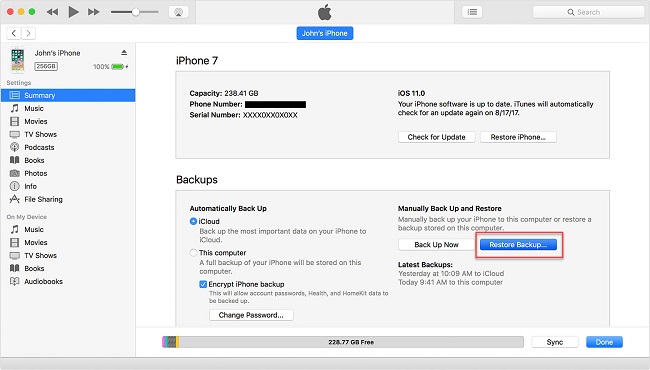
Step 3: Click Restore Backup in Summary and then the process will get started.

2.3 Retrieve from iCloud backup

Similar to restore from iTunes backup, if you have backed up iPhone on iCloud, bringing back deleted Wechat messages and other files on iPhone through iCloud backup can be possible. Followings are what you should do.

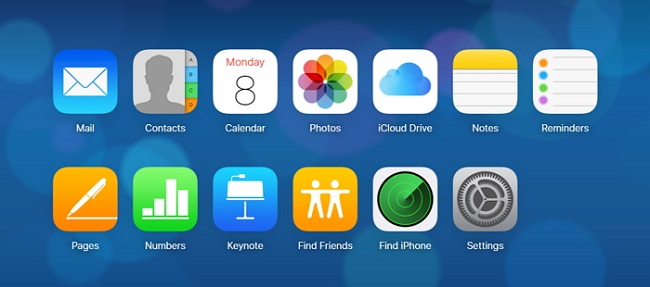
Step 1: Open iCloud official website on your computer and sign in it by entering your Apple ID and password.

Step 2: Tap Settings.

Step 3: Then many files including Wechat messages and chat history will appear. In this case, choose the data you would like to recover.

Step 4: Click Restore files and then wait until the recovery finishes.

recover lost data from ipod by icloud

Part 3. Retrieve erased Wechat data on iPhone without backup

However, what if unfortunately you don't have your Wechat data backup, which cannot recover lost Wechat pictures and chat history via iTunes or iCloud backup? In this case, you are supposed to use professional iOS data recovery tools likeTunesKit iPhone Data Recovery. This program can quickly restore lost data, including even encrypted files. Apart from recovering Wechat messages, it can also get back other kinds of data on the iPhone. No matter what reasons that result in data loss including mistaken deletion and unexpected loss, TunesKit iPhone Data Recovery can rescue them. Moreover, it supports many kinds of iOS devices including iPhone 11 Pro Max, iPhone Xs, iPhone 8 Plus, etc. Previewing required data before recovery and full compatibility to the latest iOS 13 are essential parts, too. Last but not least, this software can retrieve erased data while causing no data loss.

Step 1: Open TunesKit iOS Data Recovery software on your computer and make your iPhone and the computer connected. Then choose "Recover from iDevice" from the top column. If it is the first time for you to use the program to recover data, you have to click trust to the computer.
connect iphone to pc

Step 2: After the device and different files appear on the interface, choose the categories on the right column that need to be scanned. Then click the Scan button and the program will begin scanning. At this time, you will see the percentage it is scanning.
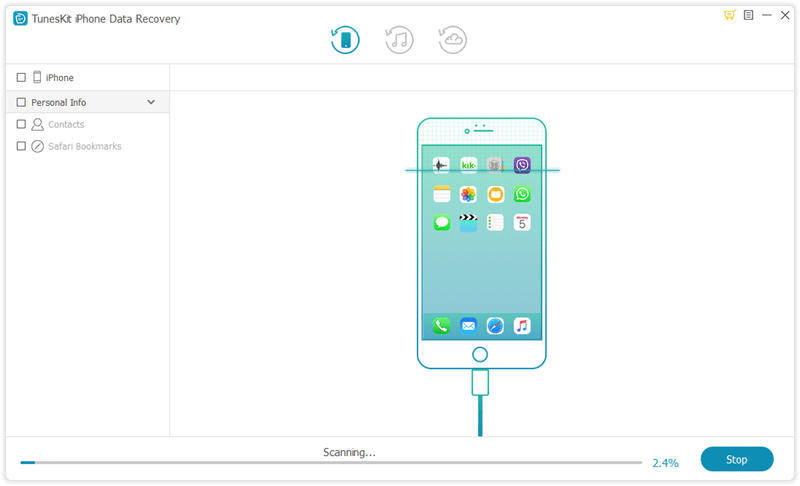
scan dead iphone

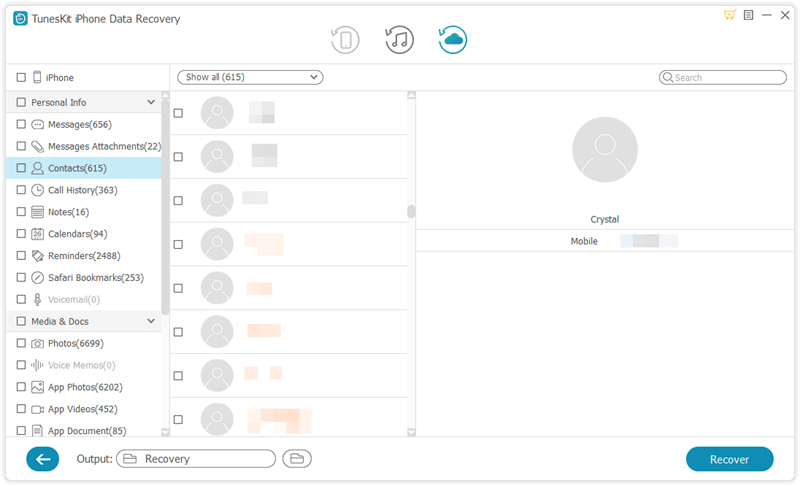
Step 3: Then all files scanned will be shown on the left. Before you click the Recover button, you can preview the Wechat message, chat history, or other files you want to retrieve from the "App Documents", "App Photos" and "App Videos" column. After that, the software will start to bring your data back. Besides, you can set the formats of output files on the left corner.
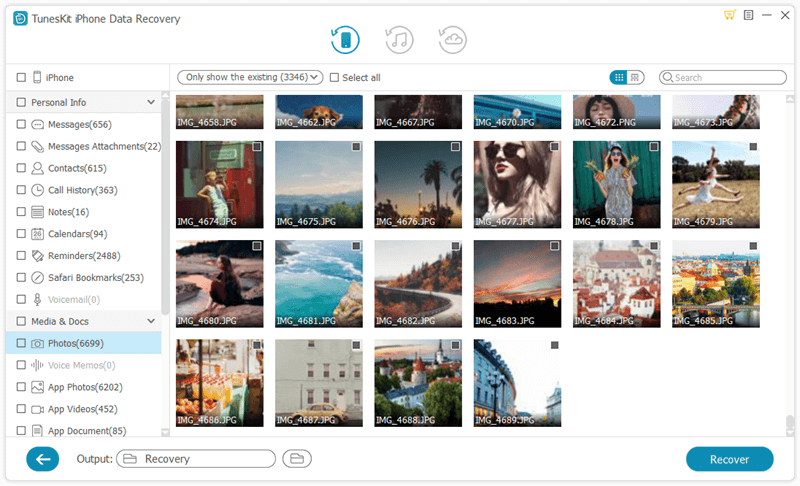
Final thoughts

In the end, I want to stress again that the best way to retrieve lost or deleted WeChat messages on iPhone is by using professional iOS Data Recovery tools such as TunesKit iPhone Data Recovery. Come and give it a try.

Aug 31, 2020

How to Recover Deleted WhatsApp Photos from iPhone

 The WhatsApp messaging is a warmly welcomed application by people in the world. It allows them to send messages, save photos, videos, and other kinds of files. However, they may unexpectedly delete related photos and they feel very regretful. But don't worry, this article will teach you how to recover deleted WhatsApp photos from iPhone with the top 3 ways.

The tool you will need: WhatsApp Photos Recovery

As a matter of fact, if you are looking for an efficient iOS data recovery tool, which is designed to restore lost or deleted photos from WhatsApp on iPhone, then TunesKit iPhone Data Recovery would be your ideal selection. The reason making TunesKit iPhone Data Recovery stands out from all iOS data recovery software is that its fastest speed of retrieving lost and deleted files on iPhone, iPad, and iPod touch. Besides, no matter how you lost the photos from WhatsApp on your iPhone, whether it's due to password lock, jailbreak failure, water damage, or other factors, you can easily get those lost WhatsApp photos back as long as using the iPhone Data Recovery launched by TunesKit Software.


1. Recover Deleted Photos from WhatsApp without Backup

Step 1: Download and launch the software

First of all, download and install TunesKit iPhone Data Recovery for Mac/Windows on your computer, connect your iPhone to it using a USB cable and choose the recovery mode as the default one "Recover from iOS".


Step 2: Scan for lost photos

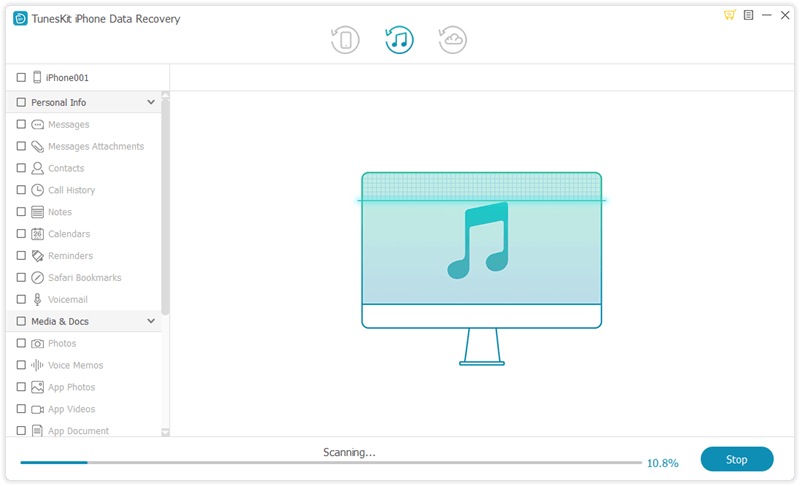
When the program succeeds to detect your device, click Scan button and it will start scanning all the deleted files on your iPhone, which takes a while to finish, depending on the storage of your device.


Step 3: Preview and recover WhatsApp photos
You will be able to view all recoverable file types being displayed on the screen after scanning has competed. Go to WhatsApp Messages & Attachments and check the photos you wish to revert and tap on Recover. Those photos will be backed to your computer instantly.


2. Recover Deleted WhatsApp Photos from iTunes Backup

Step 1: Choose iTunes backup files

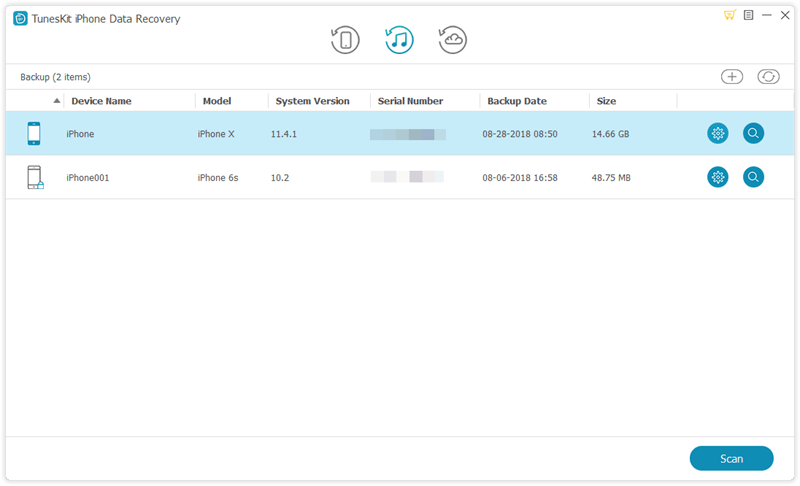
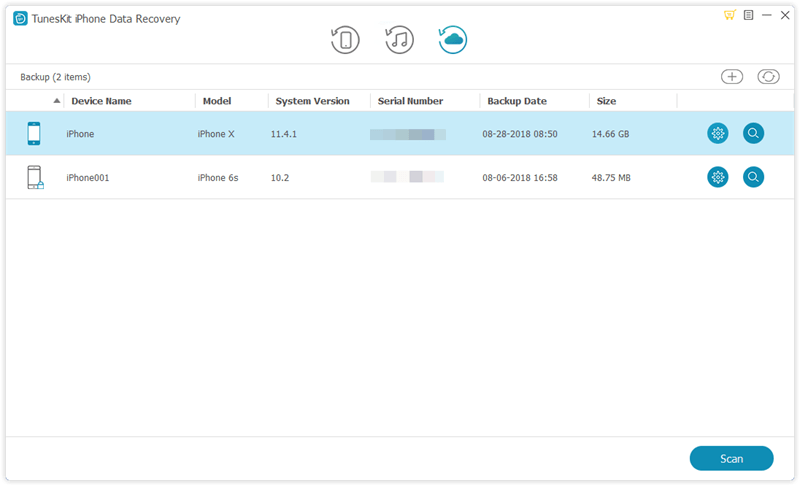
Run TunesKit iPhone Data Recovery on your computer and choose the second recovery mode "Recover from iTunes Backup" from the main interface. Then the program will start detecting all iTunes backup files on your computer.


Step 2: Scan iTunes backup

You will see a window appears with backup files. Select suitable file and click on "Scan" button. Tap the "gear" icon of the backup column and choose the file type you need if you only need to extract selective data from the iTunes backup.


Step 3: Recover from iTunes backup

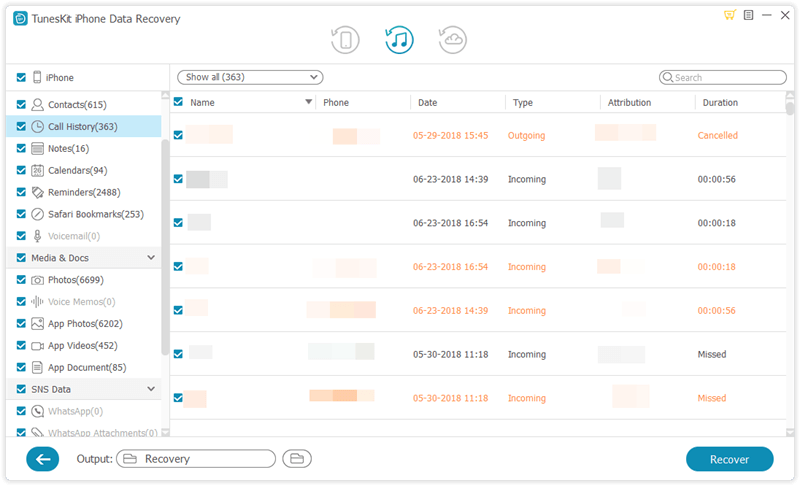
At this point you can check WhatsApp Messages & Attachments to see the specific images you would like to restore, select those photos and click on Recover option to recover lost WhatsApp photos from iPhone to your computer in seconds.

3. Recover Deleted WhatsApp Photos from iCloud Backup

If you have synced and backed up all iPhone data including Kik messages to iCloud, you can also use TunesKit iPhone Data Recovery to restore the lost Kik files from iCloud backup in three steps:
Step 1: Log in iCloud account
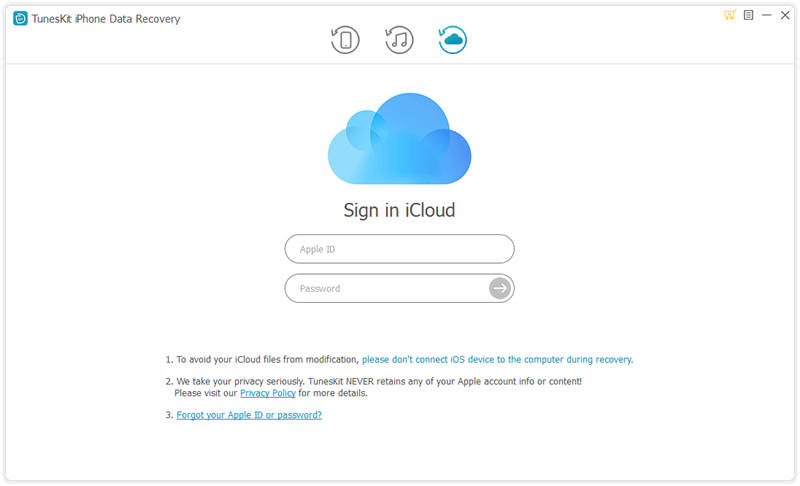
Open TunesKit iPhone Data Recovery, set the recovery mode as "Recover from iCloud Backup". Here you need to enter your Apple ID and password to log into iCloud account.


Step 2: Quick scanning

You'll see all backups from your iCloud account on the window after logging in, choose the appropriate one and tap the "Download" option, then select WhatsApp Messages & Attachments and click "Next" to download those files.


Step 3: Recover from iCloud backup
When the program finishes scanning, preview the files one by one and choose the photos you want to get back and then tap on the "Recover" button, in this way, you will be able to see those deleted WhatsApp photos on your computer.

Conclusion

Of course, other products' official solutions, iTunes and iCloud can bring deleted or lost WhatsApp photos back on the iPhone. But if there is something wrong with the iCloud and iTunes, TunesKit iPhone Data Recovery is your top choice to achieve your end.

Aug 16, 2020

Top 4 Ways to Recover Photos from Locked iPad

 "How to recover my photos from a locked iPad?" Did you search these words on the Internet? When this situation occurred to many people, they will hard reset their iPad. However, this method will delete all your data on the iPad. So after you happened to this problem, don't worry and be hasty, as there are other ways to retrieve your photos from a locked iPad. Check the following 4 simple fixes.

First, you will need an iPhone Photo Recovery tool. It is essential to back up your iOS devices in case a similar case may occur again. But if you are unfortunately to be one of the victims, just stay calm, recovering photos from a locked iPad is easy to accomplish on the condition that you get TunesKit iPhone Data Recovery, one of the most efficient iOS data recovery tool that allows you to preview all the missing files one by one in the original form before the recovery. In addition, this program also implements selective recovery which means that you can choose specific files to recover after it scans all recoverable data, making the recovery more flexible and precise. Moreover, it recovers over 20 types of data including photos, videos, contacts, call history, iMessages, notes, etc. Finally, Supports a wide range of iOS devices including iPhone XS, iPhone 8, all models of iPad Pro, iPad Air, iPad mini, iPad, and more.
1. Retrieve locked iPad photos from iTunes backup

If you only want to recover photos on your locked iPad instead of the entire iTunes backup file, then you can take this method to achieve the goal. Simply follow the detailed steps below to learn how to recover photos from a locked iPad via iTunes backup with TunesKit iPhone Data Recovery.
Step 1: Select iTunes backup files
Start by downloading the program on your computer. Install it and select the second mode "Recover from iTunes Backup" from the main window.

itunes backup

Step 2: Scan lost photos
The program will start to detect all the iTunes backup files on your computer. Select the one that contains the lost photos and then tap the Scan button to let the program extracting the backup file for your lost photos.

scan itunes backup

Step 3: Recover photos from iTunes backup
You can preview all the recoverable files one by one after scanning. Select the photos you want and click the Recover option to revert them to your computer at once.

recover iphone data from itunes backup

2. Get them back from iCloud backup

If you have backed up your iPad to iCloud in advance, then you can take this method. Simply follow the instructions below to learn how to retrieve photos from the iPad after restore via iCloud backup with TunesKit.

Step 1: Log into the iCloud account
Open TunesKit iPhone Data Recovery on your computer and choose "Recover from iCloud Backup" mode. Enter your Apple ID and password to log into the iCloud account.

sign in icloud

Step 2: Download iCloud backup file
All the iCloud backup files will be shown in the resultant window. Select the appropriate one that contains the lost photos and tap the Download button. From the new pop-up, choose the Photos and then click the Next button to download them.

download icloud backup

Step 3: Recover photos from iCloud backup
As soon as it finishes scanning, all lost data will be displayed under different categories. Choose the photos you want and then hit the Recover button to get them back instantly.

recover iphone data from icloud backup

3. Reset the locked iPad and recover photos through iTunes

There is another solution to recover photos from a locked iPad which needs you to erase your device before restoring the entire iTunes backup. Here's how to do it.

Step 1: Launch iTunes on your computer and connect your iPad to it with a USB cable.

Step 2: Wait until iTunes sync your device successfully. Tap the Restore iPad option and then follow the prompts on your iPad, next select Restore from iTunes Backup in the interface.

Step 3: Choose the exact backup you want to restore your iPad.

restore from itunes backup

4. Reset l the locked iPad and recover photos by iCloud

Now that your iPad was locked, you can use iCloud to remove the password and restore it if you have enabled Find my iPhone Feature on your device. Follow the instructions below to do it.

Step 1: Visit the website www.iCloud.com and log into your iCloud account as required.

Step 2: Tap on All Devices button at the top of the interface, select the locked device you want to erase.

Step 3: Tap Erase iPad and the password will be removed, so do the device data. Of course you can restore the device from a backup later.

recover icloud backup

Verdict

Finally, we sincerely hope that this post can help you and you can get a lot of value from it. When you meet with this issue of recovering photos from a locked iPad next time, you can use this reliable iPhone data recovery tool to bring them back.


Aug 11, 2020

How to Recover Contacts on Broken iPhone Effectively


Have your iPhone ever fallen to the ground and it didn't respond no matter how many times you tap it? At this time, you want to open contacts but it won't. Don't worry! This blog will show you how to recover contacts from a broken iPhone with three methods. Whether the iPhone can't be opened or it was damaged, you can get a lot of value from this to get your problem solved.

Way 1: Recover through iCloud


If you have backup your data on the iPhone to iCloud before the broken incident happened, then you try exporting the vCard to get all your contacts back. Please try the following steps.

Step 1: Visit the website iCloud.com and log in to your iCloud account as required.

Step 2: Find contacts and tap the "gear" icon on the upper-left corner.

Step 3: Tap on Select App Option and then click "Export vCard..." At this point, all the contacts stored on your broken iPhone will be back to your computer in the .vcf folder.

Way 2: Retrieve by using the third-party tool


The question of "Can you recover contacts from a broken iPhone?" is common from our website community. In fact, the problem is not difficult to fix as an efficient iOS data recovery tool -- TunesKit iPhone Data Recovery will satisfy your needs to recover lost data by providing 3 smart recovery modes. namely, Recover from iOS, Recover from iTunes Backup as well as Recover from iCloud Backup. In addition to contacts, it is also capable of retrieving other files such as call history, text messages, calendar, photos, notes, videos and others adding up to 20 kinds of data from your device. The functions of preview data and selectively recovery guarantee the flexibility and accuracy of the data retrieval. What's more, it supports both Windows and Mac operating system so that you can use the comprehensive tool to perform recovery according to your needs.

2.1  Recover Broken iPhone Contacts from iCloud Backup Selectively


As is known to us all, the official way Apple offers to complete the restoration using iCloud needs erasing all the current files on your device, which may bring other data loss issues inevitably. With TunesKit iPhone data recovery, you don't have to worry about this problem. Simply follow the step-by-step guides below to recover contacts from broken iPhone via iCloud backup selectively.

Step 1: Log in to the iCloud account

Launch the program and set the recovery mode as "Recover from iCloud Backup" from the window. Then enter your Apple ID and password to log into the iCloud account.

Step 2: Download iCloud backup file

The software will begin to find all your iCloud backups after you logging to the account. Then choose the specific iCloud backup file that contains the lost contacts of your iPhone. Click the Download button, then select Contacts and click on the Next button to download them from the iCloud backup.

Step 3: Recover contacts from iCloud backup

When the scan finishes, almost all lost and existing data will be shown in the main interface. Choose the contacts you want after previewing them, finally tap the Recover button to save them back to your computer as expected.


2.2. Restore Broken iPhone Contacts from iTunes Backup Selectively


This method is highly recommended if your iPhone can neither open normally nor detected by the computer, but you have synced your device to iTunes before it has broken. Now let's start taking a look at how to recover contacts from broken iPhone via iTunes Backup Selectively.

Step 1: Choose iTunes backup file 

Open TunesKit iPhone Data Recovery and select the second mode "Recover from iTunes Backup". Wait for a few minutes while the recovery software is detecting all iTunes backup files on your computer.


Step 2: Scan lost contacts from iTunes backup

Choose the correct iTunes backup file and tap the Scan button, then the program will extract all deleted or lost files from the backup. You can also select Contacts only by clicking the "gear" icon of the backup file.

Step 3: Recover contacts from iTunes backup

When it completes scanning, all recoverable data in the iTunes backup will be listed in different categories. You are allowed to preview them separately and choose the exact ones you want. Click the Recover button after selection to get them back to your computer instantly.

Conclusion


By using the professional data recovery tool, you can recover contacts from a broken iPhone via iTunes or iCloud backup easily and effectively. Moreover, this program can fix your problem without causing data loss. Lastly, it has full compatibility with almost all iOS devices including iPhone 11 Pro Max, iPhone 11,iPhone 7 Plus, etc, all models of iPad and iPod Touch 5. Just give it a try now and you will receive a lot.


Jul 12, 2019

[2019 Review] Top 10 iOS Data Recovery Tools


Q: "I've tried to update my iPhone software to iOS 13 but it failed during the process, and I lost all my data! I heard some iOS data recovery programs can help you get my photos, contacts and other data back, but there are so many such software in the Internet. How can i pick a useful one?" - Jack from Apple Discussion

Like Jack, most of us may encouter such data loss in our life. Actually it's not an easy thing to get a suitable iOS data recovery software from hundreds of similar programs. After done some survey and tests, we have collected top 10 best iOS data recovery tools in 2019, with pros and cons provided for your reference. Next let's start.

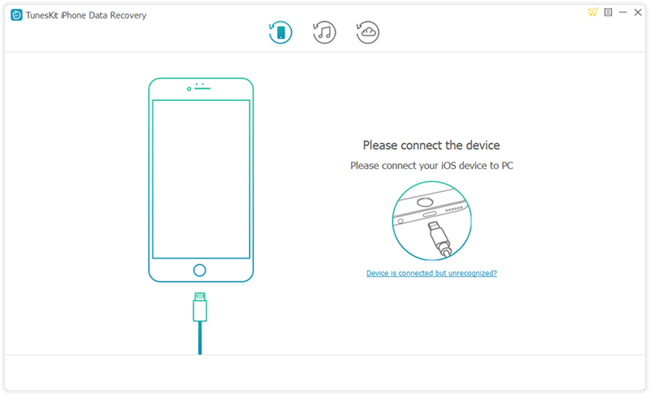
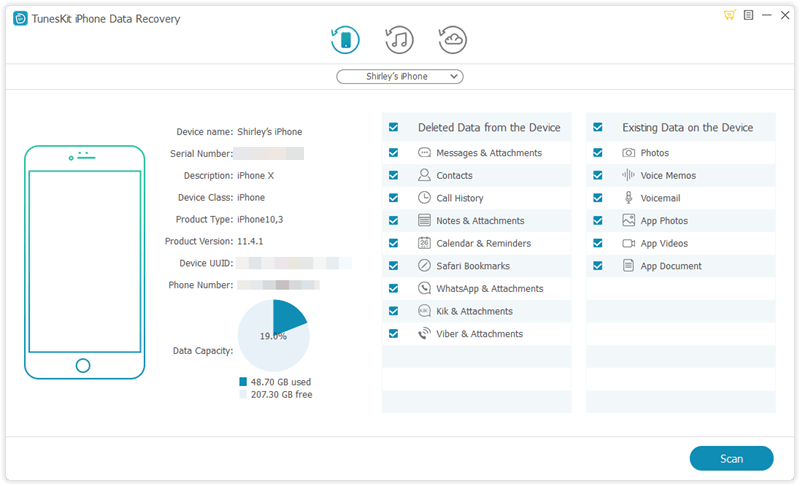
1. TunesKit iPhone Data Recovery

TunesKit iPhone Data Recovery is very credible data recovery software that will recover a vast range of lost data files and will carry out this operation very fast. It has a preview function and will allow you to select the file types that you want to be recovered. It is prided as the best iPhone data recovery software 2019 in terms of efficiency and speeds in executing the recovery process. It also recovers files of large sizes. It recovers lost data in three ways, namely, recover from the device, recover from iTunes backup and recover from iCloud backup.
tuneskit ios data recovery
Pros
  • Fast data recovery speed.
  • Supports various data loss cases.
  • Recovers over 20 file types of different formats.
Cons
  • Trial version does not allow saving of the recovered files

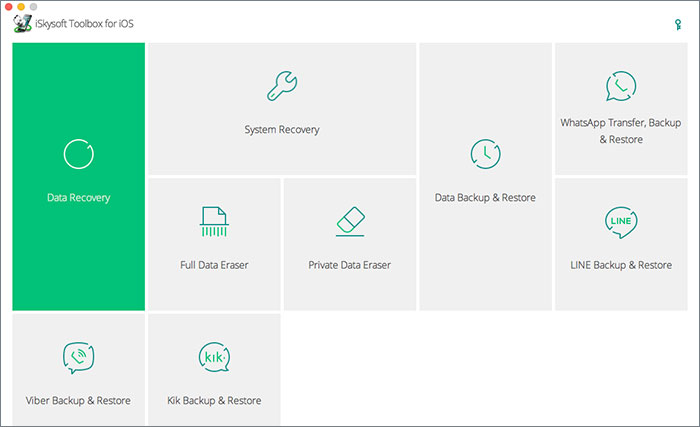
2. iSkysoft Toolbox for iOS

This is among the best iOS data recovery software that will recover your lost files very quickly. It executes its recovery protocol in three ways, which are recovery from iOS device, recovery from iCloud backup storage and recovery from iTunes backup files. Its operation format makes it possible to recover over 20 file types from calendars, notes, and images among many others.
iskysoft iphone data recovery
Pros
  • Recovers a vast range of file types.
  • Easy to use software.
  • Compatible with older iOS devices.
Cons
  • It is very expensive on purchase.

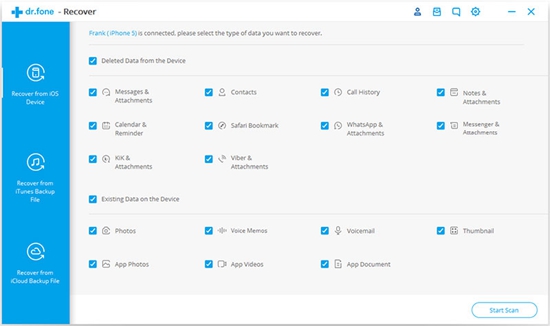
3. Dr.fone - Recover

This is top-ranked software in iOS data recovery and it prides itself in the aspects of speed, efficiency, and proficiency. Dr.fone - Recover has a high rate in recovery of lost files and operates in three intricate steps in the path to recover your data. These three steps are the connection of your device, scanning, and preview of data and finally the recovery of your data. This simplicity in operation has earned it lots of applauses on clients who have used its services.
drfone ios recovery software
Pros
  • Very fast in data recovery.
  • Simplicity in operation.
  • Easy to understand its operation module.
Cons
  • Relatively expensive on purchase.

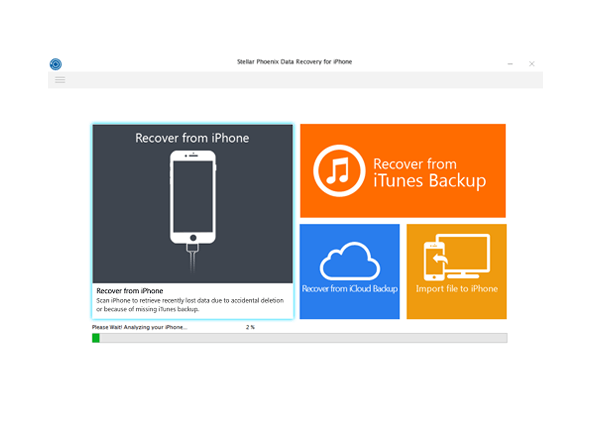
4. Stellar Data Recovery for iPhone

It is awesome software that will recover lost data for all iOS devices including the earlier versions such as iPhone 4 and iPhone 4s. It does not require technical expertise to operate and is very efficient in its data recovery process. Another superb feature of this iOS recovery software is the selective recovery feature that will let you have a preview of the lost data and select the files which you want to be recovered.
stellar iphone data recovery
Pros
  • Gives a preview of files to be recovered.
  • It is able to recover large files.
  • Compatible with older iOS devices.
Cons
  • Slow and time-consuming scanning process.

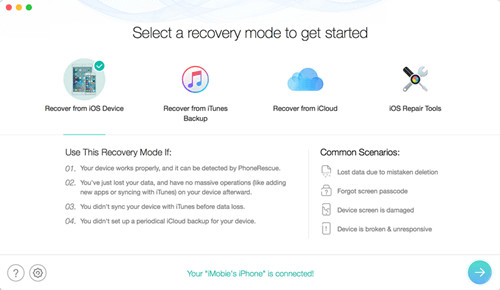
5. iMobie PhoneRescue for iOS

This is another notable recovery application for iOS devices that is rated highly by its previous users on the parameters of efficiency and speeds in operation. Its recovery process is straightforward and you can select to either recover from the device, the iTunes backup or the iCloud backup.
phonerescue for ios data recovery
Pros
  • Supports over 31 file types.
  • Safe recovery mode that will prevent the recovery of malicious files.
  • Offers three modes of recovery that are efficient to restore your data.
Cons
  • The free edition is limited when it comes to features.

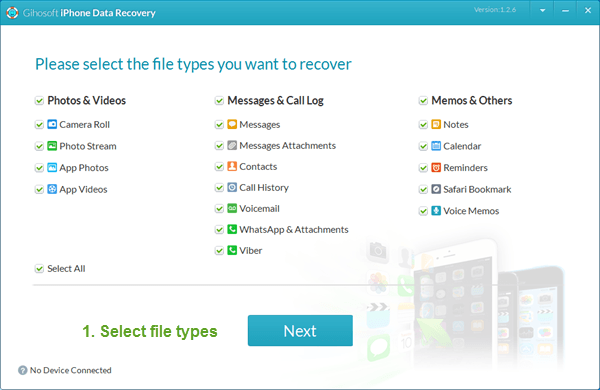
6. Gihosoft iPhone Data Recovery

This software can be considered as the best free iOS data recovery software in 2019. This software will recover up to 16 types of data from iPhone in a very quick and effective way. It will recover your lost data courtesy of incidences like a locked phone, accidental deletion of data or even damage to your device. It sums up all its great features with its cost free aspect that is a deal not to be overlooked.
gihosoft iphone data recovery
Pros
  • Recovers up to 16+ types of data files.
  • Supports al iOS devices both new and old versions.
  • Recovers from the device, the iCloud backup, and the iTunes backup.
Cons
  • Its pro version with more lucrative features is not free on download.

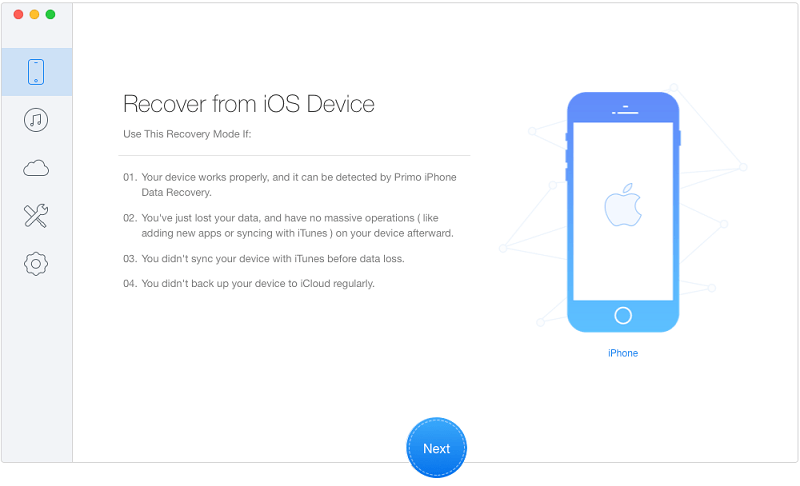
7. Primo iPhone Data Recovery

This is superb software that will recover your lost data from your device with an easy to navigate interface. Its operation does not require any technical skills and will execute your recovery relatively fast. Apart from the recovery of your files, this software will also fix issues such an upgrade error on your device.
primo iphone data recovery
Pros
  • User-friendly interface that is very easy to comprehend and use.
  • Provides selective recovery of your lost data.
  • Has a feature that will fix issues such as upgrade errors or hanging device.
Cons
  • Its trial version does not allow for the saving of the recovered data.

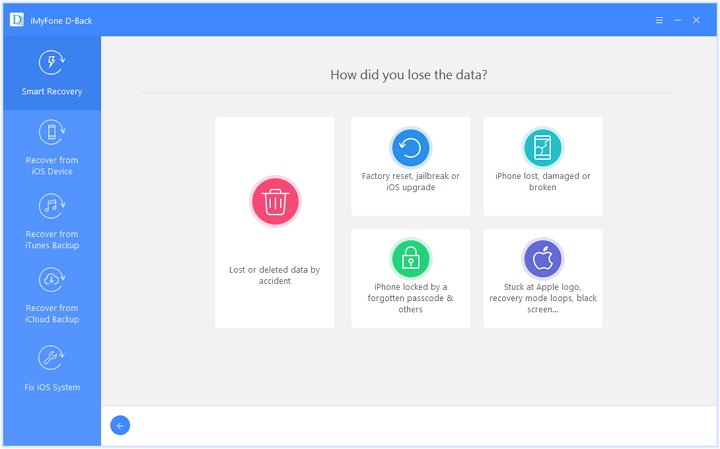
8. iMyFone D-Back

This is a very superb recovery partner for your iPad and comes with awesome features such as quick recovery speeds and selective recovery. With the easy to navigate user-interface that does not need any technical background, this is the to-go software for your recovery needs.
imyfone d-back ios data recovery
Pros
  • Recovers large files.
  • Prevents the recovery of malicious data that may contain viruses.
  • Has a preview that will let you choose the files that you want to be recovered.
Cons
  • The trial version has limited features.

9. EaseUS MobiSaver

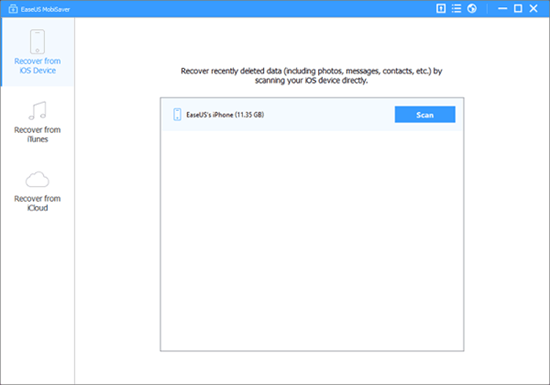
EaseUS MobiSaver is very efficient iOS data recovery software that will let you recover your lost files very fast. It has an easy to use interface that promotes easy navigation. It also provides a clear step by step guide on the execution of this process.
easeus iphone data recovery
Pros
  • An easy to understand interface that also provides a guide for your best experience.
  • Fast data scanning and recovery process.
  • Recovers data from the device, the iCloud backup, and the iTunes backup.
Cons
  • Bound to have some connectivity issues.

10. Joyoshare iPhone Data Recovery

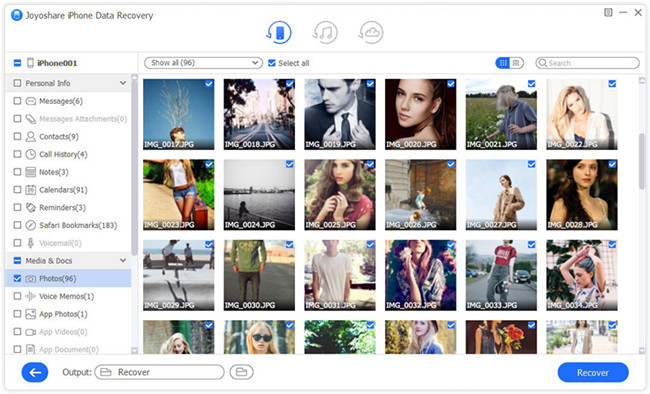
Joyoshare iPhone Data Recovery is a very smart and easy to use iOS data recovery software for both Mac and Windows users. You can use it to easily recover data via iTunes backup, icloud and iOS. By adopting some special unknown technologies, Joyoshare works much faster than other similar iphone data recovery tools.
joyoshare ios data recovery
Pros
  • Incredible fast working speed.
  • Easy to use interface make you handle easily.
  • Support a vast range of data type for recovery.

Cons
  • Lack of some iOS version support to use iCloud recovery mode.

Hope this review is helpful to you. Any more solutions or suggestions, please feel free to leave your voice below.

Source: https://www.tuneskit.com/iphone-recovery/2019-best-ios-recovery-software.html