Showing posts with label ios recovery software review. Show all posts

Aug 20, 2020

Easily Fix iPad White Screen in 5 Ways

 iPad getting stuck on the white screen is one of the common issues among diverse kinds of iOS problems. There are many reasons behind it, for example, iOS update failure, software errors. But despite the causes that lead to this matter, it is fixable and next we are going to introduce the 5 most effective and useful solutions to work out this trouble.

Way 1: Hard reboot your iPad

Generally speaking, force restarting your device is a simple yet effective method to solve iOS stuck problems. iPad stuck on a white screen is no exception. You can simply hold the Power button and Home button simultaneously for about a few seconds until the Apple logo shows up. It will restart again and you can check whether the problem is solved.

Way 2: Try the three-button trick

This method is not always working, according to the reports from many iOS users. But it still worth a try, what if you succeed? The steps are very simple. Just press and hold the Home button, Volume Up button, and then Power button for a while and wait until the white screen on your iPad disappeared. 10 seconds later, the Apple logo will appear and your iPad will reboot again.

Way 3: Use TunesKit iOS Repair with almost 100% success rate

After trying to hard reset your device by using the two methods above, if the white screen problem still exists, you can consider using a professional iOS system recovery tool to fix it. TunesKit iOS System Recovery is such a comprehensive and efficient iOS repair program that is specially developed to fix up to 30 iOS-related issues. These problems include iPhone stuck on the white Apple logo, iPad won't turn on, iPhone black screen of death, blue screen, red screen, etc. The most powerful characteristic of this tool is that you will never worry about the data loss when using it to fix iOS system problems. What's more, it supports all iOS including the latest iOS 12 and almost all models of iPhone, iPad, iPod touch.

Step 1: Launch TunesKit iOS System Recovery program and use a USB cord to connect your iPad to the computer. Then click the Start button and choose the Standard Mode which will not cause any data loss. Press the Next button to continue.
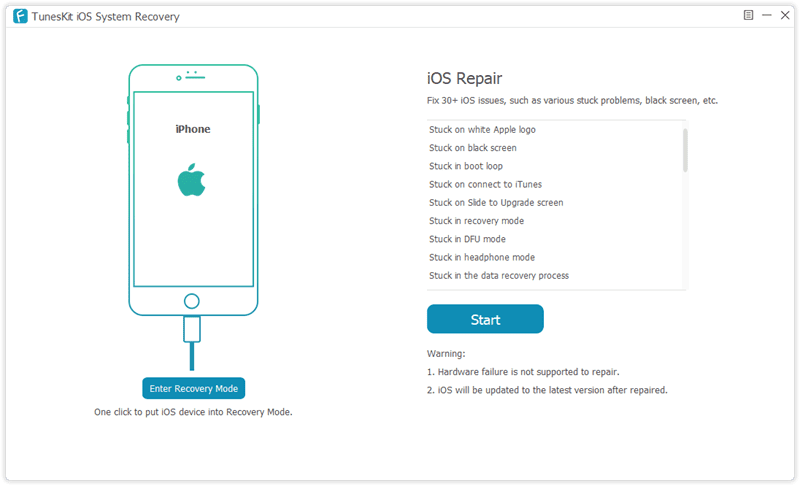
Step 2: Now your need to check your device info such as model name, iOS version, etc. If nothing is wrong, you can simple hit the Download button to ask TunesKit to download the firmware package you need.

Step 3: Once the download and verification of firmware package is completed, you can start fixing white screen problem by clicking the Repair button. Wait until the process bar ends. Remember not plug your device during the process, or your device may get bricked.

Way 4: Put your iPad into recovery mode

Another solution to fix the iPad stuck on the white screen is to try restoring your iPad with iTunes. It will reinstall iOS on the iPad, so all the data your device will be effaced, but you can use TunesKit iPhone Data Recovery to get them back. Or if you don't mind, you can follow the quick steps below.

Step 1: Open iTunes and update it to the latest version. Connect iPad to your computer via a USB cable;

Step 2: Since your iPad is in a white screen state, it can't be detected by iTunes. You need to put it into the recovery mode. You can first hold the Power and Home buttons at the same time for about 10 seconds, and release the Power button and only hold the Home button until you see the Apple logo. Keep holding it until the Connect to iTunes icon appears;

Step 3: Once your device entered the recovery mode successfully, choose Restore iPad and wait until the process is finished. You can now set up your iPad as a new device.


Way 5: Restore your device in DFU mode

Alternatively, you can also put your iPad into the DFU (Device Firmware Update) mode and then use iTunes to restore it. Also, all the data on the iPad will be erased. Here is how to fix the iPad white screen problem using this method.

Step 1: Connect iPad to the computer and then launch iTunes;

Step 2: Switch off the iPad and hold the Power button and Home button simultaneously for 10 seconds. Then release the Power button and keep holding the Home button. If you see the "Plug into iTunes" message, you need to repeat the process; if the screen turns black, your iPad has entered the DFU mode now;

Step 3: iTunes will ask you to Restore the iPad and confirm the action. After it's done, your problem should be solved.

Verdict

Now you have known the best and most full solutions to fix your iPad screen becomes white problem, quickly give it a shot, and if you have any questions or confusion during the process of repairing, welcome to connect us or leave your comment below.


Aug 14, 2020

Fixes to iPhone X Reboot Loop

The Apple company widely promote iPhone X as its processor is different from that of others. However, during the process of using the iPhone X, some iPhone issues such as boot loop still occur. Are you confused or head-stretched by this problem? Take it easy! This post will give you some valuable tips to fix it.


But now let us move onto the first part -- why the iPhone X bump into the boot loop. The followings are the main reasons.

1. Unsuccessful update: An unsuccessful update may be caused by a bad connection of the internet and the halted update process can easily result in a boot loop. A boot loop can occur even though you've already finished the update.

2. Malfunctioning hardware: malfunctioning hardware could probably be a damaged battery connector or a broken component. Under this circumstance, it's better to repair or replace the malfunctioning hardware as soon as possible.

3. Jailbroken iPhone: Jailbreaking is a double-edged sword. You can acquire extra services after jailbreaking while a jailbroken iPhone X is more likely to be affected by malware or virus attack, which can end up in a boot loop as well.

Now it's time to go to the next part. That is how to fix the iPhone X boot loop. There are 3 methods to troubleshoot the boot loop despite what resulted in it.

Solution 1: Force Restart iPhone X

If your iPhone X stuck in a boot loop, the first thing you should try is to force start it. Force restart on iPhone X, XS, XS Max, or iPhone 8 is quite different from iPhone 6S, 7, and 7 plus. The routine requires a three-button procedure, involving pressing and holding the side button and one of the volume buttons.

Step 1: Quickly press and release the volume up button.

Step 2: Quickly press and release the volume down button.

Step 3: Press and keep holding the side button until the screen turns off and then turns back on. Then you can release the side button when the Apple logo appears. After that, your iPhone X will restart automatically.

Solution 2: Restore Your iPhone X Through iTunes

When force restart does not work with your iPhone X, you can try the following steps to restore it via iTunes.

Step 1: Simply connect your boot loop iPhone X to a computer and launch iTunes.

Step 2: A pop-up window will appear not long after iTunes finish detecting a problem of your iPhone X. Just hit "Restore" to get your device out of the boot loop.

Step 3: If the pop-up didn't show up, you can click on "Summary" and then "Restore iPhone" to restore your iPhone X manually.

Solution 3: Use professional tool without data loss

iTunes provides a quick and convenient fix to the problem, but the unavoidable defect is that it may cause data loss to some extent. Therefore, we have another option for you— TunesKit iOS System Recovery. This smarter and faster program focus on rescuing your iPhone from various scenarios including boot loop, black/blue/frozen/white screen, DFU mode, and recovery mode. No data will lose and it works for most iDevices.
Next, we will present to you how easy using TunesKit iOS System Recovery to repair iPhone X stuck in the boot loop can be.

Step 1: Download the free trial of TunesKit and connect the iPhone X to your PC. After that, launch the program and click "Start" to move forward.

Step 2: In the next window, choose the "Standard Mode" and press "Next" on the right bottom.

Step 3: Download the firm package matched to iPhone X. Once the correct package is downloaded, begin to recover the iOS System and get your iPhone X out of the boot loop.

Conclusion

Your iPhone X may be stuck in a boot loop many times, but don't worry, use the above three fixes to solve it. if it cannot be fixed by force restart and iTunes, TunesKit iOS Repair will be worth trying.


Aug 11, 2020

How to Recover Contacts on Broken iPhone Effectively


Have your iPhone ever fallen to the ground and it didn't respond no matter how many times you tap it? At this time, you want to open contacts but it won't. Don't worry! This blog will show you how to recover contacts from a broken iPhone with three methods. Whether the iPhone can't be opened or it was damaged, you can get a lot of value from this to get your problem solved.

Way 1: Recover through iCloud


If you have backup your data on the iPhone to iCloud before the broken incident happened, then you try exporting the vCard to get all your contacts back. Please try the following steps.

Step 1: Visit the website iCloud.com and log in to your iCloud account as required.

Step 2: Find contacts and tap the "gear" icon on the upper-left corner.

Step 3: Tap on Select App Option and then click "Export vCard..." At this point, all the contacts stored on your broken iPhone will be back to your computer in the .vcf folder.

Way 2: Retrieve by using the third-party tool


The question of "Can you recover contacts from a broken iPhone?" is common from our website community. In fact, the problem is not difficult to fix as an efficient iOS data recovery tool -- TunesKit iPhone Data Recovery will satisfy your needs to recover lost data by providing 3 smart recovery modes. namely, Recover from iOS, Recover from iTunes Backup as well as Recover from iCloud Backup. In addition to contacts, it is also capable of retrieving other files such as call history, text messages, calendar, photos, notes, videos and others adding up to 20 kinds of data from your device. The functions of preview data and selectively recovery guarantee the flexibility and accuracy of the data retrieval. What's more, it supports both Windows and Mac operating system so that you can use the comprehensive tool to perform recovery according to your needs.

2.1  Recover Broken iPhone Contacts from iCloud Backup Selectively


As is known to us all, the official way Apple offers to complete the restoration using iCloud needs erasing all the current files on your device, which may bring other data loss issues inevitably. With TunesKit iPhone data recovery, you don't have to worry about this problem. Simply follow the step-by-step guides below to recover contacts from broken iPhone via iCloud backup selectively.

Step 1: Log in to the iCloud account

Launch the program and set the recovery mode as "Recover from iCloud Backup" from the window. Then enter your Apple ID and password to log into the iCloud account.

Step 2: Download iCloud backup file

The software will begin to find all your iCloud backups after you logging to the account. Then choose the specific iCloud backup file that contains the lost contacts of your iPhone. Click the Download button, then select Contacts and click on the Next button to download them from the iCloud backup.

Step 3: Recover contacts from iCloud backup

When the scan finishes, almost all lost and existing data will be shown in the main interface. Choose the contacts you want after previewing them, finally tap the Recover button to save them back to your computer as expected.


2.2. Restore Broken iPhone Contacts from iTunes Backup Selectively


This method is highly recommended if your iPhone can neither open normally nor detected by the computer, but you have synced your device to iTunes before it has broken. Now let's start taking a look at how to recover contacts from broken iPhone via iTunes Backup Selectively.

Step 1: Choose iTunes backup file 

Open TunesKit iPhone Data Recovery and select the second mode "Recover from iTunes Backup". Wait for a few minutes while the recovery software is detecting all iTunes backup files on your computer.


Step 2: Scan lost contacts from iTunes backup

Choose the correct iTunes backup file and tap the Scan button, then the program will extract all deleted or lost files from the backup. You can also select Contacts only by clicking the "gear" icon of the backup file.

Step 3: Recover contacts from iTunes backup

When it completes scanning, all recoverable data in the iTunes backup will be listed in different categories. You are allowed to preview them separately and choose the exact ones you want. Click the Recover button after selection to get them back to your computer instantly.

Conclusion


By using the professional data recovery tool, you can recover contacts from a broken iPhone via iTunes or iCloud backup easily and effectively. Moreover, this program can fix your problem without causing data loss. Lastly, it has full compatibility with almost all iOS devices including iPhone 11 Pro Max, iPhone 11,iPhone 7 Plus, etc, all models of iPad and iPod Touch 5. Just give it a try now and you will receive a lot.


Jul 12, 2019

[2019 Review] Top 10 iOS Data Recovery Tools


Q: "I've tried to update my iPhone software to iOS 13 but it failed during the process, and I lost all my data! I heard some iOS data recovery programs can help you get my photos, contacts and other data back, but there are so many such software in the Internet. How can i pick a useful one?" - Jack from Apple Discussion

Like Jack, most of us may encouter such data loss in our life. Actually it's not an easy thing to get a suitable iOS data recovery software from hundreds of similar programs. After done some survey and tests, we have collected top 10 best iOS data recovery tools in 2019, with pros and cons provided for your reference. Next let's start.

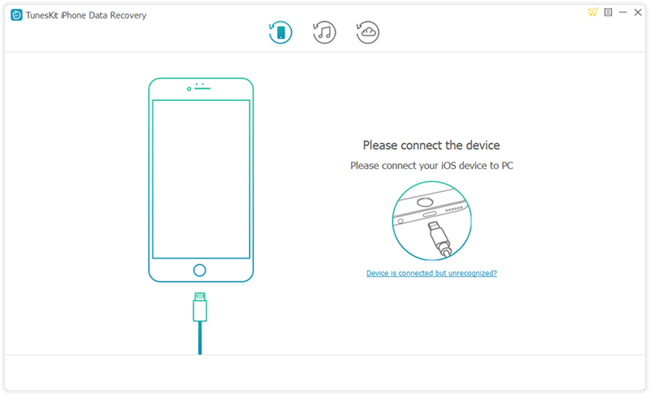
1. TunesKit iPhone Data Recovery

TunesKit iPhone Data Recovery is very credible data recovery software that will recover a vast range of lost data files and will carry out this operation very fast. It has a preview function and will allow you to select the file types that you want to be recovered. It is prided as the best iPhone data recovery software 2019 in terms of efficiency and speeds in executing the recovery process. It also recovers files of large sizes. It recovers lost data in three ways, namely, recover from the device, recover from iTunes backup and recover from iCloud backup.
tuneskit ios data recovery
Pros
  • Fast data recovery speed.
  • Supports various data loss cases.
  • Recovers over 20 file types of different formats.
Cons
  • Trial version does not allow saving of the recovered files

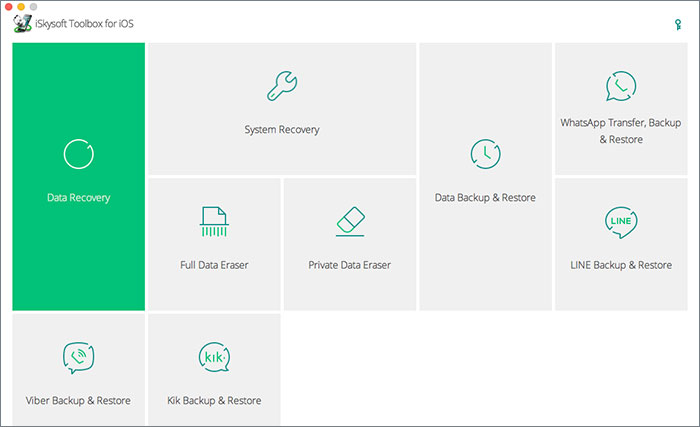
2. iSkysoft Toolbox for iOS

This is among the best iOS data recovery software that will recover your lost files very quickly. It executes its recovery protocol in three ways, which are recovery from iOS device, recovery from iCloud backup storage and recovery from iTunes backup files. Its operation format makes it possible to recover over 20 file types from calendars, notes, and images among many others.
iskysoft iphone data recovery
Pros
  • Recovers a vast range of file types.
  • Easy to use software.
  • Compatible with older iOS devices.
Cons
  • It is very expensive on purchase.

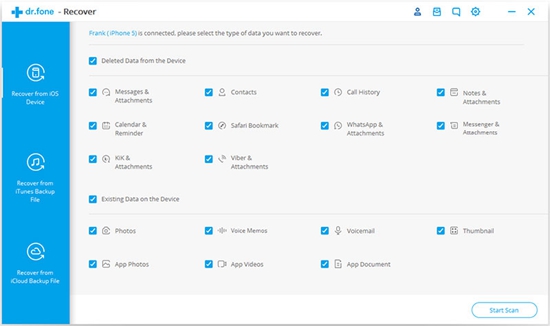
3. Dr.fone - Recover

This is top-ranked software in iOS data recovery and it prides itself in the aspects of speed, efficiency, and proficiency. Dr.fone - Recover has a high rate in recovery of lost files and operates in three intricate steps in the path to recover your data. These three steps are the connection of your device, scanning, and preview of data and finally the recovery of your data. This simplicity in operation has earned it lots of applauses on clients who have used its services.
drfone ios recovery software
Pros
  • Very fast in data recovery.
  • Simplicity in operation.
  • Easy to understand its operation module.
Cons
  • Relatively expensive on purchase.

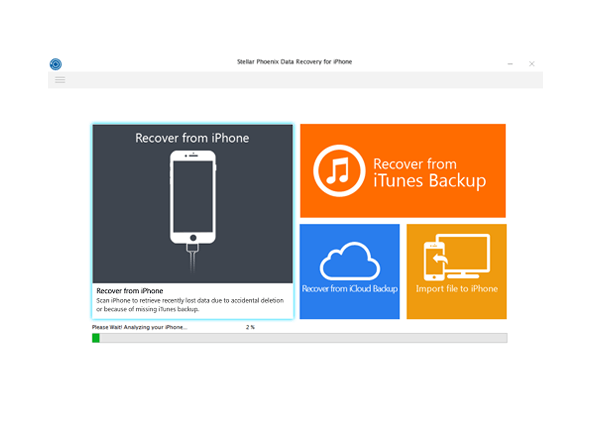
4. Stellar Data Recovery for iPhone

It is awesome software that will recover lost data for all iOS devices including the earlier versions such as iPhone 4 and iPhone 4s. It does not require technical expertise to operate and is very efficient in its data recovery process. Another superb feature of this iOS recovery software is the selective recovery feature that will let you have a preview of the lost data and select the files which you want to be recovered.
stellar iphone data recovery
Pros
  • Gives a preview of files to be recovered.
  • It is able to recover large files.
  • Compatible with older iOS devices.
Cons
  • Slow and time-consuming scanning process.

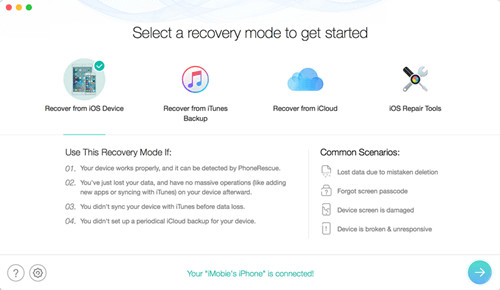
5. iMobie PhoneRescue for iOS

This is another notable recovery application for iOS devices that is rated highly by its previous users on the parameters of efficiency and speeds in operation. Its recovery process is straightforward and you can select to either recover from the device, the iTunes backup or the iCloud backup.
phonerescue for ios data recovery
Pros
  • Supports over 31 file types.
  • Safe recovery mode that will prevent the recovery of malicious files.
  • Offers three modes of recovery that are efficient to restore your data.
Cons
  • The free edition is limited when it comes to features.

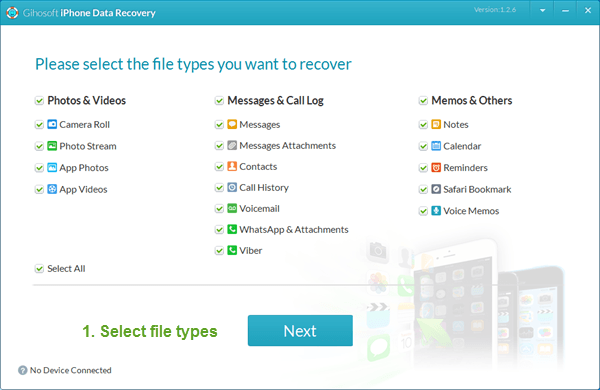
6. Gihosoft iPhone Data Recovery

This software can be considered as the best free iOS data recovery software in 2019. This software will recover up to 16 types of data from iPhone in a very quick and effective way. It will recover your lost data courtesy of incidences like a locked phone, accidental deletion of data or even damage to your device. It sums up all its great features with its cost free aspect that is a deal not to be overlooked.
gihosoft iphone data recovery
Pros
  • Recovers up to 16+ types of data files.
  • Supports al iOS devices both new and old versions.
  • Recovers from the device, the iCloud backup, and the iTunes backup.
Cons
  • Its pro version with more lucrative features is not free on download.

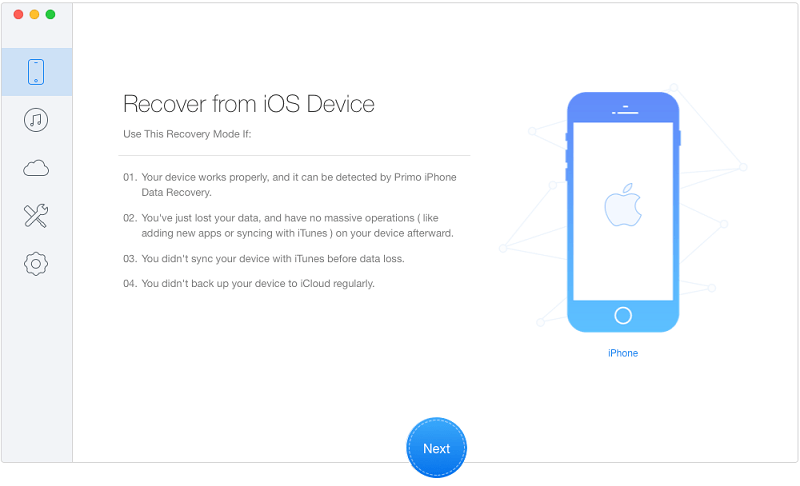
7. Primo iPhone Data Recovery

This is superb software that will recover your lost data from your device with an easy to navigate interface. Its operation does not require any technical skills and will execute your recovery relatively fast. Apart from the recovery of your files, this software will also fix issues such an upgrade error on your device.
primo iphone data recovery
Pros
  • User-friendly interface that is very easy to comprehend and use.
  • Provides selective recovery of your lost data.
  • Has a feature that will fix issues such as upgrade errors or hanging device.
Cons
  • Its trial version does not allow for the saving of the recovered data.

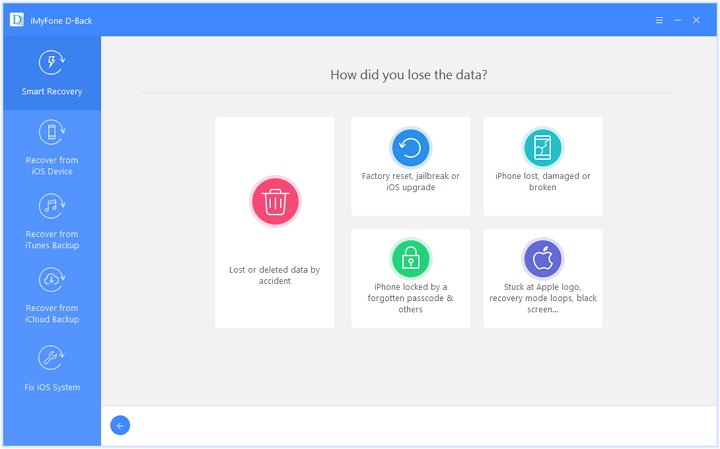
8. iMyFone D-Back

This is a very superb recovery partner for your iPad and comes with awesome features such as quick recovery speeds and selective recovery. With the easy to navigate user-interface that does not need any technical background, this is the to-go software for your recovery needs.
imyfone d-back ios data recovery
Pros
  • Recovers large files.
  • Prevents the recovery of malicious data that may contain viruses.
  • Has a preview that will let you choose the files that you want to be recovered.
Cons
  • The trial version has limited features.

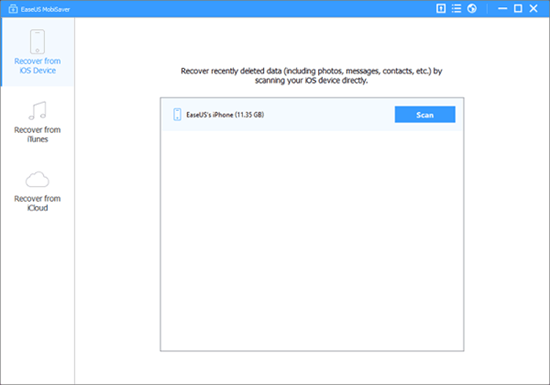
9. EaseUS MobiSaver

EaseUS MobiSaver is very efficient iOS data recovery software that will let you recover your lost files very fast. It has an easy to use interface that promotes easy navigation. It also provides a clear step by step guide on the execution of this process.
easeus iphone data recovery
Pros
  • An easy to understand interface that also provides a guide for your best experience.
  • Fast data scanning and recovery process.
  • Recovers data from the device, the iCloud backup, and the iTunes backup.
Cons
  • Bound to have some connectivity issues.

10. Joyoshare iPhone Data Recovery

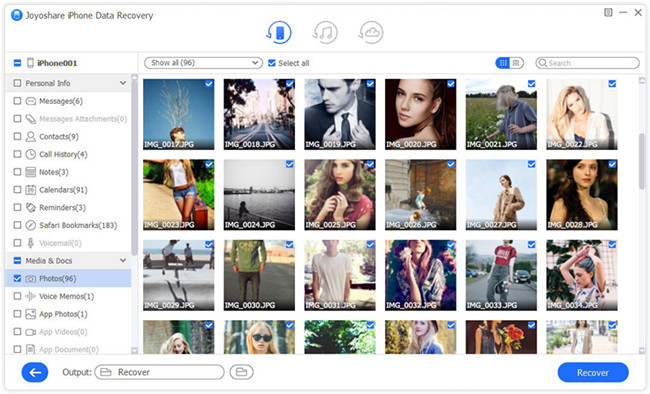
Joyoshare iPhone Data Recovery is a very smart and easy to use iOS data recovery software for both Mac and Windows users. You can use it to easily recover data via iTunes backup, icloud and iOS. By adopting some special unknown technologies, Joyoshare works much faster than other similar iphone data recovery tools.
joyoshare ios data recovery
Pros
  • Incredible fast working speed.
  • Easy to use interface make you handle easily.
  • Support a vast range of data type for recovery.

Cons
  • Lack of some iOS version support to use iCloud recovery mode.

Hope this review is helpful to you. Any more solutions or suggestions, please feel free to leave your voice below.

Source: https://www.tuneskit.com/iphone-recovery/2019-best-ios-recovery-software.html