Showing posts with label rip amazon prime music to mp3. Show all posts

Nov 25, 2021

3 Ways to Play Amazon Music on MP3 Player

MP3 player is one of the brilliant portable media devices of our teenage tears. You can listen to all the music you like in that tiny box. Though we have more options to listen to music now, the MP3 player still plays a significant role in our lifetime. MP3 is one of the most common music files, it is compatible with most devices. With the development of Internet technology, streaming services are gradually becoming the mainstream way to listen to music nowadays. Owing to its rich music library and good service, Amazon Music has gained many loyal users. However, due to the DRM protection of streaming services, the Amazon tracks cannot be played on other devices or apps. That's annoying. Don't worry, in this post, we will introduce 3 practical ways to play Amazon Music on MP3 player. Now, let’s dive in.


Part 1. Extract Amazon Music for MP3 Player by TunesKit Audio Capture

To play Amazon Music on MP3 player, the first thing you need to do is to convert the Amazon tracks to MP3 format. After that, you can transfer Amazon Music to an MP3 player. The first tool I want to recommend to you is TunesKit Audio Capture. It is an audio recorder to make an MP3 player that works with Amazon Music. TunesKit Audio Capture is a powerful audio recording tool designed to help users download and convert streaming music to several common audio formats.

This recording program could capture any sound from Amazon Music thanks to its simple UI. This smart audio recorder supports practically all standard audio formats as output formats, which means you may specify MP3, AAC, M4A, WAC, FLAC, or M4B for the recorded Amazon Music. As a result, you may listen to Amazon tracks on numerous portable devices without restriction.

TunesKit Audio Capture is compatible with both Windows and Mac operating systems. Before you begin converting Amazon Music to MP3, make sure you have TunesKit Audio Capture installed on your PC.


Step 1. Launch the TunesKit Audio Capture

After you run the software, you may see that several programs are listed on the window. Check to see if the browser you want to use to access Amazon Music is included in the list; if it isn't, click the "+" symbol to add it. Alternatively, you may drag and drop the browser into the window.


Step 2. Setup the Format and Parameters for the Output Audio

The following step is to align the output audio settings. You may choose from six popular formats, including MP3, FLAC, AAC, WAV, M4A, and M4B. You may select MP3 as the output format for playing on an MP3 device. The data rate, sampling rate, and audio channel can still be changed.


Step 3. Start the Recording of the Amazon Songs

Go to the Amazon Music app or website, choose a playlist to listen to, and TunesKit Audio Capture will begin downloading instantly. When you've downloaded all of the songs you desire, click "Stop" to halt the download and store the audios.


Step 4. Customize the Effects of the Output Audio

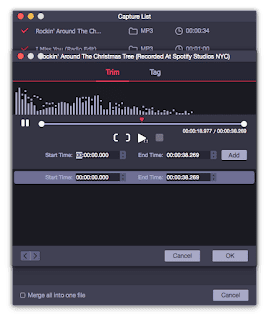
After downloading your songs, you may alter them by clicking the "Edit" button beside each track to access the customization facility. All of the tracks could be merged and trimmed, and the ID3 tags and other music metadata could be edited. Finally, save all of your altered music tracks to your computer.


Step 5. Import the Amazon Music to MP3 Player

First, connect your MP3 player and computer with a USB cable. Then copy the paste all the converted Amazon Music to the folder of your MP3 device. Now you can enjoy Amazon Music on MP3 player successfully. You can also add the converted Amazon Music to a CD or save them in the USB.


Part 2. Download Amazon Music with Tunelf Amatune Music Converter

There is another viable option for you. Tunelf Amatune Music Converter is a professional Amazon Music converter that will assist you in downloading and converting Amazon Music in high quality and at a quicker rate. It can download Amazon Music in MP3, AAC, FLAC, WAV, M4A, and M4B formats. The ID3 tags and information of the music will be retained throughout the conversion. Tunelf can convert Amazon Music to a variety of common audio formats for listening, whether you want to stream Amazon Prime Music or Music Unlimited from your MP3 player.


Part 3. Record Amazon Music with Chrome Audio Capture

As we all know, there are several Chrome extensions for capturing audio from various streaming services. Simply apply one proper extension to your Chrome browser and then play the music tracks for capture.

Step 1: Open the Chrome browser on your computer and navigate to the Chrome Web Store.

Step 2: Type Chrome Audio Capture into the search field, then click the "Add to Chrome" button to download and install it on Chrome. 

Step 3: From Chrome's upper left corner, tap the red button and then hit the "Start Capture" button to record the sound.

Step 4: When the recording is finished, tap the "Save Capture" button to save the file to your computer.


Part 4. Summary

We have offered you 3 options to play Amazon Music to MP3 player. To download Amazon Music to MP3 player, you have to rip Amazon prime music to MP3 firstly. With TunesKit Audio Capture, you can easily download the Amazon Music to MP3. Then you can enjoy your Amazon playlists on the MP3 player without much effort. TunesKit is doing Black Friday sales until Dec. 3, 2021. Don't miss the biggest discount of the year! 

For more: https://www.tuneskit.com/record-audio/amazon-music-to-mp3-player.html

Oct 31, 2021

Quick Tips to Download Amazon Music to MP3

Nowadays, more and more people use music streaming services to listen to music. As one of the biggest music streaming platforms, Amazon Music has extensive experience in this area. It has about 75 million songs on Amazon Music which attracts millions of users to choose Amazon Music. But you know, to save music from Amazon is not an easy thing.

After you download an Amazon song for offline playing, you can only play the song on the Amazon Music app. The Amazon Music file is a cache file so it cannot be played in other places. So, if you want to play the downloaded Amazon songs in other places, you need to convert Amazon Music to MP3. Don’t worry, follow this post and it will show you how to download Amazon Music to MP3.


Part 1. Download Amazon Music with Tunelf Amatune Music Converter

To save your time, I have picked the best Amazon Music converter for you - Tunelf Amatune Music Converter. It is an all-in-one Amazon Music download & converts tool. With this great Amazon Music downloader, you'll simply transfer your favorite songs from Amazon with lossless quality. Then you'll download Amazon songs to MP3, AAC, M4A, M4B, FLAC, WAV with no limits at high speed. And the ID3 tags will be preserved too. Then you’ll be able to transfer them to any device. By Tunelf Amatune Music Converter, you can get high-quality Amazon Music at ease.


Part 2. Download Amazon Music Using TunesKit Audio Capture

Another powerful tool to download Amazon Prime Music to MP3 is TunesKit Audio Capture. It is a professional sound recorder that can help users to record any sound on the computer easily. It is a comprehensive and easy-to-use audio recording tool that captures various sorts of computer audio in high quality, including streaming music, live radio, music games, movies, and so on. You can also use TunesKit to download music form 8tracks. It supports multi-track recording and audio file conversion to MP3, AAC, WAV, FLAC, M4A, and other formats for playing on any device. 


Step 1.  Install and Launch TunesKit Audio Capture

TunesKit Audio Capture offers a free trial for consumers to try before purchasing the full software. The list of target programs is the first window you see when starting the audio recorder. Check the list to check if the browser you wish to use to listen to Amazon Music is included; if it isn't, touch the "+" symbol to add it. Drag & drop the browser into the list for a quicker solution.


Step 2. Modify Output Setting and Parameters

Modifying the output options is also important. The settings menu will appear when you click the "Trumpet-shaped" icon in the main window. Change the output format, codec, channel, and other settings here.


Step 3. Record Music from Amazon Music

When you tap the browser's icon, a capture window will appear on its own. In the browser, listen to the music. After a few seconds of pause, the download should begin, and the title and ID3 tags of the songs will be matched after around 25-30 seconds. When the downloading is complete, go to the right bottom and select the "Stop" button.


Step 4. Editing Download Amazon Music

There may be some undesired portions or advertisements in the downloaded songs after recording. If this is the case, you may enter the editing window by pressing the Edit icon at the back of each track in the ripping result window. You may cut the music as you like using this editing tool. You may use editing to create ringtones, trim out undesired bits, and so forth. You can also make changes to the ID3 tags.


Step 5.  Save the Record Files

Click the Save option to export the records to the output folder. You can also locate the audio files from the icon at the bottom of the window.


Part 3. How to Convert Amazon Music to MP3 for Free

Another way to record audio from a Chrome browser is to use Chrome Audio Capture, a Chrome extension that captures audio playing on the current tab. Depending on your preferences, you can save such captures as MP3 or WAV files. Furthermore, you may record many tabs at the same time and choose to mute the tab being caught at the time.


Step 1. Launch Chrome browser on your computer and visit Chrome Web Store.


Step 2. Enter Chrome Audio Capture in the search bar, and download and install it on Chrome by clicking the “Add to Chrome" option.


Step 3. Tap on the red button from the top left side of Chrome and press the “Start capture” button to record the sound in Chrome.


Step 4. Tap on the “Save capture” to save the file on your computer as soon as it completes the recording.


Summary

We have shown you 3 quick tips to convert Amazon Music to MP3. When you choose an excellent tool, to rip Amazon Prime Music to MP3 will not be so tricky. Go to the official website and try TunesKit Audio Capture right now. Then you can enjoy your Amazon Music at any place.

For more: How to Download and Convert Amazon Music to MP3 in 4 Ways

Oct 23, 2021

2 Quick Tips to Save Amazon Music on USB

Amazon Music is a popular streaming service that has over 32 million subscribers over the world. When you have subscribed to Amazon Music, you will be able to download Amazon Prime Music, Amazon Music HD, and Music Unlimited. You can play over 75 million songs on it. Due to its huge library, more and more people prefer to choose Amazon Music as their first choice to listen to music.

However, when your subscription is over, you have to renew it, or you will be unable to play your Amazon Music. Is it possible to save your Amazon Music for offline playback? Of course! You just need to convert Amazon Music to MP3, then you can save them on your device. Now let’s see how to download Amazon Music to MP3 in the following part.

Part 1. Record Amazon Music Using TunesKit Audio Capture

There is a shortcut to help you convert Amazon Music to MP3. The answer is TunesKit Audio Capture. This audio recorder can help you record all sounds on your computer. It is a comprehensive and simple-to-use audio recording program that captures many types of computer audio, including streaming music, live radio, music games, movies, and so on, in high quality with ID3 tags preserved. It allows multi-track recording and can convert audio files to MP3, AAC, WAV, FLAC, M4A, and other formats for playback on any device.

The multi-tasking functionality is one of the other notable characteristics. Most of the time, we desire to download multiple songs from Amazon Music. TunesKit Audio Capture can record and download many songs at once to meet this demand, and each track concentrates on only one song, ensuring that tracks don't mix up or make extraneous sounds. You can do other things on the computer while downloading music from Amazon Music without worrying about unexpected sounds. To summarize, access the Amazon Music page in the TunesKit Audio Capture-launched browser and play the tracks. The song will be automatically recorded. Now we know the tool we need. Let’s see how to convert Amazon Prime music to MP3.


Step 1.  Install and Launch TunesKit Audio Capture

TunesKit Audio Capture offers a free trial for consumers to try before purchasing the full software. The list of target programs is the first window you see when starting the audio recorder. Check the list to check if the browser you wish to use to listen to Amazon Music is included; if it isn't, touch the "+" symbol to add it. Drag & drop the browser into the list for a quicker solution.


Step 2. Modify Output Setting and Parameters

Modifying the output options is also important. The settings menu will appear when you click the "Trumpet-shaped" icon in the main window, as seen in the picture above. Change the output format, codec, channel, and other settings here.


Step 3. Record Music from Amazon Music

When you tap the browser's icon, a capture window will appear on its own. In the browser, listen to the music. After a few seconds of pause, the download should begin, and the title and ID3 tags of the songs should be automatically matched after around 25-30 seconds. When the downloading is complete, go to the right bottom and select the "Stop" button.


Step 4. Editing Download Amazon Music

There may be some undesired portions or advertisements in the downloaded songs after recording. If this is the case, you may enter the editing window by pressing the Edit icon at the back of each track in the ripping result window. You may cut the music as you like using this editing tool. You may use editing to create ringtones, trim out undesired bits, and so forth. You can also make changes to the ID3 tags.


Part 2. Download Amazon Music with Tunelf Amatune Music Converter

An easier way for you to rip Amazon Prime music to MP3 is to use an Amazon Music converter. You will be surprised after using Tunelf Amatune Music Converter. Tunelf Amatune Music Converter is simple to use and has a built-in Amazon Music online player for individuals who wish to listen to their favorite music while downloading tracks from Amazon Music. You can rapidly download your favorite music from Amazon Music with Tunelf software. 

Part 3. How to save Amazon Music to a USB drive

The Amazon Music tracks will be exported to your computer's default location once they have been successfully converted. Then you may save them to your USB drive to listen to them on your car, MP3 player, and other devices. You may direct the output audio path to your USB Drive to make things easier.

 Wrap Up

We have shown you 2 ways to save Amazon Music on a USB drive. Because of the DRM, downloaded Amazon Music is in a protected file that can’t be played on other apps or devices. So before you save it on USB, you have to convert or download Amazon Music to MP3. Then you can transfer your Amazon Music on USB. You can choose TunesKit Audio Capture or Tunelf Amatune Music Converter to assist you to finish the conversion. Go to the official website and give it a shot right now.

For more: Best Method to Download Amazon Music to USB