Showing posts with label free iphone repair software. Show all posts

Aug 14, 2020

Fixes to iPhone X Reboot Loop

The Apple company widely promote iPhone X as its processor is different from that of others. However, during the process of using the iPhone X, some iPhone issues such as boot loop still occur. Are you confused or head-stretched by this problem? Take it easy! This post will give you some valuable tips to fix it.


But now let us move onto the first part -- why the iPhone X bump into the boot loop. The followings are the main reasons.

1. Unsuccessful update: An unsuccessful update may be caused by a bad connection of the internet and the halted update process can easily result in a boot loop. A boot loop can occur even though you've already finished the update.

2. Malfunctioning hardware: malfunctioning hardware could probably be a damaged battery connector or a broken component. Under this circumstance, it's better to repair or replace the malfunctioning hardware as soon as possible.

3. Jailbroken iPhone: Jailbreaking is a double-edged sword. You can acquire extra services after jailbreaking while a jailbroken iPhone X is more likely to be affected by malware or virus attack, which can end up in a boot loop as well.

Now it's time to go to the next part. That is how to fix the iPhone X boot loop. There are 3 methods to troubleshoot the boot loop despite what resulted in it.

Solution 1: Force Restart iPhone X

If your iPhone X stuck in a boot loop, the first thing you should try is to force start it. Force restart on iPhone X, XS, XS Max, or iPhone 8 is quite different from iPhone 6S, 7, and 7 plus. The routine requires a three-button procedure, involving pressing and holding the side button and one of the volume buttons.

Step 1: Quickly press and release the volume up button.

Step 2: Quickly press and release the volume down button.

Step 3: Press and keep holding the side button until the screen turns off and then turns back on. Then you can release the side button when the Apple logo appears. After that, your iPhone X will restart automatically.

Solution 2: Restore Your iPhone X Through iTunes

When force restart does not work with your iPhone X, you can try the following steps to restore it via iTunes.

Step 1: Simply connect your boot loop iPhone X to a computer and launch iTunes.

Step 2: A pop-up window will appear not long after iTunes finish detecting a problem of your iPhone X. Just hit "Restore" to get your device out of the boot loop.

Step 3: If the pop-up didn't show up, you can click on "Summary" and then "Restore iPhone" to restore your iPhone X manually.

Solution 3: Use professional tool without data loss

iTunes provides a quick and convenient fix to the problem, but the unavoidable defect is that it may cause data loss to some extent. Therefore, we have another option for you— TunesKit iOS System Recovery. This smarter and faster program focus on rescuing your iPhone from various scenarios including boot loop, black/blue/frozen/white screen, DFU mode, and recovery mode. No data will lose and it works for most iDevices.
Next, we will present to you how easy using TunesKit iOS System Recovery to repair iPhone X stuck in the boot loop can be.

Step 1: Download the free trial of TunesKit and connect the iPhone X to your PC. After that, launch the program and click "Start" to move forward.

Step 2: In the next window, choose the "Standard Mode" and press "Next" on the right bottom.

Step 3: Download the firm package matched to iPhone X. Once the correct package is downloaded, begin to recover the iOS System and get your iPhone X out of the boot loop.

Conclusion

Your iPhone X may be stuck in a boot loop many times, but don't worry, use the above three fixes to solve it. if it cannot be fixed by force restart and iTunes, TunesKit iOS Repair will be worth trying.


Aug 12, 2020

4 Simple Ways to Fix iPhone Stuck on Apple Logo

 Many people complain online that their iPhone stuck on the Apple logo after the process of factory reset. And when they restart the device, the Apple logo is always shown on the interface. As for the problem, how to fix it? Well, this blog will show you 4 best solutions to solve iPhone stuck on the Apple logo.


But first, let's understand why iPhone gets stuck on the Apple logo. The followings are some main causes to explain it.

1. Hardware issues.

2. Software matters including transfer and iOS update.

3. Jailbreak error.

However, no matter what results in iPhone stuck on the Apple logo, the methods below can be used to work out it.

Solution 1: Force restart iPhone

The first option you can try is to force restart your iPhone device. It is also the easiest solution to take when facing common iOS issues like iPhone stuck on the Apple logo. Even if it may not work, it's still worth trying as the operation won't be harmful to anything on your device. Plus you can perform the hard reset without a computer.

For iPhone 6s and former, press and hold the Power button and Home button together until you see the Apple logo appear on the screen.

For iPhone 7 and 7 Plus, press and hold the Volume Down button and the Power button for about 10 seconds. Release them until the Apple logo displays on the screen.

For iPhone 8 and later, quickly press and release the Volume Up button, then hold down and release the Volume Down button. Finally, press and hold the Side button until you see the Apple logo.


Solution 2: Fix Without Restoring


It seems that you've become one of the 99% of users which means that the forcible reboot didn't help to resolve the problem. All you can see from the interface remains the same, the iPhone won't turn on stuck on the Apple logo screen. The good news is, you can get your faulty device repaired with an outstanding iOS system recovery tool specifically developed by TunesKit Studio.

No matter which situation your iPhone is stuck in, this software, TunesKit iOS System Recovery can get rid of them in 2 smart repair modes, Standard Mode and Advanced Mode. It is totally user friendly as what you only need to do is to open it and connect your device. Then the software will handle the rest work for you and recover your iOS to normal causing no data loss or leak. 

Step 1: Connect iPhone to the computer

Open the program and find a USB cable to connect your device to the computer. Tap on the Start option, and then set the repair mode as Standard Mode and click the Next button. After that follow the prompts from the window to put your iPhone into DFU mode and click the Next button once finished.

Step 2: Download firmware package

This software will download the firmware package matched to your iPhone. You need to confirm the device info before that. Correct it manually if any information is wrong. Then press the Download button at the lower right corner, TunesKit will then begin downloading and verifying the firmware.


Step 3: Fix iPhone stuck at Apple logo

As soon as it completes the downloading process, just press the Repair option to let the software fix the error of the iPhone stuck on the Apple screen. Keep your iPhone connected to the computer until the program finishes fixing. Or your device may get bricked unexpectedly.

Solution 3: Put iPhone in Recovery Mode


There's another way to fix the issue of the iPhone won't turn on and being stuck in the Apple logo which is to put the iPhone into recovery mode. However, all the files on your iPhone will be removed if taking advantage of this method. Therefore, just make sure that you've backed up your device to iTunes or iCloud previously. Before you get started, check the iTunes installed on your PC to see whether it is the most current version.

For iPhone 6s and older,

Step 1: Connect your iPhone to PC and launch iTunes. Hold both the Power button and the Home button at the same time.
Step 2: You will see the white Apple logo coming up. Do not release the buttons until the Connect to iTunes screen appears.

For iPhone 7 and 7 Plus,

Step 1: Connect your iPhone to the computer and open iTunes. Press the Power button and the Volume Down button concurrently.
Step 2: Similarly, the Apple logo screen will display. Simply hold them until you see the Connect to iTunes screen.

For iPhone 8 and later,

Step 1: Open iTunes and connect your iPhone to the computer. Press and fast release the Volume Up button, do the same thing on the Volume Down button.
Step 2: Press and hold the side button, release the buttons once the Connect to iTunes screen appeared.

At this time you may need to tap on the Restore option from the interface since you've finished the process of entering recovery mode. Then just follow the prompts to restore your iPhone to fix the iPhone stuck on Apple logo issue.

Solution 4: DFU Restore Your Device


A DFU (Device Firmware Update) restore actually reloads the firmware (controls the hardware of your device) thoroughly but not only the software. This feature makes it different from other restoration types as well as the recovery mode. And it is the deepest type among all the iPhone restore.

To go on with this mode of solving the problem, you will need to connect your device through a USB cable to your PC and sign in to iTunes. For the respective iPhone devices, you will need to initiate the pressing of the keys reminiscent of the force reboot manner. This is until a message pops saying that iTunes has detected a phone in recovery mode. After this release the buttons when the screen goes blank and you will be able to restore your device.

Conclusion


These 4 simple and easy tips can fix iPhone stuck on the Apple logo problem. If you don't want to lose all your data on the iPhone, then you are highly suggested yo use TunesKit iOS System Recovery. Come and have a try.


Apr 24, 2020

[Review] 4 Best iOS System Repair Tools

Our iPhones may get stuck in the white Apple logo, keep restarting or stop charging, etc. from time to time. At this time, a quick solution is to reset the device but you may lose your data. Now you're suggested to try a professional iOS system repair tool which will help solve the issue without causing any data loss. Here I'd like to pick 4 top-notch ones for your reference.

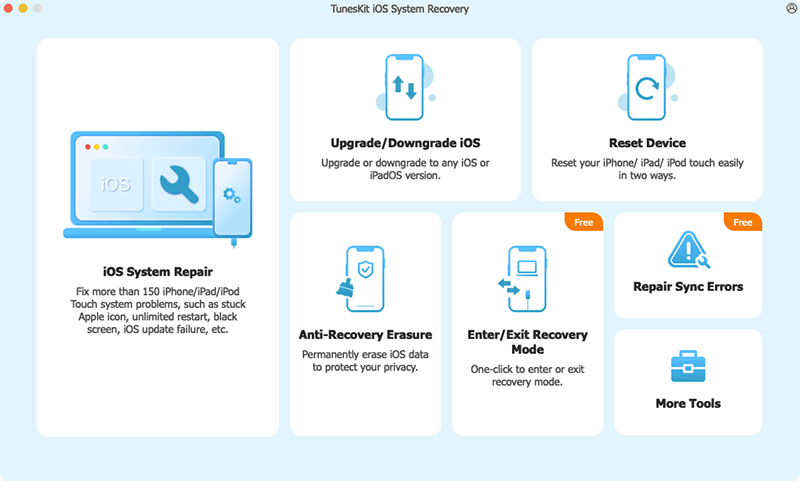
1. TunesKit iOS System Recovery

tuneskit ios system recovery
TunesKit iOS System Recovery for Mac/Windows ranks the top of the best iPhone repair software list. This tool is well designed to reach into the iOS/iPadOS/tvOS systems and fix various issues caused by it, which includes iOS software update failure, iPhone stuck in recovery mode, camera not working on iOS 13, iPad black screen, etc.
It offers two repair modes - Standard Mode and Advanced Mode. The former allows you to fix all kinds of common iPhone problems without erasing any data on the device, while the latter can help you repair some severe iOS system problems like the iPhone is disabled or locked, etc.

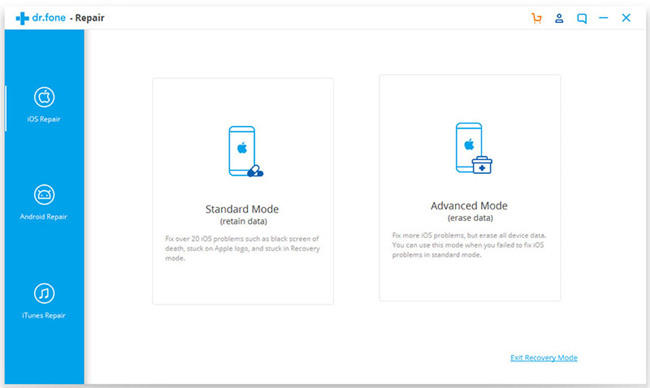
2. Dr.fone - Repair

drfone-repair
Wondershare has introduced a powerful iOS toolkit to help mobile users better enjoy their device and Dr.fone - Repair (iOS System Recovery) is one of them. It enables users to repair types of iOS problems without any technical skills when you meet the iPhone white screen of death, Siri not working on iPhone, iPad won't turn on, iPhone recovery mode not working, etc. Similarly, this smart program works well with all iPhone, iPad, iPod models.

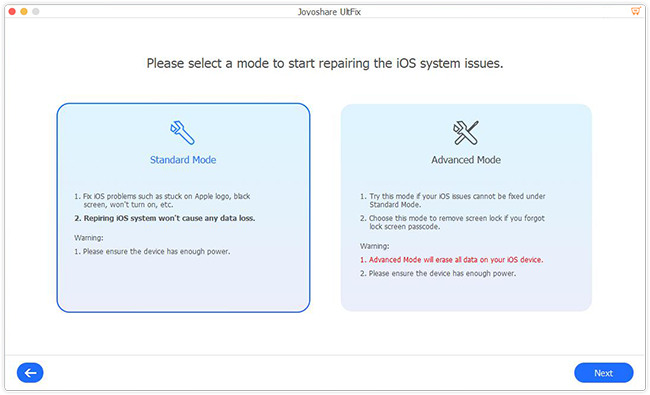
3. Joyoshare UltFix

joyoshare ultfix
Now let's come to the next useful iPhone repair software whose name is Joyoshare UltFix. This is a safe and trustworthy iOS system recovery tool that has the ability to fix over 30 different common or serious iOS issues such as iPhone stuck on a black screen with spinning wheel, GIFs not working on iPhone, iPhone gets bricked, etc. More importantly, Joyoshare UltFix is able to repair the problem without causing any data loss.

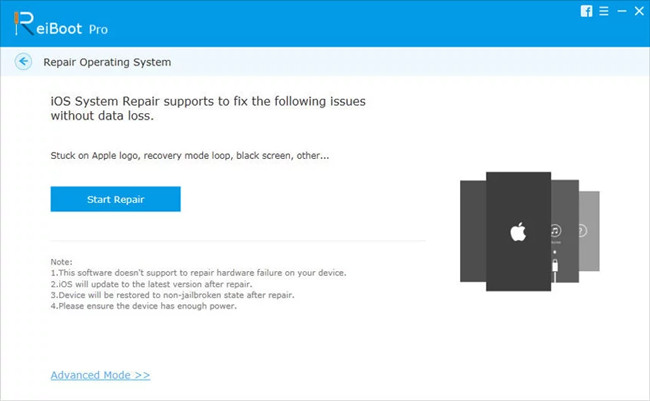
4. Tenorshare ReiBoot

tenorshare reiboot
The last one for the best free iPhone repair software is Tenorshare ReiBoot. Actually, it only gives you a free option to enter or exit the recovery mode. When you start to repair your iOS issues such as iPhone stuck on Apple logo, recovery mode loop, screen is locked and won't turn on, you need to pay for it. Anyway, this iOS repair program can help you repair your iOS to normal without losing the data.
If you want to learn more about all these tools, you can refer to the source page here:
https://www.tuneskit.com/ios-repair/top-iphone-repair-software.html