Showing posts with label iphone repair software. Show all posts

Aug 27, 2020

Troubleshooting Guides to Fix iPhone Ghost Touch

 iPhone ghost touch means that the iPhone pops up being touched by itself as if it is operated automatically or by other people we cannot see. This may seem a little scary yet it can be fixed by many easy methods. So just check out this article.

First, why does the iPhone appear ghost touch? many models including iPhone XR, iPhone 8,7, and etc showing ghost touch may be attributed to a wrong display, injured screen factors, software glitches and errors, defective digital manufacturing, and the like. 

The Best Way

Now let's look at the best way to solve the iPhone ghost touch. That is using TunesKit iOS System Recovery. It is a relatively popular program to bring your iOS system back to normal with almost every problem solved. It fixes all iOS and tvOS system issues including iPhone recovery mode, white Apple logo, black screen, Apple TV issues, etc. Besides, there is no data loss after the reparation with standard mode. Moreover, it supports diverse devices like iPhone, iPad, iPod touch, and Apple TV, and all iOS versions, including the latest iOS 13. Finally, it has a simple interface that is easily understood and operated by customers.

To repair the iPhone ghost touch screen issue, you just follow three steps.

Step 1: Firstly, open TunesKit iOS System Recovery for Windows on your computer. Then you have to connect your iPhone till it's detected. Next, click the "Start" button. Next, choose the "Standard Mode" and "Next". You have to select which device you've connected. Then follow the instructions from the interface and let your device is into DFU mode. After that, click the "Next" button.
Step 2: The application will download the firmware package matched to your device after finishing the first step. Before that, you have to make sure the device info is correct, including the model version, iOS version, etc. You can correct it if there's anything wrong. If all information is correct, click the "Download" and it will start downloading and verifying the firmware.

Step 3: When the firmware has been downloaded successfully, you just click the "Repair" button and the program will automatically begin to fix your iPhone. Don’t disconnect your device until the process is completed. Otherwise, the device might become bricked.

Other Methods

1. Clean the Touchscreen of Your iPhone

You may wonder why cleaning iPhone touchscreen works. It is because some dust and particles on your iPhone may make the device act on its own, especially when the dust is accumulated after a quite long time. It is simple for you to clean the iPhone touchscreen. Before starting, you have to switch the iPhone off and unplug all connected cables. Then you are supposed to get a clean and uncouth cloth or tissue paper with some water. Lastly, you can begin wiping your device’s screen from the top to the end in a gentle manner.

2. Remove Your iPhone Screen Protector

Although the screen protector is usually employed by users to keep the iPhone from scratch, it may sometimes cause some issues about operations like ghost touch. Under such circumstances, you have to take off your iPhone’s screen protector to get the problem solved. Take it from one corner and then step by step, slowly remove it completely.

3. Take off Your iPhone’s Case

Similar to the screen protectors, iPhone’s case also leads to ghost touch problems. When you find that your device’s screen is slightly twisted, you can take away the case of your iPhone. As the hard case may occasionally twist your iPhone’s screen. The iPhone ghost touch screen problem may be fixed after removing the case.

4. Restart Your Device

Whenever the iPhone gets wrong, most people always let their iPhone power off and restart them first. You can also have a try to restart your iPhone after having used above quick fixes which cannot solve the problem as expected.

If you use iPhone X and later, press the slide and volume button. When the slide to power off signal shows, slide it to the right.

If your device is the iPhone 8 and earlier, press the top button and you will see a power-off sign, then swipe it to the right.

5.  Recover iPhone by Putting it into Recovery Mode

If restarting iPhone doesn’t help you, to put your iPhone into recovery mode may also do the trick. But recovering iPhone might cause some data loss. So you are suggested to do data backup before putting the iPhone into recovery mode.

Please follow these steps to get the iPhone into recovery mode.

Step 1: Click iTunes on your computer and connect your device.

Step 2: Hold and release the volume up and down button respectively.

Step 3: Press the side button and enter the recovery mode.

Step 4: Finally click update or restore.

6. Factory Reset Your iPhone

A factory reset usually can fix the problem of ghost touch on the iPhone, because it can remove some settings that cause the problem. But this method will remove all data of your iPhone. So you are suggested to backup data before you try the following steps.

To factory reset your iPhone, go to Settings, then the General, next to the Reset, and finally Erase all Contents and Settings. Enter the device's passcode when prompted and then click on "Erase iPhone" to complete the process.

7. Restore Your iPhone via iTunes

If the above methods don’t work, then you are suggested to try to restore your iPhone in iTunes. If you don’t mind the data loss, you can follow the following steps:

Step 1: Open the iTunes and connect your iPhone to the computer.

Step 2: Click the iPhone icon when the iPhone appears in iTunes successfully.

Step 3: Click “Restore iPhone” in the column of Summary.

Step 4: Click “Restore” again to make sure the process works well and then iTunes will restore the device connected to the factory settings.

8. Contact Apple

If you got this far, it might mean the problem is not solved yet. Then the final try should be bringing your iPhone to the Apple store. The store will provide free and authorized service to make the ghost touch on your iPhone fixed. But first, you have to make sure you have got data backups by iTunes and iCloud.

We sincerely hope this full guides to solve iPhone ghost touch can be useful for you. If you feel it's good, you can share this post with your friends or relatives who have the same problem. And if you have any questions, leave your comment below.

Aug 20, 2020

Easily Fix iPad White Screen in 5 Ways

 iPad getting stuck on the white screen is one of the common issues among diverse kinds of iOS problems. There are many reasons behind it, for example, iOS update failure, software errors. But despite the causes that lead to this matter, it is fixable and next we are going to introduce the 5 most effective and useful solutions to work out this trouble.

Way 1: Hard reboot your iPad

Generally speaking, force restarting your device is a simple yet effective method to solve iOS stuck problems. iPad stuck on a white screen is no exception. You can simply hold the Power button and Home button simultaneously for about a few seconds until the Apple logo shows up. It will restart again and you can check whether the problem is solved.

Way 2: Try the three-button trick

This method is not always working, according to the reports from many iOS users. But it still worth a try, what if you succeed? The steps are very simple. Just press and hold the Home button, Volume Up button, and then Power button for a while and wait until the white screen on your iPad disappeared. 10 seconds later, the Apple logo will appear and your iPad will reboot again.

Way 3: Use TunesKit iOS Repair with almost 100% success rate

After trying to hard reset your device by using the two methods above, if the white screen problem still exists, you can consider using a professional iOS system recovery tool to fix it. TunesKit iOS System Recovery is such a comprehensive and efficient iOS repair program that is specially developed to fix up to 30 iOS-related issues. These problems include iPhone stuck on the white Apple logo, iPad won't turn on, iPhone black screen of death, blue screen, red screen, etc. The most powerful characteristic of this tool is that you will never worry about the data loss when using it to fix iOS system problems. What's more, it supports all iOS including the latest iOS 12 and almost all models of iPhone, iPad, iPod touch.

Step 1: Launch TunesKit iOS System Recovery program and use a USB cord to connect your iPad to the computer. Then click the Start button and choose the Standard Mode which will not cause any data loss. Press the Next button to continue.
Step 2: Now your need to check your device info such as model name, iOS version, etc. If nothing is wrong, you can simple hit the Download button to ask TunesKit to download the firmware package you need.

Step 3: Once the download and verification of firmware package is completed, you can start fixing white screen problem by clicking the Repair button. Wait until the process bar ends. Remember not plug your device during the process, or your device may get bricked.

Way 4: Put your iPad into recovery mode

Another solution to fix the iPad stuck on the white screen is to try restoring your iPad with iTunes. It will reinstall iOS on the iPad, so all the data your device will be effaced, but you can use TunesKit iPhone Data Recovery to get them back. Or if you don't mind, you can follow the quick steps below.

Step 1: Open iTunes and update it to the latest version. Connect iPad to your computer via a USB cable;

Step 2: Since your iPad is in a white screen state, it can't be detected by iTunes. You need to put it into the recovery mode. You can first hold the Power and Home buttons at the same time for about 10 seconds, and release the Power button and only hold the Home button until you see the Apple logo. Keep holding it until the Connect to iTunes icon appears;

Step 3: Once your device entered the recovery mode successfully, choose Restore iPad and wait until the process is finished. You can now set up your iPad as a new device.


Way 5: Restore your device in DFU mode

Alternatively, you can also put your iPad into the DFU (Device Firmware Update) mode and then use iTunes to restore it. Also, all the data on the iPad will be erased. Here is how to fix the iPad white screen problem using this method.

Step 1: Connect iPad to the computer and then launch iTunes;

Step 2: Switch off the iPad and hold the Power button and Home button simultaneously for 10 seconds. Then release the Power button and keep holding the Home button. If you see the "Plug into iTunes" message, you need to repeat the process; if the screen turns black, your iPad has entered the DFU mode now;

Step 3: iTunes will ask you to Restore the iPad and confirm the action. After it's done, your problem should be solved.

Verdict

Now you have known the best and most full solutions to fix your iPad screen becomes white problem, quickly give it a shot, and if you have any questions or confusion during the process of repairing, welcome to connect us or leave your comment below.


Apr 24, 2020

[Review] 4 Best iOS System Repair Tools

Our iPhones may get stuck in the white Apple logo, keep restarting or stop charging, etc. from time to time. At this time, a quick solution is to reset the device but you may lose your data. Now you're suggested to try a professional iOS system repair tool which will help solve the issue without causing any data loss. Here I'd like to pick 4 top-notch ones for your reference.

1. TunesKit iOS System Recovery

tuneskit ios system recovery
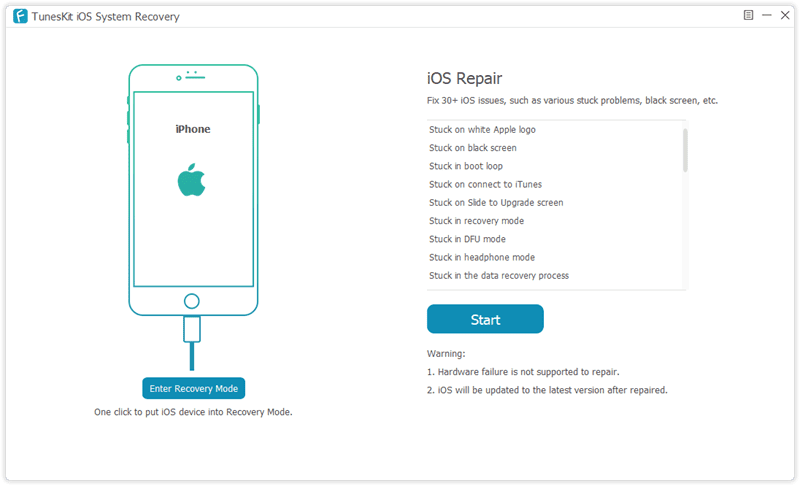
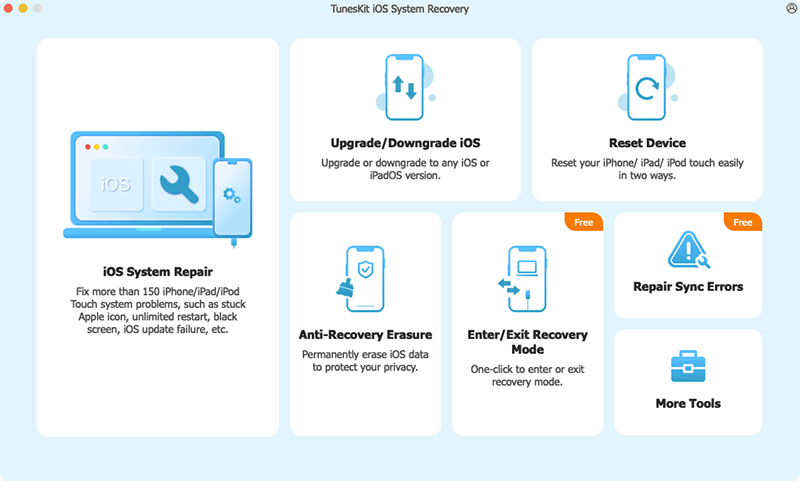
TunesKit iOS System Recovery for Mac/Windows ranks the top of the best iPhone repair software list. This tool is well designed to reach into the iOS/iPadOS/tvOS systems and fix various issues caused by it, which includes iOS software update failure, iPhone stuck in recovery mode, camera not working on iOS 13, iPad black screen, etc.
It offers two repair modes - Standard Mode and Advanced Mode. The former allows you to fix all kinds of common iPhone problems without erasing any data on the device, while the latter can help you repair some severe iOS system problems like the iPhone is disabled or locked, etc.

2. Dr.fone - Repair

drfone-repair
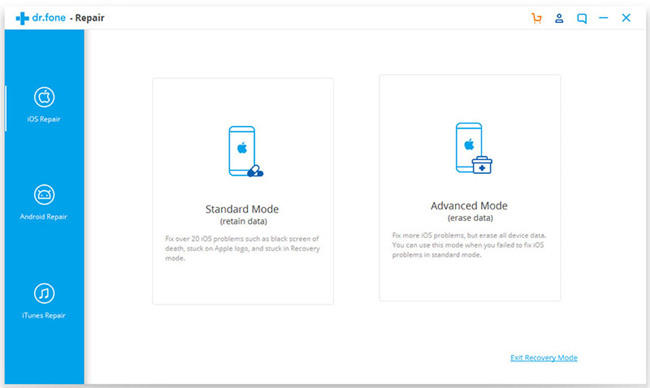
Wondershare has introduced a powerful iOS toolkit to help mobile users better enjoy their device and Dr.fone - Repair (iOS System Recovery) is one of them. It enables users to repair types of iOS problems without any technical skills when you meet the iPhone white screen of death, Siri not working on iPhone, iPad won't turn on, iPhone recovery mode not working, etc. Similarly, this smart program works well with all iPhone, iPad, iPod models.

3. Joyoshare UltFix

joyoshare ultfix
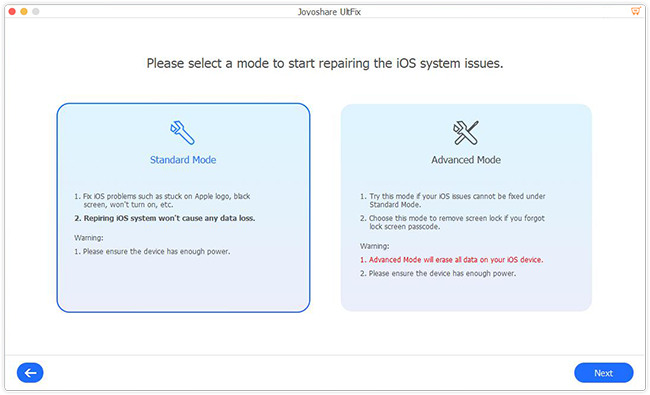
Now let's come to the next useful iPhone repair software whose name is Joyoshare UltFix. This is a safe and trustworthy iOS system recovery tool that has the ability to fix over 30 different common or serious iOS issues such as iPhone stuck on a black screen with spinning wheel, GIFs not working on iPhone, iPhone gets bricked, etc. More importantly, Joyoshare UltFix is able to repair the problem without causing any data loss.

4. Tenorshare ReiBoot

tenorshare reiboot
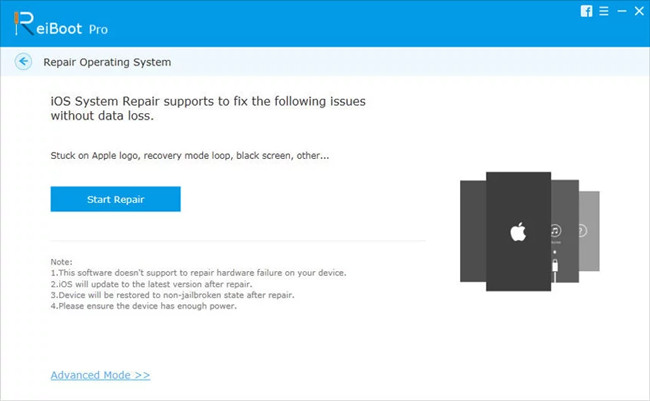
The last one for the best free iPhone repair software is Tenorshare ReiBoot. Actually, it only gives you a free option to enter or exit the recovery mode. When you start to repair your iOS issues such as iPhone stuck on Apple logo, recovery mode loop, screen is locked and won't turn on, you need to pay for it. Anyway, this iOS repair program can help you repair your iOS to normal without losing the data.
If you want to learn more about all these tools, you can refer to the source page here:
https://www.tuneskit.com/ios-repair/top-iphone-repair-software.html