The Apple company launches the iPad as its the "smartest" tablet computer in the world. Thus it has become wildly popular among many people, as they enjoy its beautiful design, powerful performance, and convenience. However, there are also glitches such as iPad screen flickering that occurred on this electronic device. Did you meet with this issue before? If you did, take it easy, in the following, we will guide you on how to solve this problem step by step.

Tip 1: Restart your iPad
Rebooting is one of the most common fixes for a variety of iPad problems as well as any other computers. Restarting helps one override the software glitches that may be inhibiting normal software functioning which may be the core of your iPad screen flickering problem.For iPad with a home button: simply press and hold the Home button and Top button simultaneously until an Apple logo appears then release both buttons.
Other models: Press and quickly release the Volume Up button, repeat the same for the Volume Down button and then press and hold the top button until an Apple logo appears then release the button.

Tip 2: Check if it is in a particular app
If your iPad mini screen flickering problem is not fixed by restarting, then you should proceed to check if the iPad flickers when running a particular application. The flickering could be as a result of a 'misbehaving' application. If you find such an application, force quitting the application is highly recommended. So, how do you force quit?For iPads with Home button, you only need to press the Home button to open the app switcher then swipe away the particular application.
For iPads with no Home button, slide your finger from the bottom to open the app switcher then swipe away to force quit the application.
Try re-launching the application and if the flickering persists you can proceed to uninstall the application and install it later on.
Tip 3: Check auto-brightness feature
Usually, iPads have an auto-brightness feature that facilitates screen light adjustment according to light in your environment. If enabled the screen could appear to flicker depending on the change of the surrounding light. However, this may not be issued. To be sure, you need to disable the feature. To disable follow the following steps;Step 1: Click on "settings" on the interface.
Step 2: Scroll down to tap the "Accessibility" button.
Step 3: Select 'Display Accommodations' from the options.
Step 4: You will find the auto-brightness feature, move the slider to disable. After disabling the screen light will remain constant.

Tip 4: Reduce motion and transparency
In any case that the iPad Pro screen flickering problem is not solved by disabling the auto-brightness feature, you should proceed to disable the motion and transparency feature. It goes a long way in improving the performance of the iPad. To disable follow the following steps.Step 1: From the main screen click on 'Settings'.
Step 2: Select 'General' and then 'Accessibility'.
Step 3: Select 'Increase Contrast' and then move the slider forward to enable 'Reduce Transparency'.
Step 4: Go back to the 'Accessibility' and move the slider in front to enable 'Reduce Motion'. This way, the iPad screen flickering on and off may stop.

Tip 5: Use iOS system recovery tools with no data loss
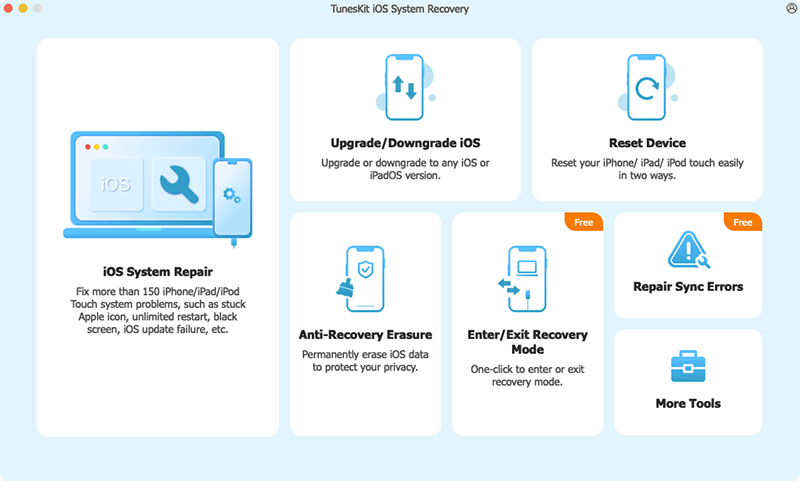
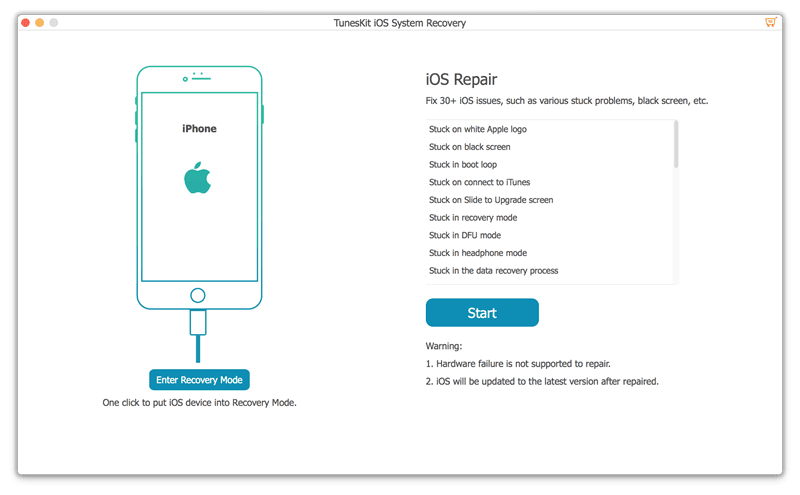
If all the above-stated solutions do not work to resolve your iPad screen flickering won't turn on, then the TunesKit iOS system recovery tool is your best chance to resolve the issue once and for all. TunesKit iOS Repair is designed to help you resolve both common and serious iOS errors without losing any data from your iPad. The screen flickering issue at this point maybe as a result of iOS failures. The software provides you with two repair modes namely Standard Mode and Advanced Mode. It is also compatible with all iOS and iDevices including iPads, iPhones among others.All you need is to download TunesKit iOS System Recovery and then follow the following steps to fix the problem.
Step 1: Connect Device and Select Repair Mode
Launch the application on Mac and then proceed to connect your iPad to the computer. Once it is detected, click on the 'start' tab to proceed to the next window. Select 'Standard Mode' as your repair mode and click 'next'. You will be requested to put your iPad on DFU or recovery mode. Follow the instruction and click 'Next'.


Launch the application on Mac and then proceed to connect your iPad to the computer. Once it is detected, click on the 'start' tab to proceed to the next window. Select 'Standard Mode' as your repair mode and click 'next'. You will be requested to put your iPad on DFU or recovery mode. Follow the instruction and click 'Next'.
Step 2: Download the Latest Firmware Package
Here, the program will proceed to download the latest firmware package to recover the iOS back to normal. It is crucial that you confirm the device info to make sure it is correct. If not, you can manually correct it. Proceed to hit 'Download' to download.
Step 3: Recover and Fix iOS System
Once the download is complete, click on the 'Repair' button on your screen to initiate the repair process. Make sure your iPad is connected during this time. The repair will only take a few minutes. If the Standard Mode does not work you can proceed to use the Advanced Mode using the same procedure.
Tip 6: iPad screen repair
If at this juncture, your iPad is still flickering then there must be a hardware problem. It is possible that the gadget was dropped on a hard surface or fallen into the water. iPad screen repair is quite a complicated process and hence it is highly recommendable that you seek a professional assistant. Equally, you can visit the nearest Apple service shop for assistance. They will definitely help you out.Conclusion
The above methods listed are of great significance to fix iPad screen flickering. When you or your friends come across such a problem, you can use these fixes to resolve this issue. But the best way, as far as I am concerned, is still to employ professional iOS system repair programs like TunesKit iOS System Recovery.