Showing posts with label listen to spotify offline. Show all posts

Dec 31, 2019

How to Listen to Spotify on Apple Watch without iPhone


Spotify, one of the largest music streaming services with over 40 million songs and 87 million paid subscribers, has finally released the first version of the Apple Watch app, which allows users to play Spotify music on their Apple Watch easily.

With this new application, users now can control Spotify tunes with wrists with ease now. You can play or stop any songs and podcasts on your watch. It also gives you a chance to skip any tracks or rewind any podcast by 15 seconds to catch something you just missed.

However, what makes users feel disappointed is that the first version of the Apple Watch app doesn't add support to play Spotify for offline listening. It means that you still cannot go for a run with just Bluetooth headphones, leaving your iPhone at home.

If you want to play Spotify on Apple Watch offline without iPhone, you can keep reading and we will provide you a great solution.

To solve the problem, you'll need TunesKit Spotify Music Downloader, an excellent Spotify music downloader and extractor which can not only download any track and playlist from Spotify but also remove DRM from Spotify music and convert the OGG Vorbis to MP3, AAC, FLAC or WAV, etc. with 100% original quality kept. With this solution, even if you are using the free Spotify account, you can easily download any Spotify track for offline listening on any Apple Watch series without iPhone.

How to Download and Stream Spotify Music to Apple Watch

Now you can install the free trial version of TunesKit Spotify Downloader on your Mac or Windows and follow the complete tutorial as below to learn how to download and transfer Spotify music to play on Apple Watch offline.

Step 1 Drag Spotify songs or playlists to TunesKit
add spotify songs
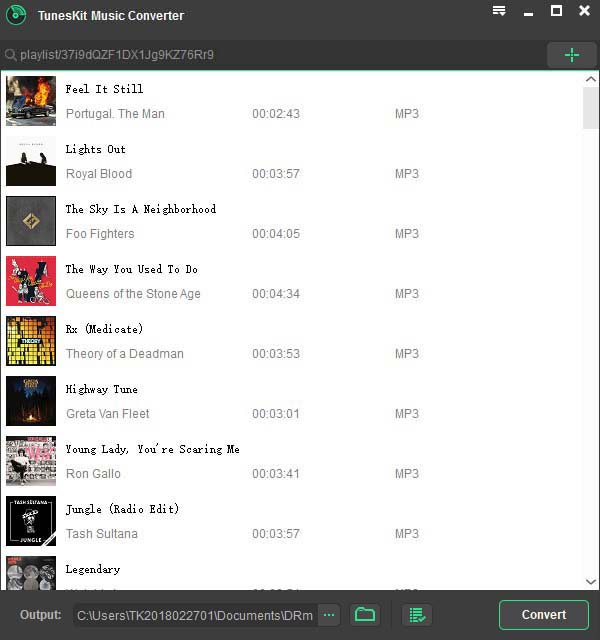
Open TunesKit Music Converter for Spotify and you'll notice the Spotify app is loaded automatically. Then log in to the Spotify account with your user name and password. Browse the store to find the songs or playlists you want to download to Apple Watch. Simply drag the tracks from Spotify to the TunesKit conversion window. You can also copy and paste the URL of the songs to the search box in TunesKit. Then wait for the songs to load into the software.

Step 2 Customize output songs

set output format
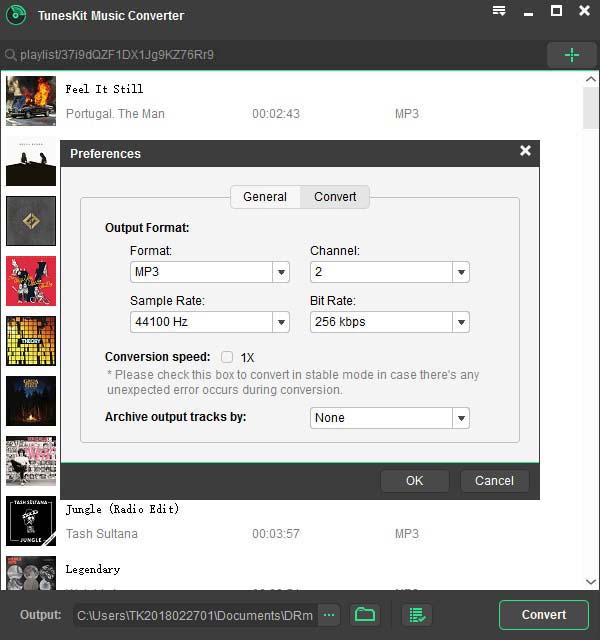
Click the top menu > Preferences. There you will be allowed to set the output audio format, bit rate, sample rate, etc. according to your own needs. In order to make the songs playable by Apple Watch, you are suggested to choose the MP3 as output format. For a stable conversion, you'd better check the 1X conversion speed option.

Step 3 Start downloading Spotify music
convert spotify songs
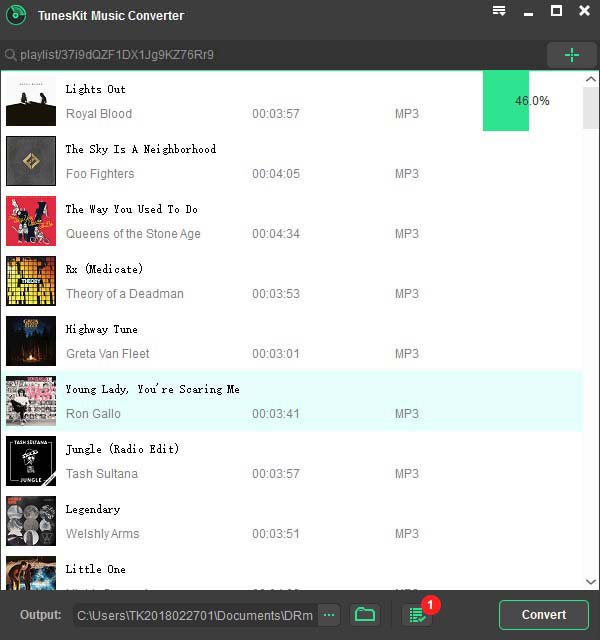
When finish customizing, simply click the "Convert" button to start extracting and downloading the Spotify songs as MP3. Once converted, you can click the "converted" icon to load the DRM-free Spotify tracks.

Step 4 Sync offline Spotify songs to Apple Watch


Now you can transfer the converted Spotify playlists to your iPhone. Then launch the Apple Watch app on your iPhone. Tap on Music > Synced Playlist, choose the Spotify playlists to sync. Once the sync's over, you can access them on your Apple Watch without carrying iPhone together.

This article is written by Adam Gorden, from TunesKit Software.

Nov 15, 2018

How to Listen to Spotify Offline for Free (100% Working)

Spotify offers paid users the Offline Mode so that they could easily download and sync Spotify songs on devices for offline listening. It's a convenient feature as there could be Internet connection error sometimes. However, even so, premium users may still fail to listen to Spotify offline due to some technical issues. To solve the problem efficiently, here we've collected some alternative ways to let you listen to Spotify offline even without premium account at any time.

Ultimate Tool You'll Need to Listen to Spotify Offline without Premium

For free subscribers of Spotify, this method will enable you to listen to Spotify offline without upgrading to premium membership. If you are paid users, you can also try this way or simply download and enjoy Spotify playlist and album using offline mode on Spotify. Compared with the default offline mode, the solution recommended here would be ever-lasting and more cost-effective. So no matter what subscription of Spotify you are using, you are highly suggested to follow this method in order to play Spotify music offline for free.


In this case, you'll need to install a 3rd-party Spotify music downloader like TunesKit Spotify to MP3 Converter. It's a professional Spotify DRM removal tool that can download and convert any Spotify track, album, and playlist from OGG Vorbis to MP3, AAC, WAV, and more common formats. Once downloaded, you can save the MP3 songs on any device for offline listening.

Guide: How to Download Spotify Music Offline with TunesKit Spotify Downloader


This is the full tutorial to show you how to download Spotify offline for free with TunesKit Spotify Music Converter. After that, you can listen to the music on any device as you wish without limit.

Step 1. Open TunesKit Music Converter for Spotify on your computer desktop by double-clicking the software icon. Then it will load Spotify app on the drive automatically. Once done, navigate to Spotify account and choose the target songs or playlists you want to listen to offline. Then simply drag the tracks to TunesKit downloading window as shown above.

Step 2. Now go to the top menu of TunesKit Spotify Music Converter and click Preferences. Then you'll enter the interface where you can set the output profile freely. Here you can choose output format, including MP3, M4A, M4B, AAC, WAV and FLAC. Besides, you are allowed to customize the output audio codec, bit rate, sample rate, conversion speed, etc. if you want to make the music sounds better.

Step 3. After everything, click OK button to go back to the main interface of TunesKit Spotify Converter. Then find the Convert button and click it to begin downloading the Spotify songs for offline listening.

More Tips: How to Use Offline Mode on Spotify (For Premium Users Only)


In case you still want to use the default way to listen to Spotify offline, here in this part, we'll show you the complete guide of Spotify offline mode and how to download Spotify offline using offline mode with Spotify premium subscription.


Listen to Spotify Offline with Spotify Premium on iOS/Android


Step 1. Connect your device to Internet. Then open Spotify app on the phone and sign into your premium account. Browse and find a track or an album you want to enjoy offline.

Step 2. Tap the Download button at the top of the playlist and wait till the songs are downloaded completely.

Step 3. Disconnect the Internet on your Android or iOS device. Then you'll automatically enter the Offline Mode and keep accessing those offline songs on your phone.

Listen to Spotify Offline with Premium on PC/Mac


Step 1. Launch Spotify app on your computer and log into your premium membership.

Step 2. Browse the Spotify music store to locate any song or playlist you want to download offline.

Step 3. Toggle the Download option to start downloading the target track or album.

Step 4. Go to File/Apple menu of Spotify app and choose Offline Mode option. After that, you'll be able to listen to the downloaded Spotify music offline.