Showing posts with label TunesKit iOS Data Recovery. Show all posts

Nov 26, 2020

Optimal Ways to Recover Data from Bricked iPhone/iPad

Many of you might know how to recover these data from iPhone/iPad in a common circumstance, yet when the iOS devices get bricked, then what you can do to bring them back? Well, take it easy, that's what we are going to talk about in the next parts.

Part 1: Basic knowledge about bricked iPhone/iPad

Firstly, when the title catches your eyes, you may be wondering that what bricked iPhone/iPad is. Electronically, the "brick" means a device not functioning or not working. While when it comes to the bricked iPhone/iPad, it refers to that the device not turning on, not responding, not making calls, stuck in a loop and so on.

Part 2: Bricked iPhone/iPad data recovery tool you need

If one of above similar situation happens on your iPhone or iPad and you are eager to get the lost or deleted data back, then this is what you are seeking. To recover data from bricked iPhone/iPad, professional iOS data recovery tools such as TunesKit iOS Data Recovery is necessary. This data recovery software provides three recovery modes to retrieve your lost or deleted data no matter whether you have backup or not. And its other key functions are as presented below.

Key features of TunesKit iPhone Data Recovery

1. Recover data from different iOS device like iPhone,iPad and iPod.
2. Retrieve data under various scenarios including mistaken deletion and software update failure.
3. Restore diverse types of data like videos, photos, etc.
4. Fully compatible with all iOS versions including the latest iOS 14.
5. Rescue encrypted files.
6. Support Previewing and selecting required data before recovery.

Part 3: Ways to retrieve data from bricked iPhone/iPad

Now it's time for us to start to recover data from bricked iPhone or iPad with three different means.

1. Recover without backup

Step 1: Launch TunesKit iPhone Data Recovery and connect your iPhone or iPad with the computer through a USB cable. Then choose the recovery mode as "Recover from iOS" from the program's main interface.
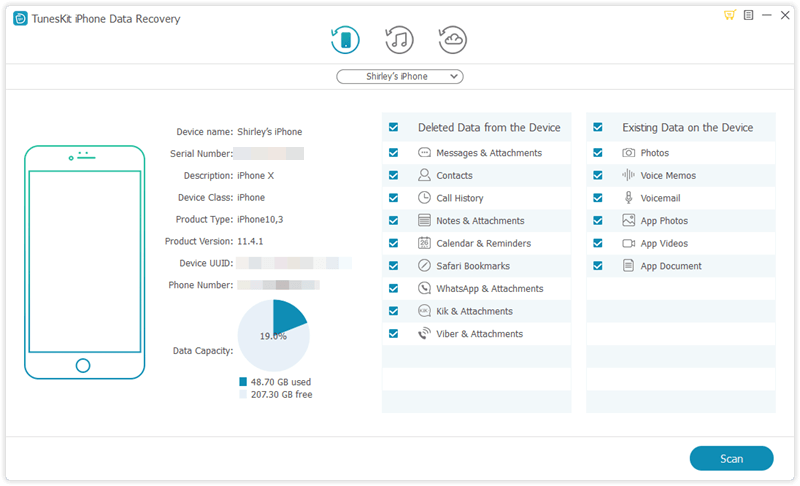

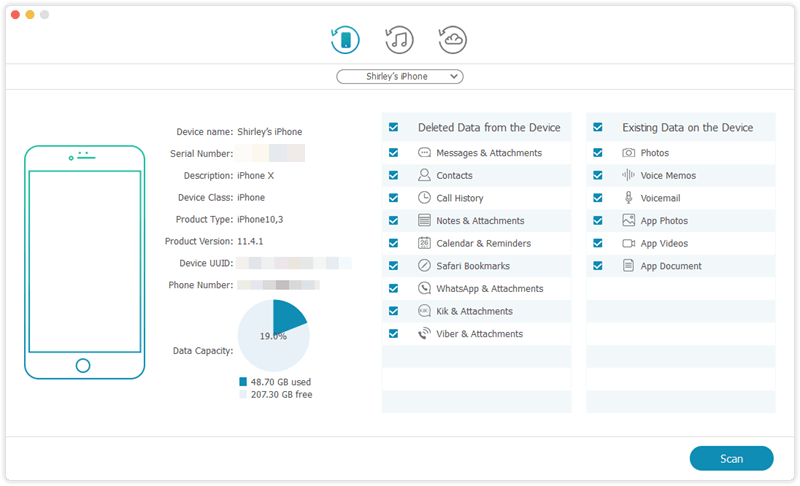
Step 2: After the device and different files are shown on the screen, choose the categories on the right column that need to be scanned. Then click the "Scan" button and the program will begin scanning.
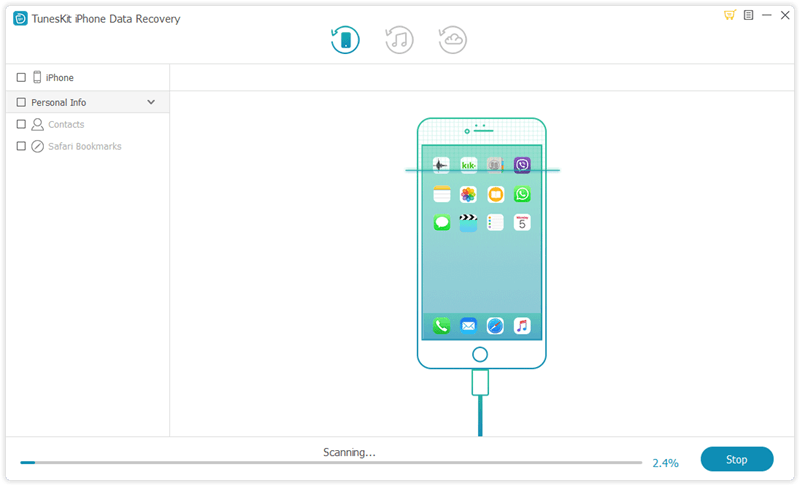

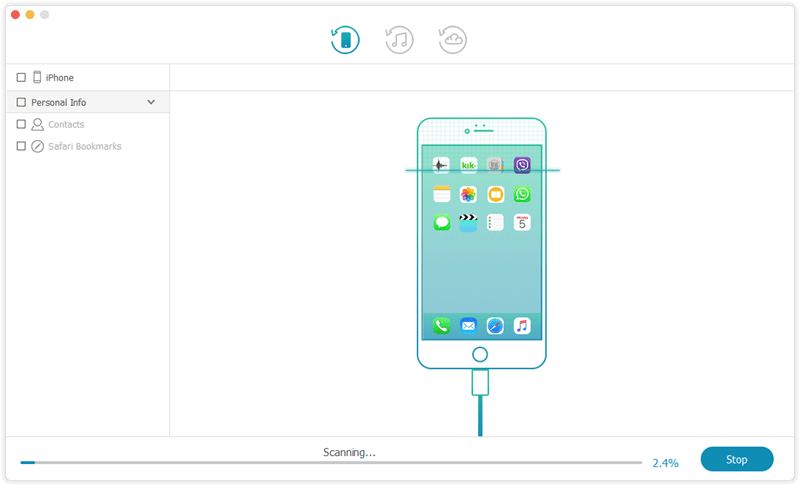
Step 3: Then all data scanned will appear on the left. Before you click the "Recover" button, you can preview the iPhone data you want to retrieve from different columns. After that the application will start to bring your data back.

2. Restore from iTunes backup

Step 1: Open TunesKit iOS Data Recovery on the computer and connect your iPhone/iPad with the PC. Then select the recovery mode named as "Recover from iTunes backup" on the main screen of the app.
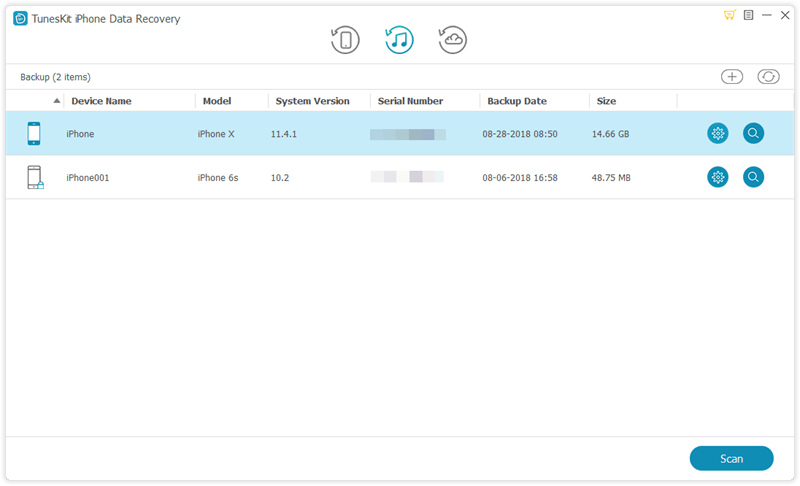

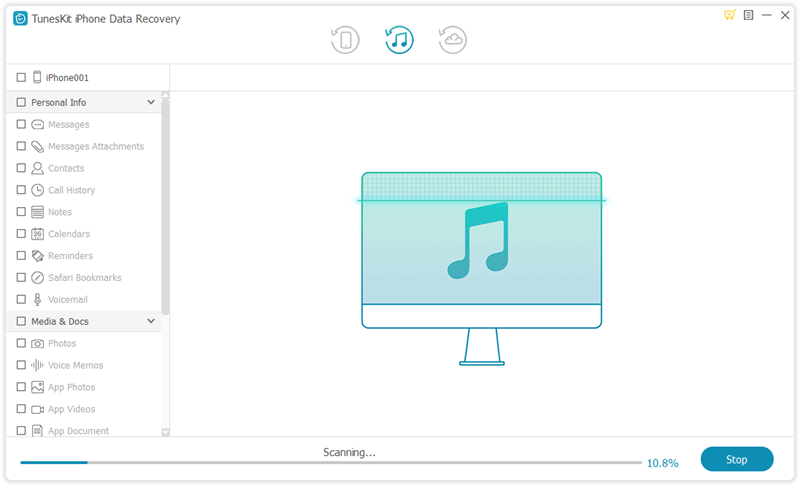
Step 2: Press on the "Scan" button to examine your iPhone or iPad data and choose the data on the left column.

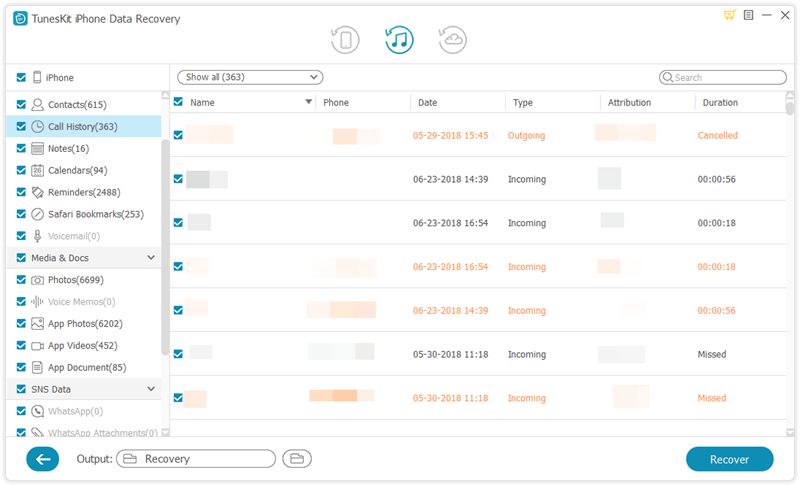
Step 3: Find out the deleted or lost data on your iTunes you are willing to recover and lastly hit the "Recover" button to restore them to the computer.
3. Retrieve via iCloud backup

Step 1: Launch TunesKit iPhone Data Recovery on the computer and make your iPhone connected with the PC. Then choose the third icon called as "Recover from iCloud Backup" from the main interface.
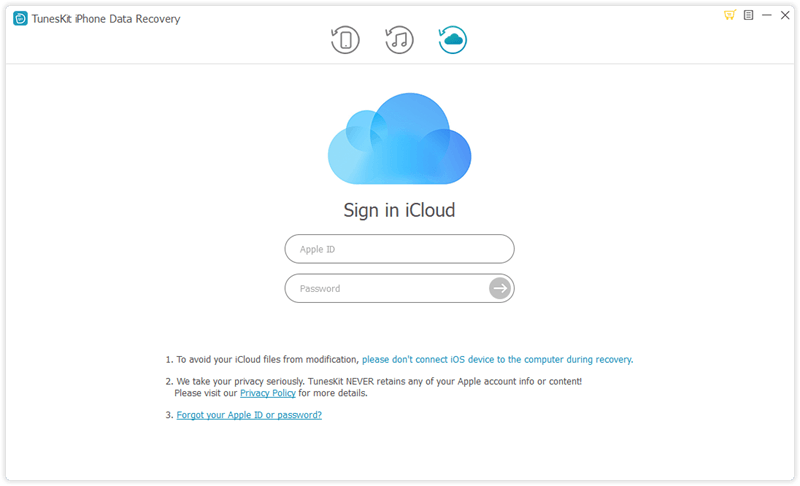

Step 2: Log in your iCloud by entering your Apple ID and password. Next select your own device among many different iPhones or iPads.
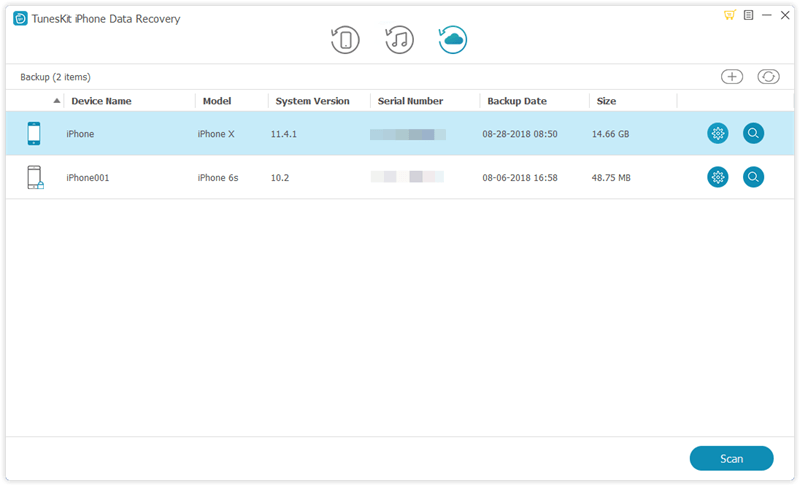

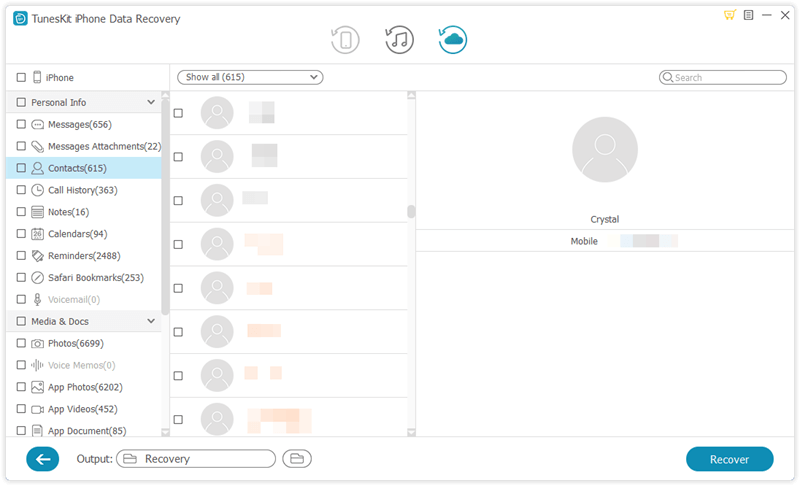
Step 3: Choose the data under the left columns and click on the "Recover" button to retrieve your lost data from bricked iPhone/iPad to the computer.
Part 4: Wrapping up

With the above professional iOS data recovery program in hand, when your iPhone or iPad becomes bricked suddenly or after a software update, it is helpful in restoring the data on the device. Hope this simple how-to guide, which requires no skills, can do you a favor.

Oct 30, 2020

The Best Way to Recover Music from iPod Touch

 To be honest, losing music files and songs on the iPod touch can get people frustrated and irritated especially when they are unique to you. But don't worry, keep reading and you will get the best way to retrieve them.

Part 1: Common causes of iPod touch music being lost

Diverse kinds of reasons could result in the music lost or deletion from iPod touch, and the followings are some common scenarios.

1. Insufficient capacity in iPod touch.

2. Battery reset or removal.

3. Unknown iPod touch volume format.

4. iPod touch being frozen.

5. The device is brought to factory settings.

6. Mistaken deletion during using iTunes and so on.

Part 2. Is it possible to restore deleted music from iPod touch?

Q: "All of the music files on my iPod touch were gone suddenly, I want to know if I can get them back and if there is a way to do that."

A: Of course, you can restore the lost songs from iPod touch. It may first occur to you that you can't enjoy the old songs anymore when this problem happened. But don't worry, it is highly possible to retrieve them from iPod touch and you must make your device has enough free space.

Part 3: The free and best music recovery software you'll need

To bring lost and deleted music files or songs from iPod touch, you are strongly recommended to use professional iPhone data recovery tools such as TunesKit iPhone Data Recovery. This application definitely can help you to recover iPod touch music no matter which model you are employing. Besides, it supports restoring various formats of music like MP3, AAC, etc. And you can check out its more spotlights below.

Key features of TunesKit iOS Data Recovery:

1. Recovering lost data like SMS with fastest speed and 100% of security.

2. Rescuing iOS files deleted due to various scenarios including mistaken deletion and virus attack.

3. Restoring diverse kinds of data like contacts, SMS, photos, etc.

4. Full compatibility to different iOS devices such as iPhone, iPad, iPod touch.

5. Supporting Recovering encrypted files.

6. With three smart recovery modes: iDevices, iTunes and iCloud backup.

7. Previewing and selecting required data before recovery.

8. Fully supports all iOS versions including the latest iOS 14.

Part 4: How to recover songs from iPod touch?

Download and install the TunesKit Music Recovery program on your computer. TunesKit is available on both Windows and Mac computers. In the following tutorial, we will show you recovering music from the iPod touch with the Mac version.

Step 1: Select the recovery mode.

Launch TunesKit iPhone Data Recovery and connect your iPod touch with the computer through a USB cable. Then choose the recovery mode as "Recover from iOS" from the program's main interface, because this mode doesn’t require you to have the music backup.


Step 2: Scan and preview data.

After the device and different files are shown on the screen, select the categories on the right column that need to be scanned. Then click the "Scan" button and the program will begin scanning.


Step 3: Recover and save lost data.

Then all data scanned will appear on the left. Before you click the "Recover" button, you can preview the music files you want to retrieve from the "Media & Documents" column. After that, the application will start to get your lost and delete songs on the iPod touch back.

Summary

By now, you must have recovered the music from your iPod touch based on the above simple and secure procedures. In addition, if you have backed up the music files and songs on your iPod touch, you can also retrieve them from iTunes backup mode and iCloud backup mode of this powerful tool. The relevant steps are similar to the mode of recovering from iOS device. Finally, contact us if you have any problems.