Showing posts with label ios 13. Show all posts

Aug 27, 2020

Troubleshooting Guides to Fix iPhone Ghost Touch

 iPhone ghost touch means that the iPhone pops up being touched by itself as if it is operated automatically or by other people we cannot see. This may seem a little scary yet it can be fixed by many easy methods. So just check out this article.

First, why does the iPhone appear ghost touch? many models including iPhone XR, iPhone 8,7, and etc showing ghost touch may be attributed to a wrong display, injured screen factors, software glitches and errors, defective digital manufacturing, and the like. 

The Best Way

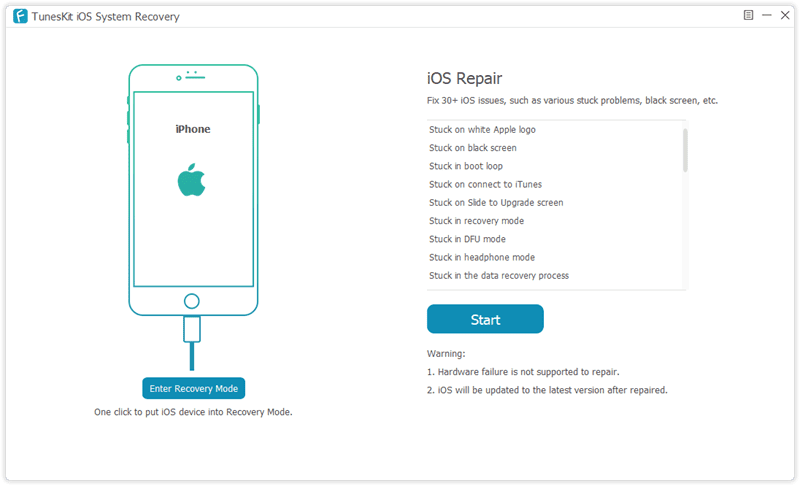
Now let's look at the best way to solve the iPhone ghost touch. That is using TunesKit iOS System Recovery. It is a relatively popular program to bring your iOS system back to normal with almost every problem solved. It fixes all iOS and tvOS system issues including iPhone recovery mode, white Apple logo, black screen, Apple TV issues, etc. Besides, there is no data loss after the reparation with standard mode. Moreover, it supports diverse devices like iPhone, iPad, iPod touch, and Apple TV, and all iOS versions, including the latest iOS 13. Finally, it has a simple interface that is easily understood and operated by customers.

To repair the iPhone ghost touch screen issue, you just follow three steps.

Step 1: Firstly, open TunesKit iOS System Recovery for Windows on your computer. Then you have to connect your iPhone till it's detected. Next, click the "Start" button. Next, choose the "Standard Mode" and "Next". You have to select which device you've connected. Then follow the instructions from the interface and let your device is into DFU mode. After that, click the "Next" button.
Step 2: The application will download the firmware package matched to your device after finishing the first step. Before that, you have to make sure the device info is correct, including the model version, iOS version, etc. You can correct it if there's anything wrong. If all information is correct, click the "Download" and it will start downloading and verifying the firmware.

Step 3: When the firmware has been downloaded successfully, you just click the "Repair" button and the program will automatically begin to fix your iPhone. Don’t disconnect your device until the process is completed. Otherwise, the device might become bricked.

Other Methods

1. Clean the Touchscreen of Your iPhone

You may wonder why cleaning iPhone touchscreen works. It is because some dust and particles on your iPhone may make the device act on its own, especially when the dust is accumulated after a quite long time. It is simple for you to clean the iPhone touchscreen. Before starting, you have to switch the iPhone off and unplug all connected cables. Then you are supposed to get a clean and uncouth cloth or tissue paper with some water. Lastly, you can begin wiping your device’s screen from the top to the end in a gentle manner.

2. Remove Your iPhone Screen Protector

Although the screen protector is usually employed by users to keep the iPhone from scratch, it may sometimes cause some issues about operations like ghost touch. Under such circumstances, you have to take off your iPhone’s screen protector to get the problem solved. Take it from one corner and then step by step, slowly remove it completely.

3. Take off Your iPhone’s Case

Similar to the screen protectors, iPhone’s case also leads to ghost touch problems. When you find that your device’s screen is slightly twisted, you can take away the case of your iPhone. As the hard case may occasionally twist your iPhone’s screen. The iPhone ghost touch screen problem may be fixed after removing the case.

4. Restart Your Device

Whenever the iPhone gets wrong, most people always let their iPhone power off and restart them first. You can also have a try to restart your iPhone after having used above quick fixes which cannot solve the problem as expected.

If you use iPhone X and later, press the slide and volume button. When the slide to power off signal shows, slide it to the right.

If your device is the iPhone 8 and earlier, press the top button and you will see a power-off sign, then swipe it to the right.

5.  Recover iPhone by Putting it into Recovery Mode

If restarting iPhone doesn’t help you, to put your iPhone into recovery mode may also do the trick. But recovering iPhone might cause some data loss. So you are suggested to do data backup before putting the iPhone into recovery mode.

Please follow these steps to get the iPhone into recovery mode.

Step 1: Click iTunes on your computer and connect your device.

Step 2: Hold and release the volume up and down button respectively.

Step 3: Press the side button and enter the recovery mode.

Step 4: Finally click update or restore.

6. Factory Reset Your iPhone

A factory reset usually can fix the problem of ghost touch on the iPhone, because it can remove some settings that cause the problem. But this method will remove all data of your iPhone. So you are suggested to backup data before you try the following steps.

To factory reset your iPhone, go to Settings, then the General, next to the Reset, and finally Erase all Contents and Settings. Enter the device's passcode when prompted and then click on "Erase iPhone" to complete the process.

7. Restore Your iPhone via iTunes

If the above methods don’t work, then you are suggested to try to restore your iPhone in iTunes. If you don’t mind the data loss, you can follow the following steps:

Step 1: Open the iTunes and connect your iPhone to the computer.

Step 2: Click the iPhone icon when the iPhone appears in iTunes successfully.

Step 3: Click “Restore iPhone” in the column of Summary.

Step 4: Click “Restore” again to make sure the process works well and then iTunes will restore the device connected to the factory settings.

8. Contact Apple

If you got this far, it might mean the problem is not solved yet. Then the final try should be bringing your iPhone to the Apple store. The store will provide free and authorized service to make the ghost touch on your iPhone fixed. But first, you have to make sure you have got data backups by iTunes and iCloud.

We sincerely hope this full guides to solve iPhone ghost touch can be useful for you. If you feel it's good, you can share this post with your friends or relatives who have the same problem. And if you have any questions, leave your comment below.

Aug 20, 2020

Easily Fix iPad White Screen in 5 Ways

 iPad getting stuck on the white screen is one of the common issues among diverse kinds of iOS problems. There are many reasons behind it, for example, iOS update failure, software errors. But despite the causes that lead to this matter, it is fixable and next we are going to introduce the 5 most effective and useful solutions to work out this trouble.

Way 1: Hard reboot your iPad

Generally speaking, force restarting your device is a simple yet effective method to solve iOS stuck problems. iPad stuck on a white screen is no exception. You can simply hold the Power button and Home button simultaneously for about a few seconds until the Apple logo shows up. It will restart again and you can check whether the problem is solved.

Way 2: Try the three-button trick

This method is not always working, according to the reports from many iOS users. But it still worth a try, what if you succeed? The steps are very simple. Just press and hold the Home button, Volume Up button, and then Power button for a while and wait until the white screen on your iPad disappeared. 10 seconds later, the Apple logo will appear and your iPad will reboot again.

Way 3: Use TunesKit iOS Repair with almost 100% success rate

After trying to hard reset your device by using the two methods above, if the white screen problem still exists, you can consider using a professional iOS system recovery tool to fix it. TunesKit iOS System Recovery is such a comprehensive and efficient iOS repair program that is specially developed to fix up to 30 iOS-related issues. These problems include iPhone stuck on the white Apple logo, iPad won't turn on, iPhone black screen of death, blue screen, red screen, etc. The most powerful characteristic of this tool is that you will never worry about the data loss when using it to fix iOS system problems. What's more, it supports all iOS including the latest iOS 12 and almost all models of iPhone, iPad, iPod touch.

Step 1: Launch TunesKit iOS System Recovery program and use a USB cord to connect your iPad to the computer. Then click the Start button and choose the Standard Mode which will not cause any data loss. Press the Next button to continue.
Step 2: Now your need to check your device info such as model name, iOS version, etc. If nothing is wrong, you can simple hit the Download button to ask TunesKit to download the firmware package you need.

Step 3: Once the download and verification of firmware package is completed, you can start fixing white screen problem by clicking the Repair button. Wait until the process bar ends. Remember not plug your device during the process, or your device may get bricked.

Way 4: Put your iPad into recovery mode

Another solution to fix the iPad stuck on the white screen is to try restoring your iPad with iTunes. It will reinstall iOS on the iPad, so all the data your device will be effaced, but you can use TunesKit iPhone Data Recovery to get them back. Or if you don't mind, you can follow the quick steps below.

Step 1: Open iTunes and update it to the latest version. Connect iPad to your computer via a USB cable;

Step 2: Since your iPad is in a white screen state, it can't be detected by iTunes. You need to put it into the recovery mode. You can first hold the Power and Home buttons at the same time for about 10 seconds, and release the Power button and only hold the Home button until you see the Apple logo. Keep holding it until the Connect to iTunes icon appears;

Step 3: Once your device entered the recovery mode successfully, choose Restore iPad and wait until the process is finished. You can now set up your iPad as a new device.


Way 5: Restore your device in DFU mode

Alternatively, you can also put your iPad into the DFU (Device Firmware Update) mode and then use iTunes to restore it. Also, all the data on the iPad will be erased. Here is how to fix the iPad white screen problem using this method.

Step 1: Connect iPad to the computer and then launch iTunes;

Step 2: Switch off the iPad and hold the Power button and Home button simultaneously for 10 seconds. Then release the Power button and keep holding the Home button. If you see the "Plug into iTunes" message, you need to repeat the process; if the screen turns black, your iPad has entered the DFU mode now;

Step 3: iTunes will ask you to Restore the iPad and confirm the action. After it's done, your problem should be solved.

Verdict

Now you have known the best and most full solutions to fix your iPad screen becomes white problem, quickly give it a shot, and if you have any questions or confusion during the process of repairing, welcome to connect us or leave your comment below.


Aug 11, 2020

How to Recover Contacts on Broken iPhone Effectively


Have your iPhone ever fallen to the ground and it didn't respond no matter how many times you tap it? At this time, you want to open contacts but it won't. Don't worry! This blog will show you how to recover contacts from a broken iPhone with three methods. Whether the iPhone can't be opened or it was damaged, you can get a lot of value from this to get your problem solved.

Way 1: Recover through iCloud


If you have backup your data on the iPhone to iCloud before the broken incident happened, then you try exporting the vCard to get all your contacts back. Please try the following steps.

Step 1: Visit the website iCloud.com and log in to your iCloud account as required.

Step 2: Find contacts and tap the "gear" icon on the upper-left corner.

Step 3: Tap on Select App Option and then click "Export vCard..." At this point, all the contacts stored on your broken iPhone will be back to your computer in the .vcf folder.

Way 2: Retrieve by using the third-party tool


The question of "Can you recover contacts from a broken iPhone?" is common from our website community. In fact, the problem is not difficult to fix as an efficient iOS data recovery tool -- TunesKit iPhone Data Recovery will satisfy your needs to recover lost data by providing 3 smart recovery modes. namely, Recover from iOS, Recover from iTunes Backup as well as Recover from iCloud Backup. In addition to contacts, it is also capable of retrieving other files such as call history, text messages, calendar, photos, notes, videos and others adding up to 20 kinds of data from your device. The functions of preview data and selectively recovery guarantee the flexibility and accuracy of the data retrieval. What's more, it supports both Windows and Mac operating system so that you can use the comprehensive tool to perform recovery according to your needs.

2.1  Recover Broken iPhone Contacts from iCloud Backup Selectively


As is known to us all, the official way Apple offers to complete the restoration using iCloud needs erasing all the current files on your device, which may bring other data loss issues inevitably. With TunesKit iPhone data recovery, you don't have to worry about this problem. Simply follow the step-by-step guides below to recover contacts from broken iPhone via iCloud backup selectively.

Step 1: Log in to the iCloud account

Launch the program and set the recovery mode as "Recover from iCloud Backup" from the window. Then enter your Apple ID and password to log into the iCloud account.

Step 2: Download iCloud backup file

The software will begin to find all your iCloud backups after you logging to the account. Then choose the specific iCloud backup file that contains the lost contacts of your iPhone. Click the Download button, then select Contacts and click on the Next button to download them from the iCloud backup.

Step 3: Recover contacts from iCloud backup

When the scan finishes, almost all lost and existing data will be shown in the main interface. Choose the contacts you want after previewing them, finally tap the Recover button to save them back to your computer as expected.


2.2. Restore Broken iPhone Contacts from iTunes Backup Selectively


This method is highly recommended if your iPhone can neither open normally nor detected by the computer, but you have synced your device to iTunes before it has broken. Now let's start taking a look at how to recover contacts from broken iPhone via iTunes Backup Selectively.

Step 1: Choose iTunes backup file 

Open TunesKit iPhone Data Recovery and select the second mode "Recover from iTunes Backup". Wait for a few minutes while the recovery software is detecting all iTunes backup files on your computer.


Step 2: Scan lost contacts from iTunes backup

Choose the correct iTunes backup file and tap the Scan button, then the program will extract all deleted or lost files from the backup. You can also select Contacts only by clicking the "gear" icon of the backup file.

Step 3: Recover contacts from iTunes backup

When it completes scanning, all recoverable data in the iTunes backup will be listed in different categories. You are allowed to preview them separately and choose the exact ones you want. Click the Recover button after selection to get them back to your computer instantly.

Conclusion


By using the professional data recovery tool, you can recover contacts from a broken iPhone via iTunes or iCloud backup easily and effectively. Moreover, this program can fix your problem without causing data loss. Lastly, it has full compatibility with almost all iOS devices including iPhone 11 Pro Max, iPhone 11,iPhone 7 Plus, etc, all models of iPad and iPod Touch 5. Just give it a try now and you will receive a lot.


Oct 22, 2019

Should We Update iOS 13?


Some time has passed since the official issue of widely expected iOS 13. However, there are both positive comments and negative ones about the latest iOS, making those who have not updated the iOS hesitating: whether we should upgrade to iOS 13? To help the confused audience make the decision, we have collected a great deal of information and user reviews about using iOS 13, and as a result, provide you with the pros and cons of it.

Pros:

1. Dark Mode

dark-mode
For those users with the habit of fondling their iPhones (I suspect most users have this habit) before going to bed, this mode is a great improvement. No more white UI dazzle your eyes in the dark, and one more argument to persuade your mom that it's not so harmful playing with your cell phone in the dark.

2. Better Intelligence

This change mainly happens to the built-in apps, which has been critisized as "useless", "outdated" or "inconvenient". It seems that Apple has noticed the shortage of these apps and decide to optimize them. Among the changed list are Reminders (new categorization function and voice identification are added), Safari (new download manager is added),  Files (Files can be zipped or unzipped now).
reminder-app-update

3. Camera and Photo viewing

New features are added to cameras and photo viewing. Let's started with the camera.  The portrait mode is greatly optimized, as illumination function is added and strengthened.  As for photo viewing, the photo can now be sorted by different lengths of time, and irrelevant and duplicate images and videos can be hidden so that you can enjoy those beautiful memories freely. In addition, you can edit photos by adjusting 16 parameters.

Portrait-Lighthing-Control-iOS-13

4. Other Fixes Worth Noting

Better facial recognition (both the unlocking speed and the ability to recognize a face from different angles), bugs fixes (i.e. iPhone not ringing when receiving calls, failure of matching iPhone with Apple Watch), new Animoji and Memoji.
iphone-apps-stuck-on-waiting

Cons:

Though there are so many amazing new features in iOS 13, we shouldn't ignore that it comes with flaws. They are various compatibility issues. For example, it is reported that some apps stuck in the loading screen after updating iOS 13. They might seem minor, but when encountered in real usage, these problems become so annoying that you might strive to control yourself from hurling the phone.

Conclusion:

Although the drawbacks cannot be unseen, the advantages of iOS 13 still make this version of iOS worth updating. However, if you just can't tolerate issues like apps stuck or unable to use, it's OK to wait for further fixes of iOS 13.

Jun 2, 2019

Apple WWDC 2019: What to Expect

On Monday, Apple Inc.'s will start its opening keynotes for the 2019 Worldwide Developers Conference (WWDC) in San Jose, when the company will show off its new iOS version, as well as other systems such as MacOS, WatchOS, TVOS. What else can expect at this annual big event? Well, let's read on to find out more.

Software updates

Apple usually shows of the next generation of iOS, its operating system for the iPhone, iPad and iPod Touch. The next version is iOS 13, and is expected to include a dark mode, according to 9 to 5 Mac. The mode changes the color scheme of a screen so that it's easier to see in low light. Apple already has a dark mode available on its Macs. Other changes could include updates for its built-in apps like Reminders, new health-tracking features like a hearing-measurement tool, and more multitasking features on the iPad.

Read more: What's New in iOS 13?

An end to iTunes

After 18 years, Apple could finally take its main application for all music and video content out of commission, according to Bloomberg. The decision would not be a big surprise. The groundwork has already been laid, with Apple breaking music into its own app and investing heavily in content and partnerships for a revamped TV app.

Apple Watch breaks free

The four-year-old Apple Watch has always been somewhat dependent on the iPhone for key tasks. This year, Apple could give the wearable more independence with an App Store all its own, as well as updates to key apps and new ones for health-tasks like period tracking.

A possible Mac Pro

While WWDC is focused on software, Apple has been known to tack on some hardware announcements. Nothing iPhone related — those are saved for the big fall event — but Apple could finally unveil an update to its Mac Pro, along with a new Apple display. The company has been promising a new model of the powerful PC since 2017, after a lukewarm reception for its cylindrical "trash can" Mac Pro in 2013.

The event will start at 10am PT/1pm ET on Monday, June 3, and ended on Friday, June 7, 2019 and it will be streamed on Apple's site.

Source: https://www.cnn.com/2019/06/01/tech/apple-wwdc-2019-preview/index.html