Jun 2, 2019

Apple WWDC 2019: What to Expect

On Monday, Apple Inc.'s will start its opening keynotes for the 2019 Worldwide Developers Conference (WWDC) in San Jose, when the company will show off its new iOS version, as well as other systems such as MacOS, WatchOS, TVOS. What else can expect at this annual big event? Well, let's read on to find out more.

Software updates

Apple usually shows of the next generation of iOS, its operating system for the iPhone, iPad and iPod Touch. The next version is iOS 13, and is expected to include a dark mode, according to 9 to 5 Mac. The mode changes the color scheme of a screen so that it's easier to see in low light. Apple already has a dark mode available on its Macs. Other changes could include updates for its built-in apps like Reminders, new health-tracking features like a hearing-measurement tool, and more multitasking features on the iPad.

Read more: What's New in iOS 13?

An end to iTunes

After 18 years, Apple could finally take its main application for all music and video content out of commission, according to Bloomberg. The decision would not be a big surprise. The groundwork has already been laid, with Apple breaking music into its own app and investing heavily in content and partnerships for a revamped TV app.

Apple Watch breaks free

The four-year-old Apple Watch has always been somewhat dependent on the iPhone for key tasks. This year, Apple could give the wearable more independence with an App Store all its own, as well as updates to key apps and new ones for health-tasks like period tracking.

A possible Mac Pro

While WWDC is focused on software, Apple has been known to tack on some hardware announcements. Nothing iPhone related — those are saved for the big fall event — but Apple could finally unveil an update to its Mac Pro, along with a new Apple display. The company has been promising a new model of the powerful PC since 2017, after a lukewarm reception for its cylindrical "trash can" Mac Pro in 2013.

The event will start at 10am PT/1pm ET on Monday, June 3, and ended on Friday, June 7, 2019 and it will be streamed on Apple's site.

Source: https://www.cnn.com/2019/06/01/tech/apple-wwdc-2019-preview/index.html

May 27, 2019

Apple Unveils New MacBook Pro - the Fastest Mac Notebook Ever

Recently, Apple has introduced its new MacBook Pro with faster 8th- and 9th-generation Intel Core processors, bringing eight cores to MacBook Pro for the first time. MacBook Pro now delivers two times faster performance than a quad-core MacBook Pro and 40 percent more performance than a 6-core MacBook Pro, making it the fastest Mac notebook ever.

These new processors, combined with powerful graphics, the brilliant and colorful Retina display, super-fast SSDs, the Apple T2 Security Chip, all-day battery life and macOS, make MacBook Pro the world's best pro notebook.


"Whether it's college students mastering a course of study, developers building world-class apps or video editors creating feature films, we’re constantly amazed at what our customers do with their MacBook Pro,” said Tom Boger, Apple’s senior director of Mac Product Marketing. “Now with 8-core processors for an incredible performance boost, along with its stunning Retina display, fast storage, all-day battery life and running macOS, MacBook Pro continues to be the world’s best pro notebook and we can’t wait to get it into our customer’s hands to see what they do next."

When compared to the fastest quad-core 15-inch MacBook Pro, the new MacBook Pro with 8-core processors is up to two times faster, so:


  • Music producers can play back massive multi-track projects with up to two times more Alchemy plug-ins in Logic Pro X.
  • 3D designers can render scenes up to two times faster in Maya Arnold.
  • Photographers can apply complex edits and filters up to 75 percent faster in Photoshop.
  • Developers can compile code up to 65 percent faster in Xcode.
  • Scientists and researchers can compute complex fluid dynamics simulations up to 50 percent faster in TetrUSS.
  • Video editors can edit up to 11 simultaneous multicam streams of 4K video in Final Cut Pro X.

Compatibility

All new Macs come with macOS Mojave, the latest version of the Apple's desktop operating system, with features inspired by pros but designed for everyone. In Mojave, Dark Mode transforms the desktop with a dramatic new look that puts the focus on user content, Stacks organizes messy desktops by automatically stacking files into neat groups and FaceTime supports group calling. Mojave also brings iOS apps, including News, Stocks, Voice Memos and Home to the Mac and features a redesigned Mac App Store with rich editorial content and the addition of apps from top developers, including Microsoft and Adobe.

Pricing and Availability

Starting at $1,799 and $2,399 respectively, the updated 13-inch MacBook Pro with Touch Bar and 15-inch MacBook Pro are available from the release day (May 21, 2019) through apple.com, the Apple Store app and in select Apple Stores and Apple Authorized Resellers later this week.

Source: https://www.apple.com/newsroom/2019/05/apple-introduces-first-8-core-macbook-pro-the-fastest-mac-notebook-ever/

May 15, 2019

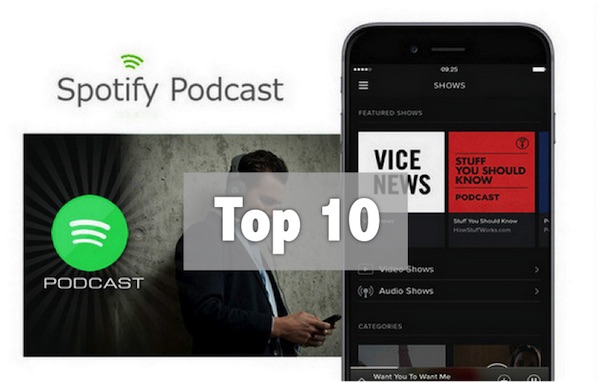
Top 10 Best Spotify Podcasts in 2019

Since its inception in 2008, Spotify has grown to become one of the most popular digital audio streaming services in the world. Today, you can access Spotify from over 60 countries across the globe. It has over 200 million users, making the no.1 audio streaming platform.
Notably, over the last three years, Spotify has been increasingly venturing into the podcasting world. In fact, plans are underway to update its application interface to facilitate easy access to podcasts by its users. The latest acquisition of Gimlet Media goes to show how sincere Spotify is in the quest to develop the podcasts platform for its fans.
top 10 spotify podcasts

As these efforts intensify, we are going to look at what Spotify has achieved as far as podcasting is concerned. This article will in great details attempt to establish the best Spotify podcasts of 2019. Am not sure what your best Spotify podcasts this year is, but for me there are a couple great podcasts that I have grown to love. Well, let’s find out the top 10 best podcasts on Spotify in 2019. The countdown starts!

1. Showstopper

Hosted by the chief editor for ‘The Fader’, Naomi Zeichner, showstopper is an original Spotify podcast that attempts to shed light on the use of memorable music in TV shows. The content of the work is significantly dominated by interviews with a whole range of artists, music supervisors and production staff, as well as show runners involved creation of classic and iconic music. Showstopper episodes usually run for about 20 or so minutes. A new episode is released after every two weeks. Just make sure you do not miss out on inspirational interviews with Naomi.

2. The Joe Budden Podcast with Rory and Mal

The show is popularly known for a number of controversial public feuds ‘beef’ with renowned artists such as Eminem, Complex, Pusha T, Chance The Rapper to mention a few. Old school former rapper, Joe Budden has hosted the show since its inception in February 2015. Initially, the show was called “I’ll Name This Podcast Later,” It has since then grown to be one of the most followed podcast on Spotify. Last year, Joe and his co-host signed a deal that gave exclusive airing rights to Spotify. This means that is only on Spotify that can catch the latest episodes of ‘The Joe Budden Podcast’. The episodes air twice a week.

3. Dissect

Like showstopper, Dissect is also a music-oriented podcast on sporty and equally one of the best Spotify podcasts 2019. However, things are done a little differently in comparison with showstopper. They profoundly look at one album per season and each track form one episode. For example, season one expounded on “To Pimp a Butterfly” on Kendrick Lamar. Subsequently, Season 2 looked at “My Beautiful Dark Twisted Fantasy” by Kanye West.

4. Microphone Check

The particular podcast is significantly tailored towards establishing the current dynamics of both music and culture. This makes it one of the best on Spotify podcasts. More specifically, the Microphone Check podcast focuses on the interactions between hip hop music and the outside world. The podcast is chat-based. The show is co-hosted by Frannie Kelley (a journalist) and Ali Shaheed Muhammad (a founding member of Quest community); they interview different guests every week. The podcast does not have a fixed airing schedule. Sometimes it might be a week or even one month to view the next episode.

5. Fest and Flauschig

It is undeniably one of the most popular German-language podcast. It is so popular that even non- German speakers love watching it. Last year, the show featured as the topmost listened podcast on Spotify. We will probably see a repeat of the situation this year. In the off chance it happens, then Fest and Flauschig will be the best Spotify podcasts 2019. Comedians Jan Böhmermann and Olli Schulz host the show.

6. MotoGP Podcast

It is the podcast to watch especially if you are a Motosport fan. The podcast came along after collaboration works between Spotify Studios and Dorna Sports. In fact, the series started off the years and seen an incredible following. Currently, they have an ongoing interview with legendary racer Casey Stoner.

7. Are and Be

It is simply an R&B podcast. Two seasons have already been released in 2017 and 2018. The 2019 season is just around the corner. So much anticipation is building up. Are and Be podcast is managed by Spotify’s Global Head of R&B and Soul.Currently, it serves as a platform where R&B artists share their experience stories. Usually, every episode goes for around thirty minutes.

8. David’s Out For A Good Time

This Spotify original podcast targets the LGBTQ community across the globe. David Olshanetsky, the TheShitneySpears.com founder host the show. Apart from discussing issues touching on the LGBTQ community, the show also sheds light on matters relating to the internet, pop culture among others. New episodes are available every Tuesday. If you can access one, then it means that they are on a break like they often do.

9. Under Cover

The podcast feature artists who have done cover versions of popular songs across the globe. Cover songs artists are invited to the show to share their stories relating to the creation and production of the covers songs. The show has brought on artists such as Shawn Mendes and Meghan Trainor where they discussed their cover songs “Use Somebody,” and “Normal,” respectively.

10. Amy Schumer presents: 3 Girls, 1 Keith

The show first aired on Spotify on June 2018 courtesy of Amy Schumer, an American stand-up comedian. The show is co-hosted by other three comedians Rachel Feinstein, Keith Robinson, and Bridget Everett. The show is mainly dominated by a whole range of topics from sex, to love, and politics among others. They also go further to gossip about themselves making the show very lively and exciting. So far they have two series, and a third is expected to air soon.

The Final Words


All you need now is to create an account with Spotify and get to enjoy the best Spotify podcasts of 2019 at the comfort of your room. If you are using the paid account of Spotify, you can easily download the podcasts onto mobile devices and enjoy them on the go. If you are free user but also want to listen to Spotify podcasts offline on any device, you should use TunesKit Spotify Music Converter, a 3rd-party Spotify downloading tool that can save and encode Spotify podcasts to offline MP3 or other common formats with the original ID tags preserved.

Source: https://www.tuneskit.com/spotify-music-tips/best-spotify-podcasts.html

Dec 5, 2018

Complete Guide to Cancel Audible Subscription

Where can you ask Jeremy Irons, Jake Gyllenhaal, Bryan Cranston, and Kate Winslet to whisper in your ear? Amazon's Audible is the world's largest seller of audiobooks. Is that making you think twice about cancelling your Audible subscription? Even then, let's see how to cancel an Audible subscription in a few easy steps.

If you are an audiobook lover, then”Is Audible worth it?” is a legitimate question. You also might have your own genuine reason to cancel your Audible account. Is it any of the ones below?

Reasons for Cancelling an Audible Subscription


Audible has a lot of pros for audiobook lovers. But there could be a few personal negatives for you too. One of them might be your main reason.
  • The Audible monthly subscription is too high for the single monthly credit.
  • You dislike Audible’s recommendation system as it does not surface the titles you need.
  • The reason for using the app has changed: For instance, you drove a lot earlier and now you don’t.
  • You comprehend more when you read rather than listen.
  • There are cheaper alternatives to Audible audiobooks.
Your reason might not be on the above shortlist, but Audible makes it easy to cancel a subscription in a few clicks.

How to Cancel an Audible Subscription


With your reason decided, you can set out to cancel your Audible subscription. We will look at the simple step-by-step process first and then get into a few more guidelines that you should be aware of.

Step 1. Log into the Audible desktop site. You cannot cancel a subscription from the Audible phone or tablet app.

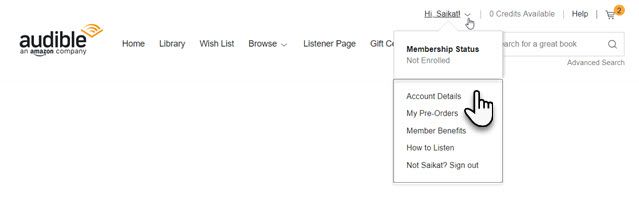
Step 2. Click on the dropdown arrow next to your name and select Account Details.


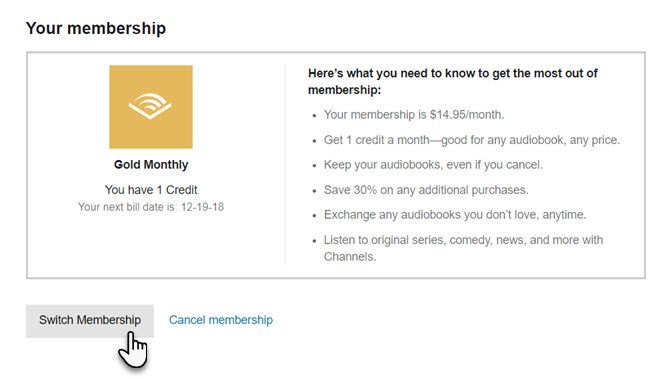
Step 3. Click Cancel membership at the bottom of the “View membership details” section.


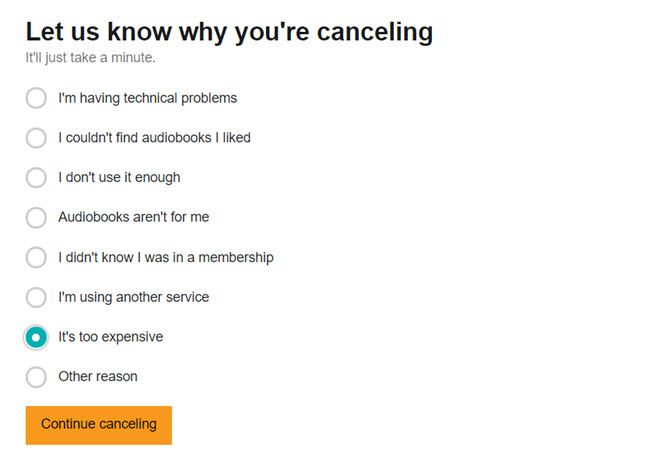
Step 4. In the next screen, Audible asks you for a feedback on the reasons for the cancellation. Explain your reasons and click the Cancel Membership button.


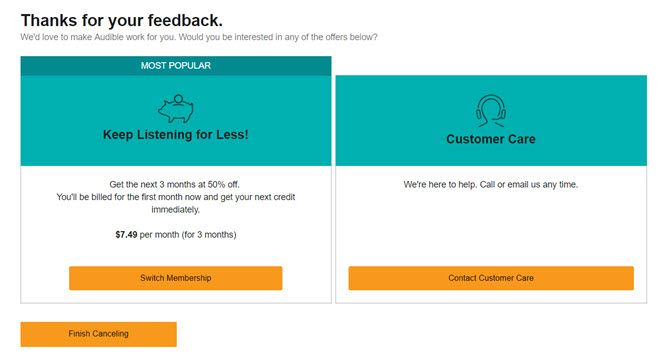
Step 5. Depending on your location and reasons for cancellation, Amazon might offer you an alternative. For instance, it might suggest a pre-paid membership plan instead of a recurring plan. It can also offer you a “special” plan in an effort to indude you to stay on. Continue the cancellation steps if you are not interested in the service.


Step 6. Sign again into Amazon Audible to confirm your cancellation. After you cancel, an automated email will be sent to you as proof of your cancellation.

Before You Cancel Your Audible Subscription


Before you hit the orange cancel button, read through these points. Amazon also highlights them on its Help page.
  • You can cancel the monthly recurring plan only. Prepaid plans cannot be cancelled as they will just expire.
  • Cancel your membership from the desktop site. Audible does not allow you to cancel any plans from the mobile apps. But you can use the desktop versions in Chrome and Safari to access the site and go through the process.
  • Unused credits are also cancelled with the subscription. Make sure to use them before you cancel. You cannot transfer them to anyone else.
  • Keep listening to your audiobook collection. You retain the use of your old audiobook library and can download them again.
  • Cancel before the next billing cycle. Manage all your online subscriptions and cancel it before the next payment cycle starts. Also, cancel your subscription if you are in the trial period if you do not want to be billed when the trial ends.
  • You can still purchase Audible books. But you won’t be able to take advantage of special discounts, deals, and special Audible features like an audiobook exchange or returns.
Source: https://www.makeuseof.com/tag/how-to-cancel-audible/

More Audible Tips You May Like:


2 Easy Solutions to Play Spotify on Amazon Echo (For Free & Premium Users)


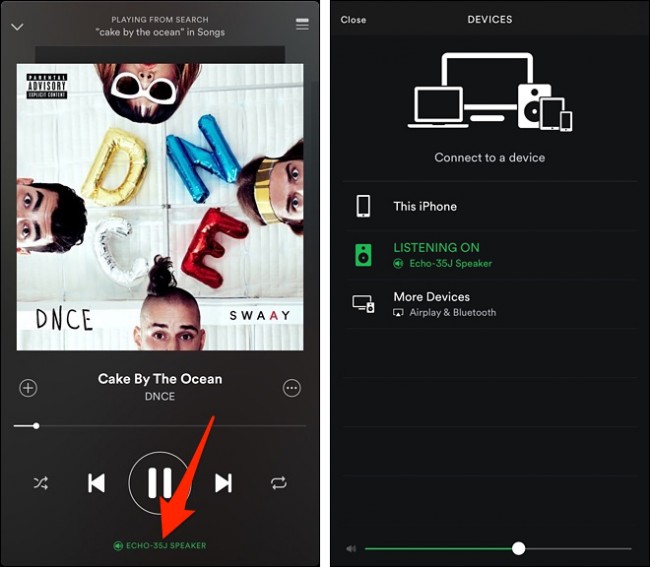
With Amazon Alexa app, Spotify premium users are able to listen to Spotify music on Amazon Echo speakers easily. Once connected Spotify account to Alexa, they'll play any Spotify song and playlist on Echo using Alexa voice commands. But for free users of Spotify, it's no easy job to stream Spotify to Amazon Alexa. However, that's not the end of the story. Here we'll show you the top 2 easy ways to play Spotify on Amazon Echo for both Spotify free and premium.

Part 1. Spotify Premium: Play Spotify on Amazon Alexa


Note: Only Spotify premium accounts are allowed to listen to Spotify with Alexa. And you can only link one Spotify account to Amazon.

If you have subscribed to Spotify premium plan, to set up Spotify on Amazon Echo, you need to connect your Spotify account to Amazon Alexa. You can do this by either asking Alexa to play something from Spotify, which will take you through the steps, or:


Step 1. Open the Amazon Alexa app on your smartphone or mobile device. Tap the Menu button in the top-left corner. Under the list of Alexa Devices, you'll see Account. In the Account list, tap on Music & Media.

Step 2. Now tap on Spotify. You can either link your existing Spotify account or sign up for one. Tap the link highlighted in blue, where it says link account on Spotify.com.

Step 3. Log into Spotify by entering your username and password, or tap Log in with Facebook if you have an account created through Facebook.

Step 4. Tap OKAY and your Spotify will be connected to Amazon Alexa.

Step 5. Now you can start playing any Spotify music on Amazon Echo using Alexa.

Here are some specific Spotify commands you can give Alexa to play the songs:

"Play [song name] by [artist]".
"Pause" pauses the currently playing track.
"Play [Discover Weekly] playlist".
"Volume up/down" turns volume up or down.
"Stop" stops the currently playing track.

Part 2. Spotify Free: Play Spotify on Amazon Echo


As mentioned above, only premium users are able to play Spotify music on Amazon Echo. But Spotify free users still get chance to stream Spotify on Echo without upgrading to premium membership. As you should know, Spotify uses DRM to protect free users from downloading Spotify songs offline. That's the reason why you can't play Spotify free on Amazon Echo. Therefore, to solve the problem, you should get rid of the DRM from Spotify music once and for all.


Fortunately, you can find many Spotify DRM removal tools that can remove DRM from Spotify and download music from Spotify for free on the Internet. Among them, TunesKit Spotify Music Converter is one of the best Spotify downloader that can download and convert Spotify songs and playlists from DRM-ed OGG Vorbis to MP3 and other DRM-free formats. Thanks to this smart software, you are able to play Spotify on Amazon Alexa or other common players even if you are using Spotify free.

Now the following guide will show you how to play Spotify music on Amazon Echo with Spotify free under the help of TunesKit Spotify Music Converter step by step.

Step 1. Launch TunesKit Spotify DRM Converter and it will load the Spotify desktop app simultaneously. Once it's loaded, go to Spotify store to find any track, album or playlist that you want to play on Amazon Echo. Then Simply add the song to the program by drag-and-drop.

Step 2. Once the Spotify songs are imported to TunesKit, you should click the top menu > Preferences to enter the output settings window, where you can set output format, bit rate and sample rate, as well as the conversion speed all according to your requirements.

Step 3. When everything is set OK, simply click the Convert button at the bottom right and it will begin to download music from Spotify while saving the tracks to DRM-free formats without losing any original quality. Once downloaded, you'll find those Spotify songs in history folder that are ready to be streamed to Amazon Echo.

How to Stream Spotify Music to Amazon for Playing on Echo


Make sure you've already installed Amazon Music app on your computer. Firstly, open the app, then drag the converted Spotify songs into the Upload selection in the right sidebar under Actions. Then select Songs > Offline. Click the upload icon next to the file you want to upload to Amazon.

Nov 30, 2018

Easy Tutorial to Convert Spotify Music to WAV Files


You may want to convert Spotify songs to lossless WAV format for burning them to CDs. But you should also know that Spotify music is encrypted with DRM which prevents you from downloading and converting Spotify track to WAV or other common formats. But don't worry. Here in this article, we'll show you how to convert Spotify to WAV format easily with the best Spotify to WAV converter.

What Is WAV?


WAV, or WAVE, is a Microsoft and IBM audio file format standard for storing an audio bitstream on PCs. It is the main format used on Windows systems for raw and typically uncompressed audio. WAV is widely used by the computer that cannot be understood by most CD players directly. To record WAV files to an Audio CD, it should be in the 44100 Hz, 16-bit stereo format. Because of the uncompressed audio, WAV files are always in a large size, making it not a good option to sharing online or playing in portable MP3 players. In spite of that, WAV format is often used by some radio broadcasters, like BBC Radio, Global Radio, and more.

Best Spotify to WAV Converter You'll Need


As you are not allowed to convert Spotify songs to WAV format directly, you'll need some 3rd-party tools to get it converted. Luckily, there are a large amount of Spotify to WAV converters that could do the job well. Among them, TunesKit Spotify Music Converter is the top-rated application that can easily download Spotify songs, albums and playlists as WAV losslessly. It works for both free and premium accounts of Spotify, as well as the latest Spotify app, Windows 10 and macOS Mojave.

How to Convert Spotify Music to WAV Step by Step


Once you have downloaded and installed TunesKit Spotify Music Converter on your PC, you can start converting Spotify tracks to WAV by following the steps below.

Step 1. Launch TunesKit Spotify Converter and wait till it completely loaded the Spotify app. Then log into your Spotify account and browse the songs or playlists in Spotify store. Drag any track or the whole playlist/album from Spotify to TunesKit conversion window. Or you can copy and paste the links of the Spotify streams into TunesKit.

Step 2. The default output format of TunesKit Spotify Converter is set as MP3. Anyway, you can simply click the top menu bar and choose Preferences to select the output format as WAV. Here you can also adjust other audio settings manually, such as bit rate, audio channel, sample rate, etc.

Step 3. Click Convert button of TunesKit and the program will start downloading the selected Spotify tracks to WAV file format at up to 5X faster speed. After the conversion, you can find the DRM-free WAVs in history folder. Now you can freely burn the WAV files to CDs or play the songs on any media player without limit.

Video Guide on Converting Spotify Songs to WAV


Nov 28, 2018

Most Popular Tips to Block Ads on Spotify


One of the most annoying experience that Spotify free users may feel is the randomly appearing ads during playback of the online tracks. That's a limit Spotify has threw to its free service. For premium subscribers, they will enjoy ad-free music on Spotify in extreme quality. To skip the ads in Spotify, free users can upgrade to premium plan by paying $9.99 monthly. Apart from that, there are many other ways to block Spotify ads you may not know. Here we'll list the 3 most popular methods to remove ads from Spotify with or without premium.

Solution 1. Block Spotify Ads by Upgrading to Premium


The most popular way to block ads on Spotify is to upgrade Spotify free account to Premium version, which will require $9.99 subscription fee per month. After subscribing to Spotify Premium, you'll be able to listen to any Spotify track, album and playlist without ads in 320kbps high quality, as well as to download Spotify music offline on any device.

How to Get Spotify Premium


Step 1. Go to homepage of Spotify official site. Find "Get Spotify Premium" option from the page and click it.

Step 2. Spotify offers a 3-month trial plan that costs $0.99 a month for you to try the service before you decided to keep the premium subscription. Choose your payment method and enter the info and details as it requires.

Step 3. Click "Start My Spotify Premium" button at the end of the page to complete the subscription.

Solution 2. Make Spotify Ad Free with Spotify Ad Blocker


Blocking ads in Spotify has become possible even without getting Spotify premium account if you got an effective Spotify ad blocker. With these powerful tools, you'll be able to download ad-free Spotify music offline with even free account.


TunesKit Spotify Music Converter is such a smart ad blocker for Spotify that can remove the ads from Spotify songs while downloading Spotify music as MP3. It works with both free and premium users and only needs a few clicks to download any Spotify track, album or playlist offline. Besides, while removing ads, it also keeps the original sound quality and ID3 tags, including 320kbps bit rate, artist, title, date, etc. of every piece of Spotify songs.

How to Remove Ads from Spotify with TunesKit Spotify Ad Blocker


Step 1. Install TunesKit Spotify Music Converter on your computer. It works with the latest Mac and Windows OS, as well as the most up-to-date Spotify app.

Step 2. Open the software and it will launch Spotify app simultaneously. After that, browse the Spotify account and drag any track/album/playlist to TunesKit interface.

Step 3. Click "Preferences" from top menu bar and select the output format as MP3 or AAC, WAV, FLAC, etc. Make changes to the bit rate, sample rate, audio channel if you like.

Step 4. Click "Convert" button and wait for a while till the process completes. Then you'll be able to enjoy the ad-free Spotify songs offline on any MP3 player or mobile device.

Block Ads in Spotify with Free Spotify Ad Blocker


EZBlocker is an ad muter for Spotify which blocks ads on Spotify from loading. To be specific, whenever an ad loads upon the playback of Spotify track, EZBlocker will pause Spotify in the background until the ad is over. As a pure ad blocking tool for Spotify, EZBlocker only mutes the ads without affecting other sounds at all.

There's no setup required. To use the app, you can simply drag it to any folder and run. The following guide will show you how to install EZBlocker on your computer in order to mute ads in Spotify.

Step 1. Download EZBlocker from its official site. Make sure you are running Windows 8/10 or Windows 7 with .NET Framework 4.5+.

Step 2. Right click the EZBlocker.exe and select "Run as Administrator".

Step 3. Then it will start Spotify app automatically. You can start playing any track and it will then mute the ads from Spotify music in the background.

Solution 3. Block Ads on Spotify by Modifying Host File


Another popular way to block ads for Spotify is revising the host file on your Windows or Mac.

Step 1. If you are using Windows OS, go to C:\Windows\System32\drivers\etc\hosts. For Mac users, you should open the host file in Terminal by typing vim /etc/hosts or sudo nano /etc/hosts.

Step 2. Open the host file and then paste this list at the bottom of the file. Save the edited file.

Step 3. Launch Spotify and start playing the track or playlist with no ads.


Nov 20, 2018

Can I Get Spotify on iPod Nano? It's Easy!

I cannot sync Spotify playlist to my iPod nano. Why? I can do it a while back. Did I miss anything? After connecting iPod to Spotify app now, the device is not recognized properly. Any suggestion?

That's a common problem iPod nano users may encounter when trying to sync Spotify to iPod. That's mainly because Spotify stopped supporting older iPod models, including iPod nano, shuffle, and classic sometime ago. Currently, Spotify is only compatible with iOS 7 and later. If you need to listen to Spotify songs on iPod, you are required to get iPod touch 5th generation or higher.

But you still get chances if you want to play Spotify on iPod nano or shuffle. The following article will provide the best solution to download and get Spotify on iPod shuffle/nano for offline listening.

Useful Tool to Help You Sync Spotify to iPod Nano


To fix the issue and make Spotify playable on iPod, something called Spotify music downloader comes to help. With such tools, you can easily download Spotify songs offline and listen to them on all iPod models, including iPod nano, iPod shuffle and iPod classic. Here we'd like to share you with the most-rated solution, that is, TunesKit Spotify Music Downloader.


As you should know, Spotify tracks are protected by DRM technology that restricts you from playing Spotify songs on iPod nano or other non-approved devices. Now with this Spotify downloader, you can completely delete the DRM from Spotify and save the DRM-free Spotify songs to iPod as MP3 or AAC format.

Note: Before getting started to download and sync Spotify to iPod, make sure you have the following required tools ready.

Tools You'll Need

1. An iPod nano, shuffle or classic
2. A Computer running Windows XP or Mac 10.8 or higher
3. The latest version of Spotify desktop app installed on your PC

How to Download Spotify Music to iPod


Step 1. Launch TunesKit Spotify Music to iPod Converter. Then drag any track or playlist from Spotify app to the software.
Step 2. Click Preferences menu to select output format as MP3 or AAC.
Step 3. Start to download Spotify as MP3/AAC by clicking Convert button.

Simple Tutorial to Stream Spotify Songs to iPod


After downloading the Spotify music offline, you should follow these simple steps to add and sync the Spotify songs to iPod with iTunes:

Step 1. Open iTunes on your computer and import the downloaded Spotify songs in MP3 or AAC format into iTunes library by clicking the top menu File > Add to Library.

Step 2. Plug iPod nano or shuffle into PC via USB cable. In iTunes, click the iPod icon to load the info of your iPod model.

Step 3.
Click "Music" > "Sync Music" > "selected playlists, artists, albums, and genres". Under "Playlists", check "Recently added" where the downloaded Spotify songs are saved. Then hit the "Apply" button and the Spotify tracks will be automatically synced to your iPod as expected.


Nov 16, 2018

Spotify Web Player Not Working? Try These Fixes!


Thanks to Spotify web player, we can easily access any online stream and playlist via web browsers, like Chrome, Safari, FireFox, and so forth. But on the contrary, there are some problems of Spotify web player that may hurt our listening experience. For instance, sometimes the web player of Spotify might stop working suddenly without any sign. The most common problem is that when clicking the Play button of the web player in Chrome, there's no response. So how to fix these issues?

Don't worry. The following article is to provide quick solutions to solve "Spotify web player not working" error effortlessly.

Part 1. How to Enable Spotify Web Player


If it's your first time to use the Spotify web player, then you'll need to enable the service in your browser manually. Otherwise, you may receive the error message like "Playback of protected content is not enabled" when you try to use the web player. Here we'll take Google Chrome as an example to show you how to enable it.

Step 1. Open Chrome on your device. Then visit: chrome://settings/content.

Step 2. Under Protected content, enable the option of "Allow site to play protected content".

Step 3. Go to https://open.spotify.com to access Spotify web player. Then log into your Spotify account as required.

Now you should be able to browse and listen to any Spotify track and playlist via web player as expected.

Part 2. Try These Fixes If Your Spotify Web Player Stopped Working


If your Spotify web player doesn't work well as expected, you are highly suggested to try these proven ways listed below.

Update Web Browser


Sometimes an outdated browser could prevent you from using Spotify online player. Since Spotify gets regular updates, it's necessary to update your web browser too. So if your Spotify web player stops working, the first thing you should do is check your browser and update it to the latest version.

Check Internet Connection & FireWall


If you can't connect to Spotify, you should check whether there's any problem regarding your Internet connection. To clarify, try to visit other websites from the browser. If failed, then you are suggested to restart the modem or wireless router and then refreshing Spotify.

But if Spotify web player is the only site you can't access, then it might be blocked by the firewall settings. In this case, simply disable firewall on your computer and see whether Spotify web player could work again.

Clean Up Browser Cookies


While you are browsing the Internet, the browser will automatically record your trace by generating cookies, so that you can easily access the same website when you visit it again. However, cookies cause problems too. If you find there's something wrong with Spotify when using the web player, you can also delete the browser cookies/caches for a try.

Use Another Web Browser


If unfortunately all the above tips don't work, the other suggestion you could try is switching to a different browser that's compatible with Spotify, including Chrome, Edge, FireFox, Safari, and others.


Part 3. Final Solution to Fix Spotify Web Player Not Working

Since the reasons that could cause the playing error of Spotify web player are hard to identify, you may keep meeting such kind of problem during the use of the app. To solve it once and for all, here we are offering an ultimate method that can fix the Spotify web player not working issue permanently.

The only tool you'll need is called TunesKit Spotify Music Downloader, which is able to extract and download Spotify songs/albums/playlists by converting the DRM-protected OGG Vorbis format to common MP3, AAC, WAV, FLAC and others. It works with both premium and free accounts of Spotify. That's to say, it lets you listen to Spotify offline even without premium.


Now just follow the complete guide below to see how to use this smart Spotify downloader to download and play Spotify songs on any media player and device.

Step 1. Open TunesKit Spotify Music Converter. Then the Spotify app will be loaded simultaneously. After that, log into your Spotify account and drag any playlist or track from the Spotify store to TunesKit window for downloading.

Step 2. Go to Preferences menu of TunesKit after loading the Spotify songs. Here you can select the output format, such as MP3, AAC, WAV, FLAC, M4A, and M4B. You can also change other parameters like audio codec, bit rate, etc. if you like.

Step 3. Now go back to the main interface of TunesKit, then click the Convert button to start extracting and downloading Spotify songs. Once the process is over, tap the "history" icon to locate the downloaded tracks or playlists. Then you can freely share and play those offline songs on non-Spotify web player without problem.


Nov 15, 2018

How to Listen to Spotify Offline for Free (100% Working)

Spotify offers paid users the Offline Mode so that they could easily download and sync Spotify songs on devices for offline listening. It's a convenient feature as there could be Internet connection error sometimes. However, even so, premium users may still fail to listen to Spotify offline due to some technical issues. To solve the problem efficiently, here we've collected some alternative ways to let you listen to Spotify offline even without premium account at any time.

Ultimate Tool You'll Need to Listen to Spotify Offline without Premium

For free subscribers of Spotify, this method will enable you to listen to Spotify offline without upgrading to premium membership. If you are paid users, you can also try this way or simply download and enjoy Spotify playlist and album using offline mode on Spotify. Compared with the default offline mode, the solution recommended here would be ever-lasting and more cost-effective. So no matter what subscription of Spotify you are using, you are highly suggested to follow this method in order to play Spotify music offline for free.


In this case, you'll need to install a 3rd-party Spotify music downloader like TunesKit Spotify to MP3 Converter. It's a professional Spotify DRM removal tool that can download and convert any Spotify track, album, and playlist from OGG Vorbis to MP3, AAC, WAV, and more common formats. Once downloaded, you can save the MP3 songs on any device for offline listening.

Guide: How to Download Spotify Music Offline with TunesKit Spotify Downloader


This is the full tutorial to show you how to download Spotify offline for free with TunesKit Spotify Music Converter. After that, you can listen to the music on any device as you wish without limit.

Step 1. Open TunesKit Music Converter for Spotify on your computer desktop by double-clicking the software icon. Then it will load Spotify app on the drive automatically. Once done, navigate to Spotify account and choose the target songs or playlists you want to listen to offline. Then simply drag the tracks to TunesKit downloading window as shown above.

Step 2. Now go to the top menu of TunesKit Spotify Music Converter and click Preferences. Then you'll enter the interface where you can set the output profile freely. Here you can choose output format, including MP3, M4A, M4B, AAC, WAV and FLAC. Besides, you are allowed to customize the output audio codec, bit rate, sample rate, conversion speed, etc. if you want to make the music sounds better.

Step 3. After everything, click OK button to go back to the main interface of TunesKit Spotify Converter. Then find the Convert button and click it to begin downloading the Spotify songs for offline listening.

More Tips: How to Use Offline Mode on Spotify (For Premium Users Only)


In case you still want to use the default way to listen to Spotify offline, here in this part, we'll show you the complete guide of Spotify offline mode and how to download Spotify offline using offline mode with Spotify premium subscription.


Listen to Spotify Offline with Spotify Premium on iOS/Android


Step 1. Connect your device to Internet. Then open Spotify app on the phone and sign into your premium account. Browse and find a track or an album you want to enjoy offline.

Step 2. Tap the Download button at the top of the playlist and wait till the songs are downloaded completely.

Step 3. Disconnect the Internet on your Android or iOS device. Then you'll automatically enter the Offline Mode and keep accessing those offline songs on your phone.

Listen to Spotify Offline with Premium on PC/Mac


Step 1. Launch Spotify app on your computer and log into your premium membership.

Step 2. Browse the Spotify music store to locate any song or playlist you want to download offline.

Step 3. Toggle the Download option to start downloading the target track or album.

Step 4. Go to File/Apple menu of Spotify app and choose Offline Mode option. After that, you'll be able to listen to the downloaded Spotify music offline.