Showing posts with label ios11. Show all posts

Aug 20, 2020

Easily Fix iPad White Screen in 5 Ways

 iPad getting stuck on the white screen is one of the common issues among diverse kinds of iOS problems. There are many reasons behind it, for example, iOS update failure, software errors. But despite the causes that lead to this matter, it is fixable and next we are going to introduce the 5 most effective and useful solutions to work out this trouble.

Way 1: Hard reboot your iPad

Generally speaking, force restarting your device is a simple yet effective method to solve iOS stuck problems. iPad stuck on a white screen is no exception. You can simply hold the Power button and Home button simultaneously for about a few seconds until the Apple logo shows up. It will restart again and you can check whether the problem is solved.

Way 2: Try the three-button trick

This method is not always working, according to the reports from many iOS users. But it still worth a try, what if you succeed? The steps are very simple. Just press and hold the Home button, Volume Up button, and then Power button for a while and wait until the white screen on your iPad disappeared. 10 seconds later, the Apple logo will appear and your iPad will reboot again.

Way 3: Use TunesKit iOS Repair with almost 100% success rate

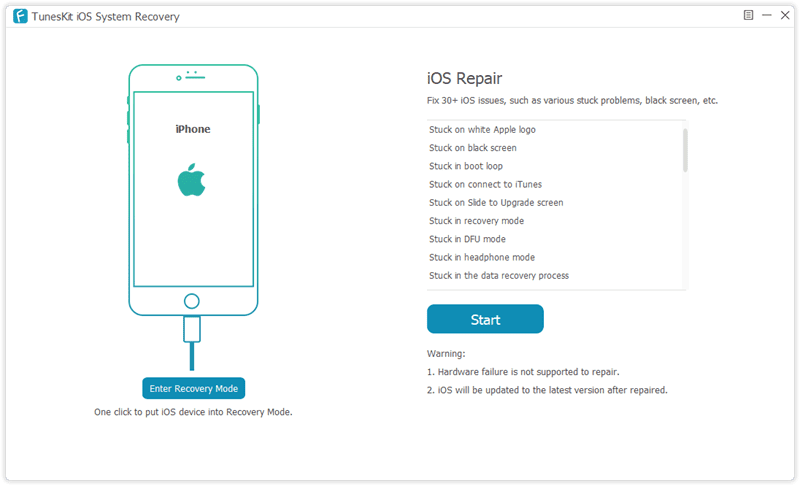
After trying to hard reset your device by using the two methods above, if the white screen problem still exists, you can consider using a professional iOS system recovery tool to fix it. TunesKit iOS System Recovery is such a comprehensive and efficient iOS repair program that is specially developed to fix up to 30 iOS-related issues. These problems include iPhone stuck on the white Apple logo, iPad won't turn on, iPhone black screen of death, blue screen, red screen, etc. The most powerful characteristic of this tool is that you will never worry about the data loss when using it to fix iOS system problems. What's more, it supports all iOS including the latest iOS 12 and almost all models of iPhone, iPad, iPod touch.

Step 1: Launch TunesKit iOS System Recovery program and use a USB cord to connect your iPad to the computer. Then click the Start button and choose the Standard Mode which will not cause any data loss. Press the Next button to continue.
Step 2: Now your need to check your device info such as model name, iOS version, etc. If nothing is wrong, you can simple hit the Download button to ask TunesKit to download the firmware package you need.

Step 3: Once the download and verification of firmware package is completed, you can start fixing white screen problem by clicking the Repair button. Wait until the process bar ends. Remember not plug your device during the process, or your device may get bricked.

Way 4: Put your iPad into recovery mode

Another solution to fix the iPad stuck on the white screen is to try restoring your iPad with iTunes. It will reinstall iOS on the iPad, so all the data your device will be effaced, but you can use TunesKit iPhone Data Recovery to get them back. Or if you don't mind, you can follow the quick steps below.

Step 1: Open iTunes and update it to the latest version. Connect iPad to your computer via a USB cable;

Step 2: Since your iPad is in a white screen state, it can't be detected by iTunes. You need to put it into the recovery mode. You can first hold the Power and Home buttons at the same time for about 10 seconds, and release the Power button and only hold the Home button until you see the Apple logo. Keep holding it until the Connect to iTunes icon appears;

Step 3: Once your device entered the recovery mode successfully, choose Restore iPad and wait until the process is finished. You can now set up your iPad as a new device.


Way 5: Restore your device in DFU mode

Alternatively, you can also put your iPad into the DFU (Device Firmware Update) mode and then use iTunes to restore it. Also, all the data on the iPad will be erased. Here is how to fix the iPad white screen problem using this method.

Step 1: Connect iPad to the computer and then launch iTunes;

Step 2: Switch off the iPad and hold the Power button and Home button simultaneously for 10 seconds. Then release the Power button and keep holding the Home button. If you see the "Plug into iTunes" message, you need to repeat the process; if the screen turns black, your iPad has entered the DFU mode now;

Step 3: iTunes will ask you to Restore the iPad and confirm the action. After it's done, your problem should be solved.

Verdict

Now you have known the best and most full solutions to fix your iPad screen becomes white problem, quickly give it a shot, and if you have any questions or confusion during the process of repairing, welcome to connect us or leave your comment below.


Jun 8, 2017

WWDC 2017 Keynote: iOS11, HomePod, macOS 10.13 and other Biggest Announcements

Apple’s WWDC 2017 keynote just wrapped, where key executives Craig Federighi, Phil Schiller, and, of course, Tim Cook, took the stage to announce updates headed to iPhones, MacBooks, Apple TV, and more.

The rumors for this year’s WWDC came in the final hours leading up to the event, with hints of new hardware and, of course, software news for developers to help prep the release of consumer updates in the fall. We were also anticipating the company to finally take Siri up against the likes of Amazon Alexa and Google Assistant on the hardware and smart home front — and it looks like it arrived in the form of the Apple HomePod.

Here are the highlights from today’s keynote.

Apple Announces HomePod Speaker to Take on Amazon Echo and Sonos


So let’s get the Siri speaker rumors out of the way: it turns out Apple wasn’t quite aiming its smart speaker to go against just Amazon Echo and Google Home, but also the Sonos home entertainment speakers. Called the HomePod, it uses spacial awareness to tune and better fill the room with sound based on the space it’s in. It also has a “Musicologist” feature that works with Apple Music to stream the music you ask the speaker’s built-in Siri to play. You can even ask more complex, music-related questions like “Who’s the drummer in this song?” or “What album came out on this day 20 years ago?”


The HomePod will be available in two colors — black or white — and will integrate Siri in an Amazon Echo / Google Home-like use case. You can ask it to control smart home devices and check the day’s weather and news briefings. Apple priced the HomePod at $349, with plans to ship it in December first to customers in the US, UK, and Australia. It will enter more international markets next year. Check out our hands-on with the HomePod for a first look.

iMac Pro Introduced, Alongside Updated Desktop Specs


Apple’s introducing updated iMac desktops with improved Retina displays, graphics boosts, Kaby Lake processors, and USB-C. They will also support graphics for VR content creation. During the keynote, Apple demoed this by showing off a VR game featuring Darth Vader, a lightsaber, and TIE fighter.


There’s a new iMac Pro as well, with a 5K display with improved cooling capacity, and 8-core Xeon processor (upgradeable up to 18-core,) up to 4TB of SSD, up to 128GB of ECC memory, four Thunderbolt 3 ports, and built-in 10GB Ethernet.

The new iMac starts at $1,099 for the 21.5-inch model, and $1,299 for the 4K model. MacBooks will get upgraded, too; the MacBook Pro starting at $1,299, which includes the updated Kaby Lake processor. The iMac Pro starts at $4,999, and ships in December.

iOS 11 Comes with Improved Siri, Automatic Do Not Disturb Driving Mode, iMessage Features


The new version of iOS software has some pretty social updates, such as an update to Siri that has improved speech, the ability to help translate sentences into different languages, and on-device learnings that suggest actions based on what you do on your iPhone or iPad. iMessages now live in the iCloud, with synchronized conversations that you can delete from any device you own that are under the same account. You can also pay and receive payments from contacts through iMessage — so no more Venmo or Square Cash if you don’t want to download extra apps.

Photo capture is also improved, with better low-light performance, and the ability to edit Live Photos so you can change the key still image or trim the video. There’s a new control center as well, which relies a lot on 3D Touch and condenses most controls on the lower half of the screen without looking cluttered.

There’s also a new safety feature that recognizes when a user is driving and automatically turns on Do Not Disturb to prevent distractions. When you’re available to be more social, you can now head to Apple Music to see what your friends are listening to and check out shared playlists.

Lastly, the App Store has been redesigned for better discovery and a How To section for tips on how to use various popular apps. Apple’s also bringing back the “App of the Day” section to promote users to open the App Store more frequently.

iOS 11 for iPad Brings Windows-Esque Multitasking Abilities


On the iPad, iOS 11 improves multitasking that lets users pull up an app from the dock and drag it onto the screen to split the screen. Similar to what you can do on a MacBook, you can use touch to hold and drag folders, files, or photos and drop them in a different app such as Mail or iMessage. Handwritten text from an Apple Pencil will also be searchable from the Notes app. Apple claims it uses “deep learning” to recognize penmanship.

Apple also talked briefly about the Files app that leaked a few hours before the keynote kicked off, which is just a management system that you can use to sort files by size and date, similar to how you’d go through your files on a desktop or laptop.

Apple Lets Developers Make More Immersive Apps with Arkit


Just as Lauren Goode predicted, Apple introduced a new ARKit to let developers build augmented reality apps for the iPhone. The kit can help find planes, track motion, and estimate scale and ambient lighting. Popular apps like Pokémon Go will also use ARKit for improved real-time renders.

Rather than requiring external hardware like Microsoft’s HoloLens, Apple seems to be betting on ARKit to provide impressive quality imaging through a device most people already own. We’ll know more on how the quality actually compares when we get to try it out ourselves.

10.5-inch iPad Pro Introduced


The iPad Pro will now be available in three different sizes, with a new 10.5-inch model introduced today. There’s a 12-megapixel camera, just like the iPhone 7, with a 7MP selfie cam. It supports USB 3.0 and has 10 hours of battery life.

There’s a new feature called ProMotion which reduces the Apple Pencil’s latency to 20 milliseconds. It can automatically adjust the refresh rate based on what you’re watching (fast-moving video versus still image). ProMotion also doubles the refresh rate to up to 120Hz.

The 10.5-inch iPad Pro will be available starting with a 64GB configuration at $649; it’s available to order now and shipping next week.

The New MacOS Is Named High Sierra. Yep


The upcoming version of macOS will be called High Sierra, and it comes with updates to Safari that help block site trackers and autoplaying videos. Apple’s also added new photo-editing tools like curves (helpful for those who don’t have Adobe Photoshop), and it has better filtering tools to sort images by keywords or faces.

An updated file management system will be a part of the update as well, which speeds up directory cloning with native encryption. On the graphics end, there’s a second version of Metal, support for VR, and a Metal 2 developer kit that you can order with an AMD GPU to tune apps for external graphics.

WatchOS 4 Brings New Siri Watchface, Fitness Coaching, and A New App-Browsing UI


An update for the Apple Watch is coming which introduces new faces that display different types of informations, such as Siri reminders or more visual ones that feature Toy Story characters a la Mickey Mouse. There’s also a fitness-focused update, which includes monthly challenges to encourage the wearer to get more active and NFC-enabled data sharing where the user can tap their Apple Watch on gym equipment to pair the two, sharing the most accurate calorie burn and activity information.

There’s also a new Music app to make finding and playing music via the Apple Watch more visual — you can now use a new dock layout to scroll through recently opened apps.

Original source: https://www.theverge.com/2017/6/5/15722994/apple-wwdc-2017-news-highlights-recap.