iPad getting stuck on the white screen is one of the common issues among diverse kinds of iOS problems. There are many reasons behind it, for example, iOS update failure, software errors. But despite the causes that lead to this matter, it is fixable and next we are going to introduce the 5 most effective and useful solutions to work out this trouble.

Way 1: Hard reboot your iPad
Generally speaking, force restarting your device is a simple yet effective method to solve iOS stuck problems. iPad stuck on a white screen is no exception. You can simply hold the Power button and Home button simultaneously for about a few seconds until the Apple logo shows up. It will restart again and you can check whether the problem is solved.
Way 2: Try the three-button trick
This method is not always working, according to the reports from many iOS users. But it still worth a try, what if you succeed? The steps are very simple. Just press and hold the Home button, Volume Up button, and then Power button for a while and wait until the white screen on your iPad disappeared. 10 seconds later, the Apple logo will appear and your iPad will reboot again.
Way 3: Use TunesKit iOS Repair with almost 100% success rate
After trying to hard reset your device by using the two methods above, if the white screen problem still exists, you can consider using a professional iOS system recovery tool to fix it. TunesKit iOS System Recovery is such a comprehensive and efficient iOS repair program that is specially developed to fix up to 30 iOS-related issues. These problems include iPhone stuck on the white Apple logo, iPad won't turn on, iPhone black screen of death, blue screen, red screen, etc. The most powerful characteristic of this tool is that you will never worry about the data loss when using it to fix iOS system problems. What's more, it supports all iOS including the latest iOS 12 and almost all models of iPhone, iPad, iPod touch.Step 1: Launch TunesKit iOS System Recovery program and use a USB cord to connect your iPad to the computer. Then click the Start button and choose the Standard Mode which will not cause any data loss. Press the Next button to continue.
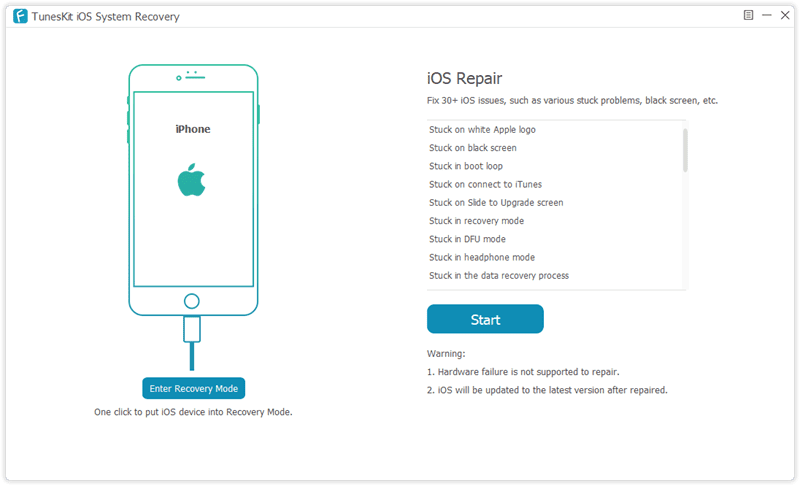

Step 3: Once the download and verification of firmware package is completed, you can start fixing white screen problem by clicking the Repair button. Wait until the process bar ends. Remember not plug your device during the process, or your device may get bricked.

Way 4: Put your iPad into recovery mode
Another solution to fix the iPad stuck on the white screen is to try restoring your iPad with iTunes. It will reinstall iOS on the iPad, so all the data your device will be effaced, but you can use TunesKit iPhone Data Recovery to get them back. Or if you don't mind, you can follow the quick steps below.Step 1: Open iTunes and update it to the latest version. Connect iPad to your computer via a USB cable;
Step 2: Since your iPad is in a white screen state, it can't be detected by iTunes. You need to put it into the recovery mode. You can first hold the Power and Home buttons at the same time for about 10 seconds, and release the Power button and only hold the Home button until you see the Apple logo. Keep holding it until the Connect to iTunes icon appears;
Step 3: Once your device entered the recovery mode successfully, choose Restore iPad and wait until the process is finished. You can now set up your iPad as a new device.

Way 5: Restore your device in DFU mode
Alternatively, you can also put your iPad into the DFU (Device Firmware Update) mode and then use iTunes to restore it. Also, all the data on the iPad will be erased. Here is how to fix the iPad white screen problem using this method.Step 1: Connect iPad to the computer and then launch iTunes;
Step 2: Switch off the iPad and hold the Power button and Home button simultaneously for 10 seconds. Then release the Power button and keep holding the Home button. If you see the "Plug into iTunes" message, you need to repeat the process; if the screen turns black, your iPad has entered the DFU mode now;
Step 3: iTunes will ask you to Restore the iPad and confirm the action. After it's done, your problem should be solved.

Verdict
Now you have known the best and most full solutions to fix your iPad screen becomes white problem, quickly give it a shot, and if you have any questions or confusion during the process of repairing, welcome to connect us or leave your comment below.


